



Approximately 26% of adults in the United States live with some form of disability, according to the Centers for Disease Control and Prevention. These individuals face barriers when digital content fails to meet accessibility standards—content that cannot be perceived by screen readers, interfaces that cannot be operated via keyboard alone, information presented using color as the sole visual means of conveying meaning, or interactive elements that create traps preventing navigation.
The legal landscape reinforcing accessibility compliance has intensified. Title II of the Americans with Disabilities Act (ADA) requires that state and local governments, including public schools and universities, provide equal access to programs and services, which courts have interpreted to include digital content and technology. Section 504 of the Rehabilitation Act and Section 508 standards further mandate accessibility for institutions receiving federal funding. Recent Department of Justice guidance and court rulings have consistently held educational institutions accountable for digital accessibility failures.
Beyond legal compliance, accessible design delivers benefits extending to all users. Clear headings improve navigation for everyone, not just screen reader users. Captions benefit students in noisy environments or non-native speakers, not just individuals who are deaf or hard of hearing. Keyboard navigation assists users with motor impairments while also serving power users who prefer keyboard shortcuts. Universal design principles create better experiences for entire communities while ensuring legal compliance and ethical responsibility.
This comprehensive guide examines each WCAG 2.2 success criterion at Level A and Level AA, explaining what each requirement means, why it matters, and how educational institutions can achieve compliance in their digital recognition systems, websites, and interactive displays.
Understanding WCAG Structure and Conformance Levels
Before examining specific success criteria, understanding WCAG’s organizational structure clarifies how requirements build progressively from basic to comprehensive accessibility.
The Four Principles of WCAG
WCAG organizes all requirements under four fundamental principles known as POUR:
Perceivable: Information and user interface components must be presentable to users in ways they can perceive. Content cannot be invisible to all of a user’s senses—if a user cannot see, alternative presentation through hearing or touch must exist.
Operable: User interface components and navigation must be operable. Users must be able to interact with all controls, and interfaces cannot require interactions that users cannot perform.
Understandable: Information and user interface operation must be understandable. Content must be readable, and interfaces must operate in predictable ways that users can learn and remember.
Robust: Content must be robust enough that it can be interpreted reliably by a wide variety of user agents, including assistive technologies. As technologies evolve, content should remain accessible.
Conformance Levels Explained
WCAG defines three conformance levels representing increasing degrees of accessibility:
Level A: The minimum level of conformance. Failure to meet Level A criteria creates severe accessibility barriers preventing some users from accessing content entirely. Level A represents the bare minimum, and most accessibility advocates consider it insufficient for comprehensive accessibility.
Level AA: The standard target for most organizations. Level AA addresses the most common and significant barriers for people with disabilities. Courts, regulations, and accessibility experts generally consider Level AA the appropriate standard for legal compliance and meaningful accessibility.
Level AAA: The highest level of conformance. Level AAA represents best practices but includes requirements that cannot be satisfied for some types of content. Organizations typically do not target comprehensive Level AAA compliance, though specific AAA criteria may be appropriate for particular content.
For educational institutions, Level AA conformance represents the appropriate goal, ensuring legal compliance, meaningful accessibility, and inclusive design without requiring impractical measures applicable only to specialized content.
Level A Success Criteria: Foundation Requirements
Level A criteria represent essential accessibility requirements. Failure to meet these standards creates substantial barriers preventing access for users with disabilities.
1.1.1 Non-text Content (Level A)
What it requires: All non-text content presented to users must have a text alternative that serves the equivalent purpose, with specific exceptions for tests, sensory experiences, CAPTCHAs, and decorative content.
Why it matters: Users who are blind or have low vision rely on screen readers that convert text to speech or braille. When images, graphics, charts, or icons lack text descriptions, screen reader users encounter meaningless placeholders like “image324.jpg” or complete silence where visual content exists. This criterion ensures that every meaningful visual element has a text equivalent communicating the same information or function.
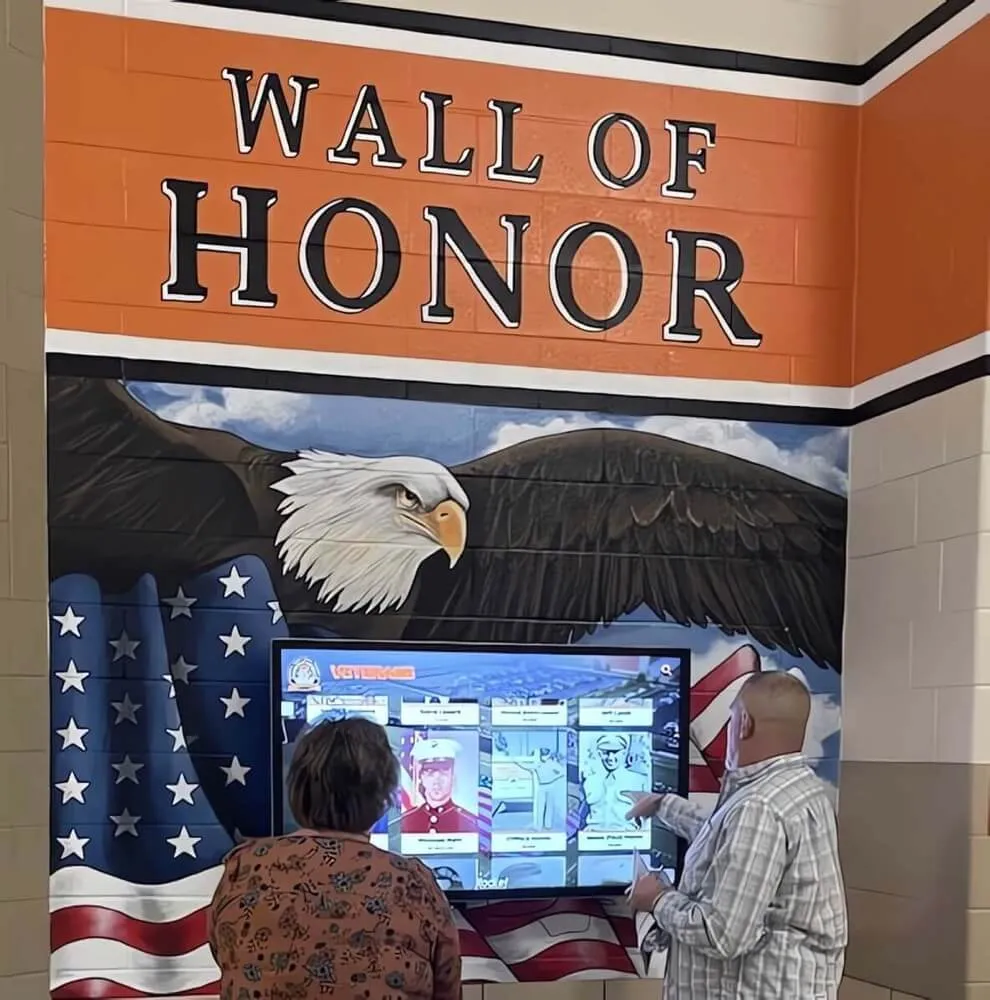
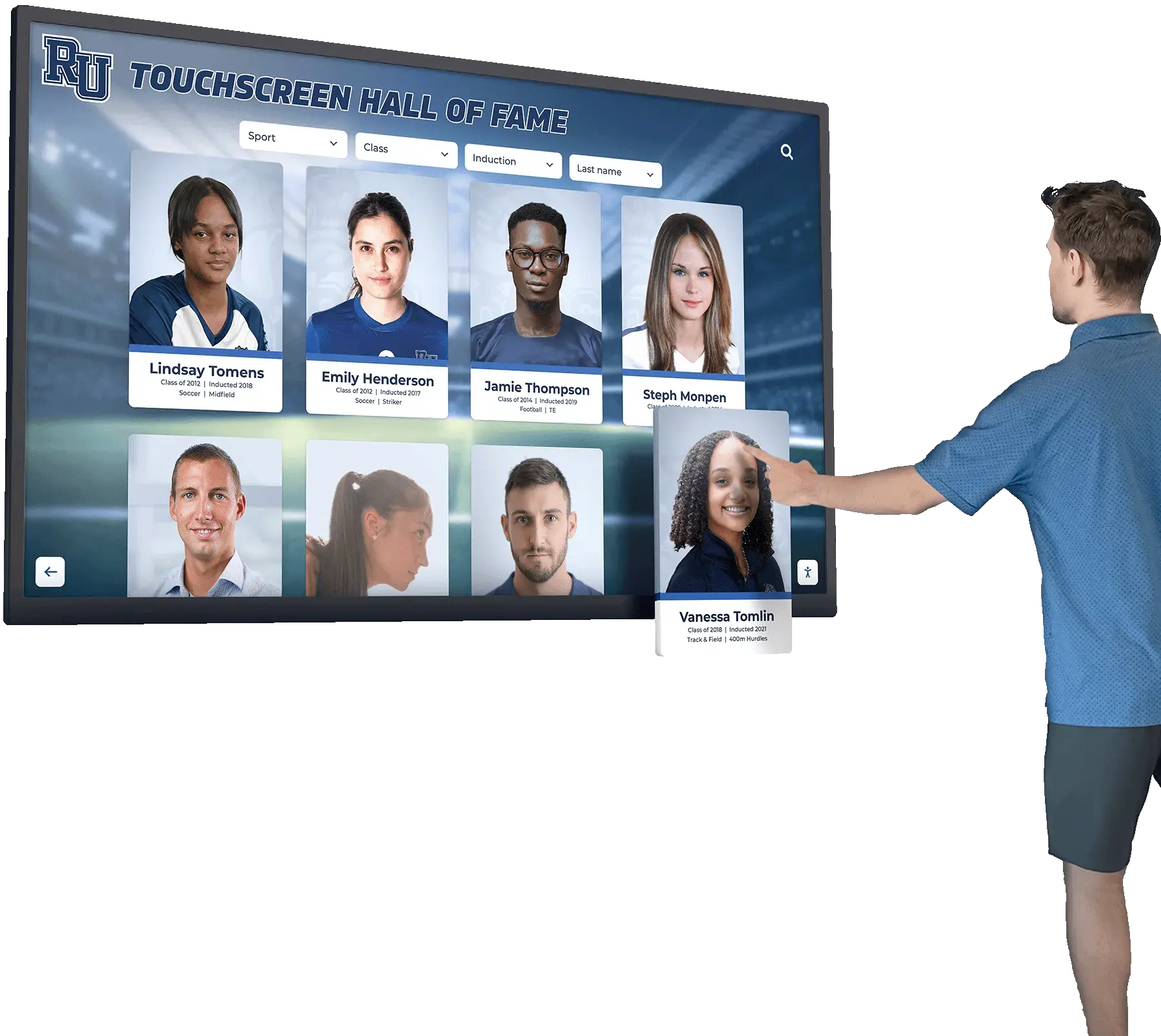

For educational recognition displays, this means every athlete photo must include alternative text describing the person and context, achievement badges require text alternatives explaining the accomplishment, and charts showing statistical records need text descriptions conveying the data. Schools implementing digital trophy cases must ensure assistive technology users receive equivalent information as sighted users.
Implementation approach: Use alt attributes for images, provide descriptive labels for form controls, ensure icons have text alternatives, and mark purely decorative images appropriately so assistive technologies ignore them.
1.2.1 Audio-only and Video-only (Prerecorded) (Level A)
What it requires: For prerecorded audio-only media, provide an alternative that presents equivalent information (transcript). For prerecorded video-only media, provide either an alternative or an audio track presenting equivalent information.
Why it matters: Audio content without text alternatives excludes users who are deaf or hard of hearing. Video-only content without audio description or text alternatives excludes users who are blind. Transcripts enable everyone to access time-based media content in formats they can perceive.
Schools sharing recognition videos, recording award ceremonies, or presenting historical audio interviews must provide text transcripts enabling all users to access the content. Video tours of facilities or silent video montages require audio descriptions or text alternatives.
Implementation approach: Create text transcripts for all audio content, provide audio descriptions or comprehensive text alternatives for video-only content, and make transcripts easily discoverable adjacent to media players.
1.2.2 Captions (Prerecorded) (Level A)
What it requires: Captions must be provided for all prerecorded audio content in synchronized media (video with sound), except when the media is clearly labeled as an alternative for text.
Why it matters: Captions provide access to video content for users who are deaf or hard of hearing. Beyond accessibility, captions benefit users in sound-sensitive environments, non-native speakers, and anyone preferring to consume video content silently. Research indicates that 85% of Facebook video is watched without sound, demonstrating caption utility extending beyond accessibility requirements.
Educational institutions sharing athletic game highlights, recording graduation ceremonies, publishing promotional videos, or creating day-in-the-life video content must include accurate captions synchronized with audio.
Implementation approach: Use professional captioning services for important content, leverage automatic captioning with human review for quality, ensure captions are accurate and synchronized, and include speaker identification and sound descriptions where relevant to understanding.
1.2.3 Audio Description or Media Alternative (Prerecorded) (Level A)
What it requires: Provide an alternative for time-based media or audio description of prerecorded video content in synchronized media.
Why it matters: When videos convey information visually that is not available in the audio track, users who are blind or have low vision miss critical content. Audio description narrates important visual elements, actions, and context not apparent from dialogue and sound effects alone.
Videos showing recognition ceremonies where visual elements matter—students receiving awards, trophy presentations, or facility tours—require audio description ensuring all users understand the complete experience.
Implementation approach: Create extended audio descriptions narrating visual content during natural pauses, provide text transcripts describing all visual information, or offer separate audio-described versions of videos when descriptions cannot fit in natural pauses.
1.3.1 Info and Relationships (Level A)
What it requires: Information, structure, and relationships conveyed through presentation must be programmatically determinable or available in text.
Why it matters: Visual presentation often conveys structure through formatting—headings appear larger, lists use bullets or numbers, tables organize data in rows and columns, and form fields group logically. When structure exists only visually without semantic markup, screen readers cannot convey organization to users, making content confusing and difficult to navigate.
Digital recognition systems must use proper heading hierarchy (H1, H2, H3) for different content sections, mark lists semantically rather than simulating list appearance, structure data tables properly with header associations, and use form labels connected programmatically to input fields. An interactive historical archive presenting information hierarchically must expose that structure to assistive technologies, not just visual display.
Implementation approach: Use semantic HTML elements properly (headings, lists, tables, form controls), ensure CSS presentation does not remove semantic structure, provide labels and instructions for all form inputs, and use ARIA attributes when semantic HTML is insufficient.
1.3.2 Meaningful Sequence (Level A)
What it requires: When the sequence in which content is presented affects its meaning, a correct reading sequence must be programmatically determinable.
Why it matters: Visual layout can present content in specific orders that convey meaning, but screen readers follow DOM order, which may differ from visual presentation. When visual and programmatic order diverge, screen reader users encounter content in sequences that make no sense, undermining comprehension.
Recognition displays presenting timeline content chronologically, showing achievement progressions, or using multi-column layouts must ensure that programmatic order matches meaningful visual order so assistive technology users experience logical content sequences.
Implementation approach: Ensure DOM order matches intended reading order, test keyboard navigation follows logical sequence, avoid using absolute positioning or floats that create disconnects between visual and programmatic order, and validate screen reader experiences match intended content flow.
1.3.3 Sensory Characteristics (Level A)
What it requires: Instructions for understanding and operating content must not rely solely on sensory characteristics like shape, size, visual location, orientation, or sound.
Why it matters: Instructions like “click the round button” or “see the column on the right” or “listen for the tone” assume users can perceive specific sensory characteristics. Users who are blind cannot see shapes or locations. Users who are deaf cannot hear audio cues. Instructions relying exclusively on sensory characteristics exclude users who cannot perceive those characteristics.
Recognition interfaces must avoid instructions like “select items from the blue column” or “touch the large search icon” without providing additional identifying information. Instead, use “select items from the athletics category” or “use the search button located in the navigation bar.”
Implementation approach: Provide multiple ways to identify interface elements (label plus location, icon plus text, color plus pattern), ensure instructions reference programmatic information available to assistive technologies, and test whether instructions work for users who cannot perceive specific sensory characteristics.
1.4.1 Use of Color (Level A)
What it requires: Color must not be used as the only visual means of conveying information, indicating an action, prompting a response, or distinguishing a visual element.
Why it matters: Approximately 1 in 12 men and 1 in 200 women have some form of color vision deficiency. When color alone conveys meaning—red text indicates errors, green shows success, blue links distinguish from black text—users with color blindness cannot perceive the distinction, missing critical information.
Recognition systems cannot rely solely on color to indicate categories, distinguish achievement levels, or show interactive elements. If color coding indicates different sports (red for football, blue for basketball), additional indicators like icons, labels, or patterns must accompany color.
Implementation approach: Use color plus text labels, icons, patterns, or borders to convey information, ensure links are identifiable through underlines or other non-color means, provide multiple visual cues for status and meaning, and test interfaces in grayscale to identify color-dependent information.
1.4.2 Audio Control (Level A)
What it requires: If audio plays automatically for more than 3 seconds, provide a mechanism to pause or stop the audio, or control volume independently from overall system volume.
Why it matters: Automatically playing audio interferes with screen reader output, making it impossible for users relying on text-to-speech to hear their assistive technology. Unexpected audio also disrupts users in shared environments, those with cognitive disabilities who process competing audio streams poorly, and anyone needing a quiet browsing experience.
Recognition displays should avoid automatically playing audio without user initiation. When audio content is appropriate—oral histories, recorded speeches—provide clear controls enabling users to pause, stop, or adjust volume before playback begins.
Implementation approach: Do not auto-play audio, provide visible and keyboard-accessible controls before audio begins, ensure audio controls are labeled clearly, and respect user preferences for reduced motion and auto-play blocking.
2.1.1 Keyboard (Level A)
What it requires: All functionality must be operable through a keyboard interface without requiring specific timings for individual keystrokes, except where the underlying function requires input that depends on the path of the user’s movement and not just the endpoints.
Why it matters: Many users cannot use pointing devices like mice or touchscreens. Users with motor disabilities, users who are blind, and power users who prefer keyboard navigation require keyboard access to all functionality. When features require mouse interaction without keyboard alternatives, these users cannot access functionality at all.
Interactive touchscreen kiosks must provide alternative input methods for users who cannot use touch interfaces. Web-based recognition platforms must ensure search, filtering, navigation, and all interactive features work via keyboard alone.
Implementation approach: Test all functionality using only keyboard (Tab, Enter, Space, Arrow keys), ensure custom controls have keyboard handlers, use semantic HTML elements providing built-in keyboard support, and implement focus management for complex interactions.
2.1.2 No Keyboard Trap (Level A)
What it requires: If keyboard focus can be moved to a component using keyboard interface, focus must be movable away from that component using only keyboard interface. If more than standard exit methods are required, users must be informed of the method.
Why it matters: Keyboard traps occur when users can navigate into interface sections but cannot escape using standard keyboard navigation. Users become stuck, unable to access remaining page content or navigation, forcing page reload or browser restart to continue. This creates severe usability problems for keyboard-only users.
Modal dialogs, video players, embedded content, and custom interactive components must allow keyboard users to exit gracefully. Recognition system search interfaces that capture focus must allow users to close or exit back to main content.
Implementation approach: Test keyboard navigation through entire interfaces, ensure modal dialogs can be dismissed via Escape key, provide clear exit mechanisms for custom components, and document non-standard keyboard navigation when necessary.
2.1.4 Character Key Shortcuts (Level A)
What it requires: If single-character keyboard shortcuts exist, at least one of the following must be true: shortcuts can be turned off, remapped, or are only active when relevant user interface component has focus.
Why it matters: Single-character shortcuts (pressing ‘S’ to search) can create problems for users who rely on voice input software, where spoken words trigger shortcuts accidentally, and users with motor disabilities who frequently make accidental keypresses. Without mechanisms to disable or customize shortcuts, these users experience unwanted actions and frustration.
Recognition platforms implementing keyboard shortcuts must provide customization options or scope shortcuts to relevant interface sections, preventing accidental activation during general browsing.
Implementation approach: Avoid single-character shortcuts where possible, provide settings to disable or remap shortcuts, scope shortcuts to active components rather than global activation, and document available shortcuts in accessible help documentation.
2.2.1 Timing Adjustable (Level A)
What it requires: For each time limit set by content, users must be able to turn off, adjust, or extend the time limit with certain exceptions for real-time events, essential timing, and limits exceeding 20 hours.
Why it matters: Users with cognitive disabilities, motor impairments, or visual disabilities often require more time to read, understand, and interact with content. Time limits that cannot be extended or disabled create barriers preventing these users from completing tasks before timeouts occur.
Recognition system sessions, search timeouts, or interactive displays that reset after periods of inactivity must provide warnings with options to extend time limits before timeout occurs.
Implementation approach: Avoid time limits unless necessary, provide clear warnings before timeouts with extension options, allow users to disable time limits in settings, and ensure extensions can be requested multiple times.
2.2.2 Pause, Stop, Hide (Level A)
What it requires: For moving, blinking, scrolling, or auto-updating information that starts automatically, lasts more than 5 seconds, and is presented in parallel with other content, provide mechanisms to pause, stop, or hide it unless the movement is essential.
Why it matters: Animated content, scrolling news tickers, auto-advancing carousels, and updating feeds distract users with attention deficits and make reading difficult for users with cognitive disabilities. Screen reader users may miss content that changes before they can read it. Movement also triggers motion sensitivity in some users.
Recognition displays that auto-advance through featured students, cycle through achievements, or present animated transitions must provide pause controls enabling users to stop movement and view content at their own pace.
Implementation approach: Provide visible pause/stop controls for animated content, stop animations after 5 seconds unless users can control them, respect prefers-reduced-motion user preferences, and ensure important content remains available even when movement stops.

2.3.1 Three Flashes or Below Threshold (Level A)
What it requires: Web pages must not contain anything that flashes more than three times in any one-second period, or flashes must be below general flash and red flash thresholds.
Why it matters: Flashing content can trigger seizures in people with photosensitive epilepsy. Certain flash frequencies, particularly in the 5-30 Hz range, and large flashing areas present serious risks. This is one of few WCAG criteria where violations can cause physical harm rather than access barriers.
Recognition animations, transition effects, and video content must avoid rapid flashing. Celebratory effects, achievement notifications, and visual highlights must use slower, gentler animations that do not approach dangerous flash thresholds.
Implementation approach: Avoid flashing effects entirely when possible, limit flash frequency to no more than three per second, reduce flashing area size, and test animations for flash threshold compliance using automated tools.
2.4.1 Bypass Blocks (Level A)
What it requires: Provide mechanisms to bypass blocks of content repeated on multiple pages, such as navigation menus, site headers, and recurring sections.
Why it matters: Keyboard and screen reader users must navigate through repetitive content on every page to reach main content. Without skip links or proper heading structure, users waste significant time and effort navigating through identical content repeatedly to access unique page information.
Recognition websites with consistent navigation, search interfaces, and sidebars must provide “skip to main content” links enabling keyboard users to bypass repetitive elements and access unique recognition content directly.
Implementation approach: Implement skip links to main content at page tops, use semantic HTML5 landmarks (header, nav, main, footer), structure pages with proper heading hierarchy enabling navigation, and test skip functionality with keyboard and screen readers.
2.4.2 Page Titled (Level A)
What it requires: Web pages must have titles that describe topic or purpose.
Why it matters: Page titles appear in browser tabs, bookmarks, and search results. For screen reader users, page titles are typically the first information announced when pages load, providing essential context. Descriptive titles enable users to distinguish between multiple open pages and understand page purpose before examining content.
Recognition platform pages must have unique, descriptive titles: “Maria Rodriguez - Class of 2018 | School Recognition” rather than generic “School Website - Page 5.” Each athlete profile, achievement category, and historical archive section requires specific titles communicating content.
Implementation approach: Create descriptive, unique titles for every page, place most important information first in titles, keep titles concise (under 60 characters when possible), and update titles dynamically for single-page applications when content changes.
2.4.3 Focus Order (Level A)
What it requires: If web pages can be navigated sequentially and navigation sequences affect meaning or operation, focusable components must receive focus in an order that preserves meaning and operability.
Why it matters: Keyboard navigation follows focus order, moving from element to element via Tab key. When focus order does not match visual or logical order, keyboard users experience confusing and illogical navigation that undermines usability and may prevent task completion.
Recognition interfaces presenting forms, search filters, and interactive elements must order focusable controls logically—typically left-to-right, top-to-bottom—matching visual presentation and user expectations.
Implementation approach: Ensure DOM order matches visual order, test keyboard navigation follows logical sequence, avoid using tabindex values above zero which override natural focus order, and validate focus behavior when interactive elements are added dynamically.
2.4.4 Link Purpose (In Context) (Level A)
What it requires: The purpose of each link must be determinable from the link text alone or from link text together with its programmatically determined link context, except where link purpose is ambiguous to users in general.
Why it matters: Screen reader users often navigate by links, hearing lists of link text without surrounding context. Generic links like “click here,” “read more,” or “learn more” provide no information about destination. Users cannot determine which links interest them without examining full surrounding context, creating inefficient and frustrating navigation.
Recognition content linking to full profiles, additional information, or related achievements must use descriptive link text: “View Maria Rodriguez’s complete athletic profile” rather than “read more” adjacent to a name.
Implementation approach: Write descriptive link text conveying destination, avoid generic link phrases, include relevant context in link text rather than relying solely on surrounding content, and use aria-label or aria-describedby when context-independent link text is impossible.
2.5.1 Pointer Gestures (Level A)
What it requires: All functionality that uses multipoint or path-based gestures can be operated with a single pointer without a path-based gesture, unless multipoint or path-based gestures are essential.
Why it matters: Users with motor impairments, using assistive technologies, or operating devices with limited input precision cannot perform complex gestures like pinch-to-zoom, multi-finger swipes, or drawing specific paths. When functionality requires these gestures without simpler alternatives, these users cannot access features.
Recognition touchscreen displays implementing gesture controls must provide single-tap or single-click alternatives for all functionality. Pinch-to-zoom could be supplemented with zoom buttons. Multi-finger scrolling requires single-finger scrolling alternatives.
Implementation approach: Implement single-pointer alternatives for all gestures, provide visible controls as alternatives to gesture-only interfaces, test functionality using mouse-only input, and avoid requiring path-based gestures where possible.
2.5.2 Pointer Cancellation (Level A)
What it requires: For functionality operated using a single pointer, at least one of the following is true: no down-event triggers functionality, down-events are reversible, up-events can abort functionality, or completing the function requires executing the down-event.
Why it matters: Users with motor impairments frequently make accidental touches or clicks. When actions trigger on down-events (pressing down) rather than up-events (releasing), users cannot correct accidental activations by moving the pointer away before releasing. This increases error rates and frustration.
Recognition interactive elements should trigger actions on release (up-event) rather than initial touch (down-event), allowing users who accidentally touch wrong elements to slide away before releasing without triggering unwanted actions.
Implementation approach: Use up-events (click, mouseup, touchend) rather than down-events for triggering actions, provide undo mechanisms for actions that must use down-events, and test that users can cancel actions by moving pointers away before release.
2.5.3 Label in Name (Level A)
What it requires: For user interface components with labels including text or images of text, the accessible name must contain the text that is presented visually.
Why it matters: Voice control users navigate by speaking visible labels (“click Maria Rodriguez”). When accessible names differ from visible labels, voice commands fail because the system does not recognize the spoken text matching what users see on screen. This creates confusion and prevents voice control operation.
Recognition interface buttons and controls must have accessible names matching visible text. A button displaying “Search Athletes” must use that exact text in its accessible name, not abbreviated versions like “Search” or alternate phrasings.
Implementation approach: Ensure accessible names include visible label text in same order, avoid programmatic labels that differ from visible text, test with voice control software, and maintain consistency between visual labels and accessible names when updating interface text.
2.5.4 Motion Actuation (Level A)
What it requires: Functionality operated by device or user motion can also be operated by user interface components, and responding to motion can be disabled to prevent accidental actuation.
Why it matters: Some users cannot perform device motions like shaking or tilting due to motor disabilities or because devices are mounted in fixed positions. Motion sensors may also trigger accidentally for users with tremors or in moving vehicles. When functionality requires motion without alternatives, these users cannot access features.
Recognition displays responding to proximity sensors or tilt gestures must provide equivalent functionality through visible controls. Features activated by device shaking require button-based alternatives.
Implementation approach: Provide UI controls for all motion-activated functionality, allow users to disable motion actuation in settings, test that motion features have equivalent alternatives, and avoid requiring motion for essential functionality.
3.1.1 Language of Page (Level A)
What it requires: The default human language of each web page must be programmatically determinable.
Why it matters: Screen readers use language settings to select appropriate pronunciation and speech synthesis. When page language is not specified, screen readers use default languages, often producing incomprehensible pronunciation for content in other languages. Specifying language enables proper text-to-speech rendering.
Recognition platforms must declare primary language in HTML lang attribute. English content uses lang=“en”, Spanish uses lang=“es”, etc. This ensures assistive technologies render text appropriately.
Implementation approach: Include lang attribute on HTML element specifying page language, use correct language codes following BCP 47 specification, and mark language changes within content when switching languages inline.
3.2.1 On Focus (Level A)
What it requires: When components receive focus, they must not initiate change of context unless users have been advised beforehand.
Why it matters: Unexpected context changes when elements receive focus disorient users and disrupt their browsing experience. Keyboard users tabbing through pages may trigger unwanted actions simply by focusing elements. Screen reader users may miss important content if focus triggers navigation or content changes.
Recognition search fields, filters, and navigation elements should not automatically submit forms, navigate pages, or trigger significant actions purely from receiving focus. Actions should require explicit activation (Enter key, Space bar, or click).
Implementation approach: Use focus events only for visual feedback and state changes, require activation events (click, Enter) for significant actions, warn users when focus will trigger changes, and test keyboard navigation does not cause unexpected context changes.
3.2.2 On Input (Level A)
What it requires: Changing the setting of user interface components must not automatically cause a change of context unless users have been advised beforehand.
Why it matters: Form inputs that automatically submit, dropdowns that navigate immediately upon selection, and checkboxes that trigger major actions without explicit submission create unpredictable experiences. Users exploring options, using arrow keys to navigate selections, or accidentally changing values trigger unwanted actions.
Recognition filter controls should require explicit submission after users make selections rather than immediately filtering results upon each change. Search interfaces should provide “Go” or “Search” buttons rather than automatically searching as users type.
Implementation approach: Provide submit buttons for forms rather than auto-submission, delay auto-complete actions briefly allowing users to complete input, warn users when inputs trigger automatic actions, and test that changing values does not cause unexpected behavior.
3.2.6 Consistent Help (Level A - WCAG 2.2 only)
What it requires: If a web page contains help mechanisms, the mechanism must be presented in the same relative order on each page where it appears, unless a change is initiated by the user.
Why it matters: Users with cognitive disabilities benefit from predictable interface patterns. When help mechanisms appear in different locations across pages, users must search for assistance rather than knowing where to find it. Consistency reduces cognitive load and enables efficient help-seeking.
Recognition platforms providing help, contact forms, or support chatbots should present these mechanisms consistently across all pages, in predictable locations matching user expectations.
Implementation approach: Place help mechanisms in consistent locations (typically header or footer), maintain same order relative to other elements across pages, use consistent styling for help indicators, and test that help remains findable across diverse page types.
3.3.1 Error Identification (Level A)
What it requires: If input errors are automatically detected, the item in error must be identified and described to users in text.
Why it matters: Visual error indicators—red outlines, error icons—are insufficient for screen reader users who cannot perceive visual cues. When forms are invalid, users need to know which fields contain errors and what the problems are to correct them successfully.
Recognition search forms, contact forms, or user profile updates must provide text descriptions of errors, not just visual indicators. “Email address is required” and “Invalid date format - use MM/DD/YYYY” provide specific, actionable error information.
Implementation approach: Provide text error messages adjacent to problematic fields, announce errors to screen readers using aria-live regions or role=“alert”, focus the first error when forms are submitted invalidly, and ensure error text is specific enough for users to understand how to correct problems.
3.3.2 Labels or Instructions (Level A)
What it requires: Labels or instructions must be provided when content requires user input.
Why it matters: Forms without labels leave users guessing what information is expected. Required fields, format expectations, and input purposes must be communicated clearly for users to complete forms successfully. Screen reader users cannot infer input purpose from visual layout alone.
Recognition contact forms, search interfaces, and profile creation forms must label all fields explicitly. Search boxes require labels like “Search recognition by name, year, or sport” rather than placeholder text alone, which disappears when users begin typing.
Implementation approach: Provide visible labels for all form fields using label elements associated with inputs, include clear instructions for complex or format-specific inputs, indicate required fields explicitly, and use fieldset and legend elements to group related inputs.
3.3.7 Redundant Entry (Level A - WCAG 2.2 only)
What it requires: Information previously entered by or provided to the user that is required to be entered again in the same process must be auto-populated or available for user selection, except where re-entering information is essential, required for security, or previously entered information is no longer valid.
Why it matters: Users with cognitive disabilities, motor impairments, or memory challenges struggle with repeatedly entering identical information. Multi-step processes requiring duplicated input create frustration and increased error rates. Reducing redundant entry improves usability and efficiency.
Recognition registration forms spanning multiple pages should retain information entered on earlier steps, auto-populating fields when appropriate rather than requiring re-entry. User account creation should remember name, email, and other details across form sections.
Implementation approach: Store user input in session memory for multi-step processes, auto-populate fields with previously entered information, provide options to select from earlier entries, and minimize requests for redundant information.
4.1.2 Name, Role, Value (Level A)
What it requires: For all user interface components, the name, role, state, and value must be programmatically determinable. Components that are changed by users must notify assistive technologies of changes.
Why it matters: Assistive technologies need programmatic information about what interface elements are (role), what they’re called (name), their current status (state), and their settings (value). When this information is missing or incorrect, screen readers cannot convey interface functionality to users, making features incomprehensible or unusable.
Recognition interactive displays must properly identify all controls—search buttons, filters, navigation elements—with appropriate roles (button, checkbox, dropdown), accessible names describing purpose, and state information (checked, expanded, selected) that updates dynamically when users interact with controls.
Implementation approach: Use semantic HTML elements providing built-in roles, add labels to all interactive elements, implement ARIA roles, states, and properties when semantic HTML is insufficient, and ensure state changes are announced to assistive technologies.
Level AA Success Criteria: Enhanced Accessibility
Level AA criteria build on Level A requirements, addressing common barriers that significantly impact accessibility. Level AA represents the standard target for legal compliance and meaningful accessibility.
1.2.4 Captions (Live) (Level AA)
What it requires: Captions must be provided for all live audio content in synchronized media.
Why it matters: Live events—streaming award ceremonies, virtual alumni gatherings, real-time presentations—create accessibility challenges because captioning cannot be prepared in advance. Without live captions, users who are deaf or hard of hearing cannot participate in real-time events.
Schools livestreaming recognition events must provide live captioning services, enabling all community members to participate regardless of hearing ability. Professional live captioners or automated captioning with human correction provide accessibility for live content.
Implementation approach: Contract professional live captioning services for important events, use platforms with integrated live captioning, provide Communication Access Realtime Translation (CART) for live presentations, and test caption quality and synchronization during live streams.
1.2.5 Audio Description (Prerecorded) (Level AA)
What it requires: Audio description must be provided for all prerecorded video content in synchronized media.
Why it matters: Level AA requires audio description for all video content, not just as an alternative option (Level A allows text alternatives). This stronger requirement ensures users who are blind receive equivalent experiences through audio narration of important visual information not conveyed through dialogue and sound.
Recognition videos showing ceremonies, facility tours, or visual achievement displays must include audio descriptions enabling all users to understand the full experience.
Implementation approach: Create extended audio description versions with narration during pauses, produce separate audio-described versions when descriptions cannot fit in natural pauses, or provide detailed text transcripts as alternatives when audio description is impractical.
1.3.4 Orientation (Level AA - WCAG 2.1 and 2.2)
What it requires: Content must not restrict viewing and operation to a single display orientation (portrait or landscape), unless a specific orientation is essential.
Why it matters: Some users have devices mounted in fixed orientations, use assistive technologies requiring specific orientations, or have disabilities that make rotating devices difficult or impossible. Locking content to one orientation creates unnecessary barriers.
Recognition web applications and mobile interfaces should adapt to both portrait and landscape orientations, ensuring users can access content regardless of device position. Touchscreen displays should support rotation unless physical installation prevents it.
Implementation approach: Design responsive layouts adapting to different orientations, test content in portrait and landscape modes, avoid locking orientation in code unless essential, and ensure functionality works in all orientations.
1.3.5 Identify Input Purpose (Level AA - WCAG 2.1 and 2.2)
What it requires: The purpose of input fields collecting information about users must be programmatically determinable when the purpose corresponds to the Input Purposes for User Interface Components section of WCAG 2.1, and the content is implemented using technologies with support for identifying the expected meaning.
Why it matters: When input purposes are identified programmatically, browsers and assistive technologies can auto-fill forms, present customized interfaces, and help users complete inputs more easily. This particularly benefits users with cognitive disabilities who struggle with form completion and users with motor impairments who find typing difficult.
Recognition forms collecting user contact information should identify field purposes using autocomplete attributes—name, email, telephone, organization—enabling browsers to suggest or auto-fill appropriate values.
Implementation approach: Add autocomplete attributes to relevant form fields following WCAG specifications, use appropriate values for common input types (name, email, tel, address, etc.), test that browsers recognize and suggest autocomplete for identified fields, and implement consistently across forms.
1.4.3 Contrast (Minimum) (Level AA)
What it requires: Text and images of text must have a contrast ratio of at least 4.5:1, except for large text (at least 18pt or 14pt bold), which requires 3:1 contrast. Text that is pure decoration or part of logos has no contrast requirement.
Why it matters: Low contrast makes text difficult or impossible to read for users with low vision, color vision deficiencies, or aging-related vision changes. Adequate contrast benefits everyone, particularly in challenging lighting conditions. This is one of the most commonly violated WCAG criteria and one of the most impactful for users with vision disabilities.
Recognition displays and websites must carefully select text and background colors ensuring sufficient contrast. Light gray text on white backgrounds, while aesthetically popular, frequently fails contrast requirements. Digital donor walls and achievement displays require high-contrast text ensuring legibility across diverse viewing conditions.
Implementation approach: Test color combinations using contrast checking tools, select high-contrast color schemes during design, ensure text overlaid on images meets contrast requirements (use solid backgrounds or shadows), and review contrast in different lighting conditions similar to actual usage environments.
1.4.4 Resize Text (Level AA)
What it requires: Text must be resizable up to 200% without loss of content or functionality, except for captions and images of text.
Why it matters: Users with low vision who struggle with standard text sizes need the ability to enlarge text for comfortable reading. When text cannot be resized, or when resizing breaks layouts and makes content unusable, these users cannot access content effectively.
Recognition websites must support browser zoom and text resizing without breaking layouts, creating horizontal scrolling, or causing text overlaps that obscure content. Responsive designs that adapt to zoom levels maintain usability as users increase text size.
Implementation approach: Use relative units (em, rem, %) for text sizing rather than fixed pixels, design responsive layouts adapting to text size changes, test content at 200% browser zoom, ensure important functionality remains accessible when enlarged, and avoid fixed-height containers that clip enlarged text.
1.4.5 Images of Text (Level AA)
What it requires: Text should be used to convey information rather than images of text, except when the particular presentation of text is essential or when text images can be visually customized to user requirements.
Why it matters: Images of text cannot be resized by users without pixelation, cannot be customized with user stylesheets, are not selectable for copy-paste, and may not be perceivable by screen readers if alternative text is inadequate. Real text provides far better accessibility and usability.
Recognition displays should avoid creating images containing text (achievement announcements rendered as graphics) when HTML text styled with CSS achieves equivalent visual presentation. School logos and historical documents photographed containing text are acceptable exceptions.
Implementation approach: Use CSS for text styling and visual effects rather than embedding text in images, replace images of text with actual text where possible, provide alternatives when text images are necessary, and use SVG text for scalable graphics containing text.
1.4.10 Reflow (Level AA - WCAG 2.1 and 2.2)
What it requires: Content must be presentable without loss of information or functionality and without requiring scrolling in two dimensions for vertical content at 320 CSS pixels width, and horizontal content at 256 CSS pixels height.
Why it matters: Users with low vision who need significant magnification cannot navigate content requiring both horizontal and vertical scrolling. Two-dimensional scrolling creates disorientation and makes content unusable for users viewing small sections at high magnification.
Recognition websites must use responsive design that reflows content into single columns at narrow widths rather than maintaining wide layouts requiring horizontal scrolling. Mobile-first design naturally supports reflow requirements.
Implementation approach: Implement responsive layouts that adapt to narrow viewports, test content at 400% zoom (equivalent to 320px width on 1280px displays), ensure all content and functionality remains accessible without horizontal scrolling, and use flexible layouts rather than fixed-width designs.
1.4.11 Non-text Contrast (Level AA - WCAG 2.1 and 2.2)
What it requires: User interface components and graphical objects must have contrast ratios of at least 3:1 against adjacent colors.
Why it matters: Interface controls, icons, and graphics with insufficient contrast are difficult for users with low vision or color vision deficiencies to perceive. When boundaries between controls and backgrounds or between parts of graphics lack adequate contrast, users cannot distinguish elements clearly.
Recognition touchscreen interfaces require sufficient contrast between buttons and backgrounds, icon graphics and surrounding areas, and interactive elements and non-interactive content. Achievement badges, category icons, and navigation controls need 3:1 contrast for visibility.
Implementation approach: Test contrast for all UI components and graphics, ensure borders and boundaries have adequate contrast when element fill colors don’t, select color schemes providing sufficient differentiation, and review graphics for contrast in addition to text.
1.4.12 Text Spacing (Level AA - WCAG 2.1 and 2.2)
What it requires: No loss of content or functionality must occur when users adjust text spacing to line height of at least 1.5 times font size, paragraph spacing at least 2 times font size, letter spacing at least 0.12 times font size, and word spacing at least 0.16 times font size.
Why it matters: Users with dyslexia, low vision, or cognitive disabilities often need increased text spacing for comfortable reading. When layouts break or content becomes inaccessible with increased spacing, these users cannot customize content for their needs.
Recognition platforms must accommodate user stylesheet modifications increasing text spacing without breaking layouts, hiding content, or causing overlaps that make text unreadable.
Implementation approach: Avoid fixed-height containers that clip expanded text, use relative units allowing text expansion, test content with text spacing bookmarklet or browser extension simulating required spacing, and ensure flexible layouts adapt to spacing changes.
1.4.13 Content on Hover or Focus (Level AA - WCAG 2.1 and 2.2)
What it requires: When content becomes visible on hover or focus, it must be dismissible without moving focus, hoverable (user can move pointer over new content without it disappearing), and persistent (content remains visible until dismissed or no longer relevant).
Why it matters: Users with low vision using screen magnification may trigger tooltips or popups that obscure content they’re trying to read. Users cannot easily dismiss blocking content or keep it visible while examining it, creating usability problems.
Recognition tooltips showing additional athlete information, achievement descriptions, or contextual help must be dismissible (Escape key), hoverable (users can move cursor over tooltip), and persistent (tooltips stay visible until dismissed rather than disappearing when mouse moves).
Implementation approach: Implement dismiss mechanisms for hover content, ensure content remains visible when users move pointers over it, provide adequate time for users to read content before automatic dismissal, and test with screen magnification to verify usability.
2.4.5 Multiple Ways (Level AA)
What it requires: More than one way must be available to locate web pages within a set, except where pages are results of process steps.
Why it matters: Different users prefer different navigation strategies. Some browse hierarchically through menus, others search directly, and some use site maps or tables of contents. Providing multiple navigation methods ensures all users can find content using preferred approaches.
Recognition platforms should provide search functionality, category browsing, alphabetical lists, timeline navigation, and site maps, enabling users to locate specific athletes, achievements, or historical content through multiple pathways.
Implementation approach: Implement site search functionality, provide hierarchical navigation menus, offer alternative navigation methods (A-Z lists, tag clouds, date ranges), include site maps or tables of contents, and test that users can locate content through different approaches.
2.4.6 Headings and Labels (Level AA)
What it requires: Headings and labels must be descriptive of content and purpose.
Why it matters: Clear headings and labels enable all users, particularly screen reader users navigating by headings, to understand content structure and locate specific information efficiently. Generic headings like “More Information” or labels like “Submit” provide insufficient context for understanding purpose.
Recognition page headings should be specific—“2018 Football State Championship Team” rather than “Team”—and form labels descriptive—“Search by athlete name, sport, or graduation year” rather than just “Search.”
Implementation approach: Write specific, descriptive headings conveying section content, create labels clearly indicating input purpose, ensure heading and label text is meaningful when read out of context, and test whether users can understand content structure from headings alone.

2.4.7 Focus Visible (Level AA)
What it requires: Keyboard focus indicator must be visible when components receive keyboard focus.
Why it matters: Keyboard users navigate by tabbing through interactive elements, relying on focus indicators to track their location on pages. When focus indicators are removed or insufficiently visible, users lose track of where they are, making keyboard navigation extremely difficult or impossible.
Recognition interfaces must maintain visible focus indicators—typically outlines or background changes—showing which element currently has keyboard focus. Custom styling should enhance rather than eliminate default focus indicators.
Implementation approach: Retain default focus indicators or implement custom focus styling with adequate contrast, ensure focus indicators are visible against all backgrounds, test keyboard navigation with focus indicators clearly visible, and never use outline: none without providing replacement focus styling.
2.4.11 Focus Not Obscured (Minimum) (Level AA - WCAG 2.2 only)
What it requires: When a user interface component receives keyboard focus, the component is not entirely hidden due to author-created content.
Why it matters: Sticky headers, modal dialogs, cookie notices, and other overlaying content sometimes obscure focused elements, preventing keyboard users from seeing what they’re interacting with. While Level AA allows partial obscuring, focused elements cannot be completely hidden.
Recognition interfaces with fixed headers, persistent navigation, or modal overlays must ensure keyboard focus remains at least partially visible when elements receive focus, not completely hidden behind sticky interface elements.
Implementation approach: Design sticky headers and overlays to avoid obscuring focused content, implement scroll-into-view behavior ensuring focused elements are visible, test keyboard navigation with persistent interface elements present, and adjust z-index values preventing complete obscuring of focus.
2.5.7 Dragging Movements (Level AA - WCAG 2.2 only)
What it requires: All functionality that uses dragging can also be achieved by single pointer input without dragging, unless dragging is essential.
Why it matters: Users with motor disabilities often cannot perform precise dragging gestures. Functionality requiring dragging—rearranging items, adjusting sliders, drawing—must provide alternatives achievable with single clicks or taps.
Recognition displays implementing drag-to-reorder features, slider controls for timeline browsing, or other dragging interactions must provide alternative methods like arrow buttons, direct input, or click-to-move functionality enabling operation without dragging.
Implementation approach: Provide alternatives for all dragging operations, implement keyboard controls for draggable elements, offer button-based incremental adjustments for sliders, and test that all functionality is achievable without precise dragging gestures.
2.5.8 Target Size (Minimum) (Level AA - WCAG 2.2 only)
What it requires: Target sizes for pointer inputs must be at least 24 by 24 CSS pixels, with exceptions for inline targets, targets with sufficient spacing, essential size targets, and user-controlled target sizes.
Why it matters: Small touch targets create difficulty for users with motor impairments, tremors, or large fingers. Adequately sized targets reduce mis-clicks and improve usability for users with limited fine motor control and general usability for all touchscreen users.
Recognition touchscreen displays must size interactive elements—buttons, links, filter controls—to meet minimum size requirements, ensuring users can accurately activate intended targets. The 24x24 pixel minimum represents a reduction from previous draft requirements, balancing accessibility with design constraints.
Implementation approach: Design interactive elements meeting minimum size requirements, provide adequate spacing between adjacent targets allowing 24x24 click/touch areas, test interfaces with finger-based input, and increase target sizes where possible beyond minimum requirements.
3.1.2 Language of Parts (Level AA)
What it requires: The human language of each passage or phrase must be programmatically determinable, except for proper names, technical terms, words of indeterminate language, and words/phrases that have become part of the vernacular of surrounding text.
Why it matters: When content includes passages in different languages, screen readers need language identification to pronounce text correctly. Without language markup, screen readers use default pronunciation rules, producing incomprehensible output for foreign language content.
Recognition content including quotes in other languages, foreign language achievement titles, or international school names should mark language changes enabling proper pronunciation. A profile mentioning “summa cum laude” or featuring Spanish language quotes should mark these passages with appropriate language codes.
Implementation approach: Use lang attribute on elements containing different language content, mark substantial passages and phrases in foreign languages, balance markup precision with practical limits (don’t mark every loan word), and test with screen readers verifying pronunciation appropriateness.
3.2.3 Consistent Navigation (Level AA)
What it requires: Navigational mechanisms repeated on multiple pages must occur in the same relative order each time they repeat, unless a change is initiated by the user.
Why it matters: Users with cognitive disabilities benefit from predictable navigation patterns. Learning interface navigation requires effort; inconsistent navigation placement increases cognitive load and creates confusion. Consistency enables efficient navigation through familiar patterns.
Recognition websites should maintain navigation menus, search boxes, and common links in consistent positions across all pages, enabling users to develop muscle memory and mental models for navigation.
Implementation approach: Use consistent templates for page layouts, maintain navigation order across pages, position common elements predictably, and test that navigation appears consistently throughout site.
3.2.4 Consistent Identification (Level AA)
What it requires: Components with the same functionality must be identified consistently across pages.
Why it matters: When identical functionality uses different labels, icons, or descriptions on different pages, users become confused about whether features are the same or different. Consistent identification builds understanding and reduces cognitive load.
Recognition search features should use consistent labels—always “Search Recognition” or always “Find Athletes”—throughout the platform rather than varying between “Search,” “Find,” “Discover,” and other synonyms. Submit buttons should consistently label actions rather than varying arbitrarily.
Implementation approach: Create component libraries ensuring consistent labels and styling, document standard terminology for common functions, review sites for identification consistency, and use same icons and text for identical functionality throughout interface.
3.3.3 Error Suggestion (Level AA)
What it requires: If input errors are automatically detected and suggestions for correction are known, the suggestions must be provided to users unless doing so would jeopardize security or purpose of content.
Why it matters: Users with cognitive disabilities particularly benefit from helpful error messages explaining how to fix problems rather than simply identifying errors. Suggestions reduce frustration, improve form completion rates, and enable successful task completion.
Recognition form validation should provide specific correction guidance: “Email must include @ symbol” rather than just “Invalid email,” or “Date must be in MM/DD/YYYY format” rather than just “Invalid date.”
Implementation approach: Provide specific, actionable error messages, suggest corrections when errors are detected, offer examples of valid input formats, and test that error messages help users understand how to fix problems.
3.3.4 Error Prevention (Legal, Financial, Data) (Level AA)
What it requires: For pages causing legal commitments, financial transactions, data modification, or test responses, at least one of the following must be true: submissions are reversible, data is checked for errors before submission, or users can review, confirm, and correct information before finalizing.
Why it matters: Mistakes in important transactions, legal agreements, or data modification can have serious consequences. Users need opportunities to prevent or correct errors before committing to important actions.
Recognition systems that allow users to modify profiles, submit recognition nominations, or make donations should provide confirmation screens showing final information before submission, enable review and correction, or provide undo mechanisms for reversible actions.
Implementation approach: Implement confirmation pages for important actions, provide review summaries before final submission, enable editing before finalizing, consider reversible actions when appropriate, and clearly distinguish draft/preview states from final submission.
3.3.8 Accessible Authentication (Minimum) (Level AA - WCAG 2.2 only)
What it requires: Cognitive function tests (such as remembering passwords or solving puzzles) must not be required for authentication unless alternatives are provided, such as object recognition, personal content identification, or authentication through third parties.
Why it matters: Memory-based authentication (passwords, security questions) creates barriers for users with cognitive disabilities. Alternative authentication methods—biometric recognition, third-party authentication, email codes—provide accessible options enabling secure access without cognitive function tests.
Recognition platforms requiring user accounts should offer authentication alternatives beyond password memorization, such as email-based magic links, social login options, or biometric authentication on supporting devices.
Implementation approach: Provide multiple authentication methods, support password managers enabling saved credential use, offer email-based authentication links, implement social login options, and avoid requiring memorization of complex passwords or answers to security questions.
4.1.3 Status Messages (Level AA - WCAG 2.1 and 2.2)
What it requires: Status messages that do not receive focus must be programmatically determinable through role or properties such that they can be presented to users by assistive technologies without receiving focus.
Why it matters: Dynamic status updates—loading messages, success confirmations, error notifications—often appear without focus changes. Screen reader users may miss these important messages when they’re not announced properly, leaving users uncertain about system status or action results.
Recognition search interfaces that dynamically load results, filter lists that update based on selections, or forms that provide success confirmations must announce status changes to screen readers even when focus doesn’t move to status messages.
Implementation approach: Use ARIA live regions (role=“status”, role=“alert”, aria-live) for dynamic status messages, ensure important updates are announced to assistive technologies, test with screen readers to verify announcements occur, and provide both visual and programmatic status communication.

Level AAA Success Criteria: Best Practices
Level AAA represents the highest level of accessibility conformance. While comprehensive Level AAA conformance is not typically feasible for all content, specific Level AAA criteria may be appropriate for particular contexts or audiences. Educational institutions should evaluate Level AAA criteria for selective implementation where feasible and beneficial.
Many Level AAA criteria address specialized needs—sign language interpretation, enhanced audio description, advanced cognitive accessibility features—that benefit specific user populations. Schools with identified accessibility needs in their communities might prioritize relevant Level AAA requirements even while targeting Level AA conformance overall.
Given the scope of this guide and Level AAA’s optional status, detailed discussion of all Level AAA criteria would extend beyond practical implementation guidance for most educational institutions. However, awareness of Level AAA criteria helps schools recognize accessibility dimensions beyond minimum standards and identify opportunities for exceeding baseline requirements when resources permit.
Notable Level AAA criteria worth considering include enhanced contrast requirements (1.4.6 Contrast Enhanced requiring 7:1 for normal text), extended audio description (1.2.7), advanced cognitive accessibility features (various 3.3.x criteria), and comprehensive navigation support (2.4.8 through 2.4.10).
Implementing WCAG Compliance in Educational Recognition Systems
Understanding success criteria is insufficient without practical implementation strategies translating requirements into accessible digital recognition systems.
Starting Point: Accessibility Audit
Begin with comprehensive accessibility audit assessing current recognition systems, websites, and interactive displays against WCAG 2.2 Level AA standards. Automated testing tools like WAVE, axe, or Lighthouse identify common issues—missing alt text, contrast failures, form label problems—providing foundation for remediation planning.
Manual testing remains essential because automated tools detect only 25-30% of accessibility issues. Keyboard testing (navigating without mouse), screen reader testing (using NVDA, JAWS, or VoiceOver), and user testing with people with disabilities reveal problems automated tools miss.
Document findings systematically, prioritizing issues by severity and impact. Level A violations preventing access entirely deserve immediate attention. Widespread issues affecting many users rank higher than isolated problems. Quick fixes providing substantial accessibility improvements offer favorable return on remediation effort.
Design Phase Integration
Preventing accessibility problems costs less than fixing them after implementation. Integrate accessibility requirements during design phases rather than treating them as post-development retrofits.
Select color schemes meeting contrast requirements before designs finalize. Design interactive elements with adequate target sizes and keyboard operability. Plan content structure using clear headings and landmarks. Specify alternative text requirements for visual content. Consider keyboard navigation patterns during interface design.
Accessibility design patterns and component libraries like the U.S. Web Design System or accessibility-focused frameworks provide starting points ensuring common interface elements meet accessibility standards by default.
Platform Selection Considerations
For schools implementing new recognition systems, platform selection significantly affects accessibility achievement difficulty. Purpose-built solutions like digital recognition platforms designed specifically for educational use typically incorporate accessibility requirements into base functionality, reducing institutional burden for achieving compliance.
Evaluate platforms for built-in accessibility features—proper semantic markup, keyboard navigation support, screen reader compatibility, caption support for video content, and responsive design enabling content reflow. Request VPATs (Voluntary Product Accessibility Templates) documenting platform accessibility conformance.
Solutions like Rocket Alumni Solutions prioritize accessibility in platform design, ensuring schools can achieve WCAG compliance without extensive custom development. Purpose-built educational platforms understand regulatory requirements affecting schools and incorporate accessibility standards into core functionality.
Content Creation Guidelines
Technology platforms provide foundation, but content determines actual user experience. Develop content creation guidelines ensuring staff producing recognition content maintain accessibility standards.
Image Guidelines: Require meaningful alternative text for all recognition photos. Train staff to write descriptions conveying relevant information—“Maria Rodriguez receiving state championship trophy from Principal Johnson” rather than “award ceremony photo.” Avoid redundant phrases like “image of” in alternative text.
Video Guidelines: Require captions for all video content, whether produced internally or sourced externally. Budget for professional captioning or allocate time for caption review and correction when using automated services. Consider audio description for videos where visual information conveys important meaning.
Document Guidelines: Ensure PDF documents posted to recognition sites are accessible—tagged, containing text rather than scanned images, using proper heading structure. Microsoft Word and Adobe Acrobat provide accessibility checking tools for document creation.
Writing Guidelines: Write clear, simple prose benefiting users with cognitive disabilities and non-native speakers. Use descriptive link text, structure content with headings, and break information into manageable sections.
Testing and Quality Assurance
Establish ongoing testing processes rather than one-time accessibility reviews. Incorporate accessibility testing into regular quality assurance workflows, testing new content and features for accessibility before publication.
Automated testing integrated into development pipelines catches common issues early. Browser extensions like axe DevTools enable quick checks during content creation. Periodic comprehensive audits using professional accessibility testing services or consultants identify issues requiring expert evaluation.
User testing with people with disabilities provides invaluable insight automated tools and expert reviews cannot replicate. Recruit users with diverse disabilities—blindness, low vision, motor impairments, cognitive disabilities—to test recognition systems and provide feedback about accessibility and usability.
Training and Capacity Building
Staff creating recognition content, managing platforms, and making technology decisions need accessibility knowledge and skills for sustainable compliance.
Provide training covering WCAG fundamentals, content authoring best practices, testing techniques, and platform-specific accessibility features. Training should be practical and role-specific—content creators need different knowledge than developers or administrators.
Designate accessibility champions responsible for maintaining standards, reviewing content, and providing internal guidance. Distributed responsibility rather than centralizing accessibility with single individuals builds organizational capacity and ensures accessibility considerations integrate into regular workflows.
Remediation Prioritization
Existing recognition systems likely contain accessibility barriers requiring remediation. Prioritize remediation based on impact, severity, and effort required.
Address Level A violations immediately—these prevent access entirely for some users and represent severe compliance gaps. Focus on high-traffic content and frequently used features before addressing archived or rarely accessed content. Implement quick fixes providing substantial impact before addressing complex problems requiring extensive effort.
Create remediation roadmap with specific milestones rather than attempting comprehensive fixes simultaneously. Phased approaches maintain momentum through achievable goals while progressing toward comprehensive accessibility.
Legal and Regulatory Considerations
Beyond moral obligations, legal requirements compel educational institution accessibility compliance. Understanding regulatory landscape informs appropriate response to accessibility challenges.
Applicable Laws and Regulations
Americans with Disabilities Act (ADA): Title II applies to public schools and universities, requiring equal access to programs and services. Courts have consistently interpreted ADA to cover websites and digital content, holding institutions liable for inaccessible technology.
Section 504 of the Rehabilitation Act: Applies to institutions receiving federal funding (nearly all schools). Section 504 requires accessible technology and content, with Section 508 providing specific technical standards.
State Laws: Some states have enacted specific accessibility laws supplementing federal requirements. California, New York, and other states have particularly robust accessibility regulations affecting schools.
Complaint and Litigation Trends
Website accessibility litigation has increased dramatically in recent years. Educational institutions face complaints filed with Office for Civil Rights, Department of Justice investigations, and private lawsuits claiming ADA violations for inaccessible websites and digital content.
Recent settlements and court decisions establish that WCAG 2.1 Level AA represents the effective legal standard for website accessibility. Courts have rejected arguments that lack of specific ADA technical standards excuses accessibility failures, instead accepting WCAG as appropriate compliance framework.
Proactive accessibility compliance protects institutions from legal liability while fulfilling obligations to serve all students and community members equitably.
Procurement Requirements
Many institutions face procurement rules requiring accessibility evaluation when purchasing technology. Accessibility conformance reports (VPATs) using WCAG standards document platform accessibility, enabling informed procurement decisions.
When evaluating recognition platforms, request current VPATs, test accessibility claims with actual screen readers and keyboard navigation, and require contractual accessibility commitments from vendors. For custom development, include accessibility requirements in contracts and acceptance criteria.
Benefits Beyond Compliance
While legal compliance motivates accessibility efforts, accessible design delivers benefits extending far beyond regulatory requirements.
Universal Design Principles
Accessible design improves experiences for everyone, not just users with disabilities. High contrast benefits users in bright sunlight. Captions help non-native speakers and users in noisy or quiet environments. Clear navigation and simple language improve comprehension for all users. Keyboard shortcuts benefit power users alongside users who cannot use mice.
Universal design principles create better products for diverse users rather than designing for “typical” users and retrofitting accessibility afterward.
SEO and Discoverability Benefits
Accessibility and search engine optimization overlap substantially. Proper heading structure, alternative text, semantic markup, and clear link text benefit both screen readers and search engines. Mobile-responsive designs required for accessibility also satisfy Google’s mobile-first indexing priorities.
Accessible recognition content ranks better in search results, improving discovery by prospective students, alumni seeking connections, and community members exploring school history.
Future-Proofing Content
Accessible content using semantic markup and standards-compliant code adapts better to evolving technologies. Content accessible to current assistive technologies remains compatible with future technologies. Proprietary formats and non-standard implementations age poorly, requiring expensive migrations as technologies evolve.
Structured, accessible content can be repurposed across multiple platforms—websites, mobile apps, voice interfaces, emerging technologies—without extensive rework for each deployment.
Rocket Alumni Solutions: Accessibility-First Recognition Platform
Schools seeking accessible recognition solutions benefit from platforms designed with accessibility built into core functionality rather than treated as optional feature. Rocket Alumni Solutions provides WCAG 2.2 Level AA compliant digital recognition platforms specifically designed for educational institutions.
The platform incorporates accessibility requirements throughout—proper semantic structure, keyboard navigation, screen reader compatibility, high contrast visual design, caption support for multimedia content, and responsive layouts enabling content reflow. Schools implement comprehensive recognition programs meeting accessibility standards without requiring extensive custom accessibility development.
Beyond technical compliance, Rocket Alumni Solutions understands educational regulatory environments, Section 504 requirements, and Title II obligations affecting schools. The platform provides accessibility documentation, VPATs for procurement processes, and support for institutional accessibility initiatives.
Unlimited updates, cloud-based management, and integrated accessibility features ensure schools maintain compliance as content evolves and standards advance. Educational institutions implementing accessible recognition programs benefit from purpose-built solutions that embed accessibility into design rather than bolting accessibility onto platforms never designed for inclusive access.
Ready to explore accessible recognition solutions meeting WCAG 2.2 Level AA standards while celebrating student achievement comprehensively? Book a demo to see how Rocket Alumni Solutions delivers accessible, inclusive digital recognition for educational communities.