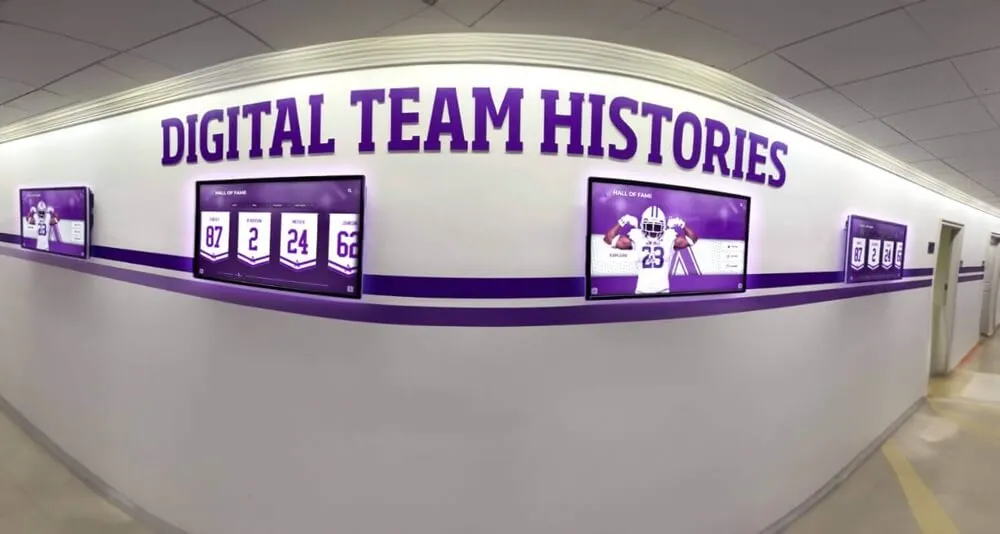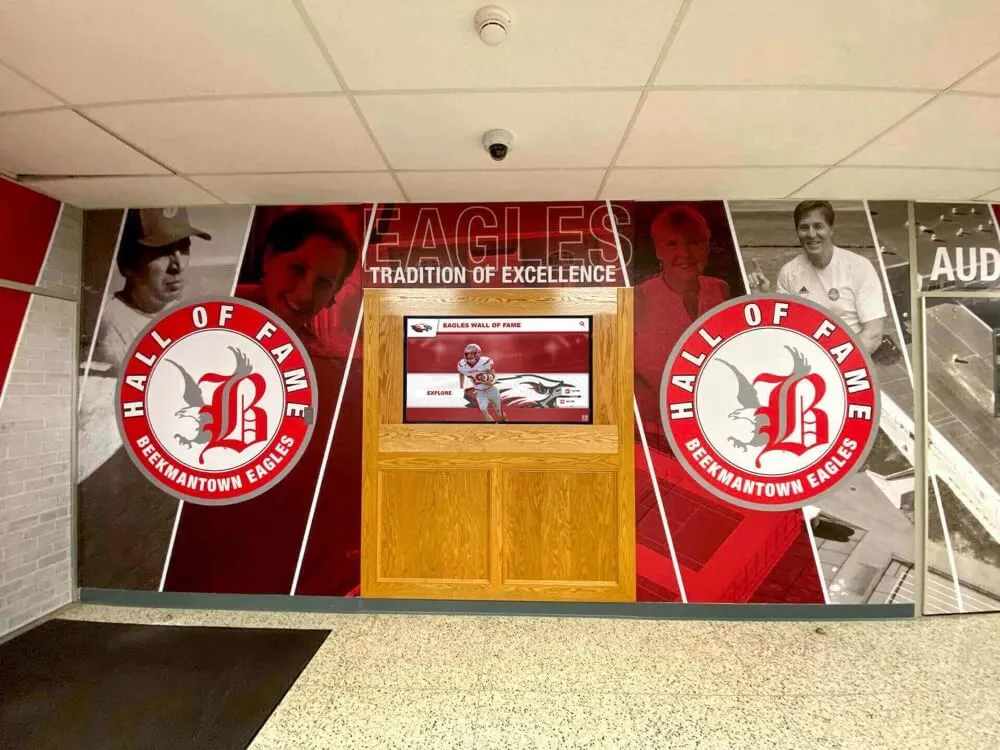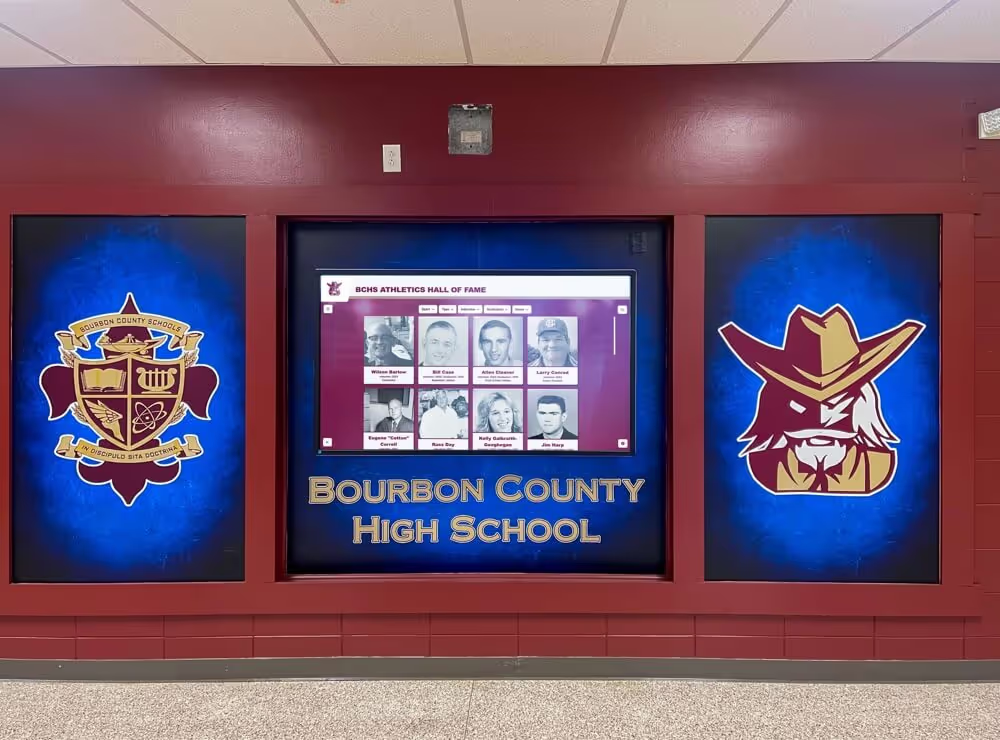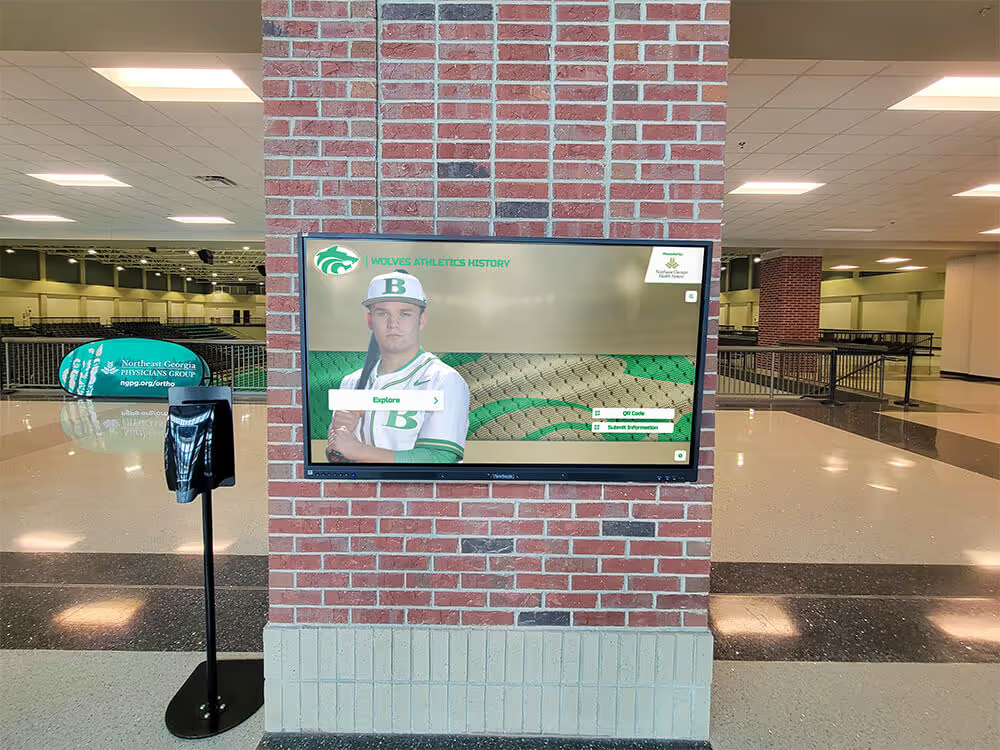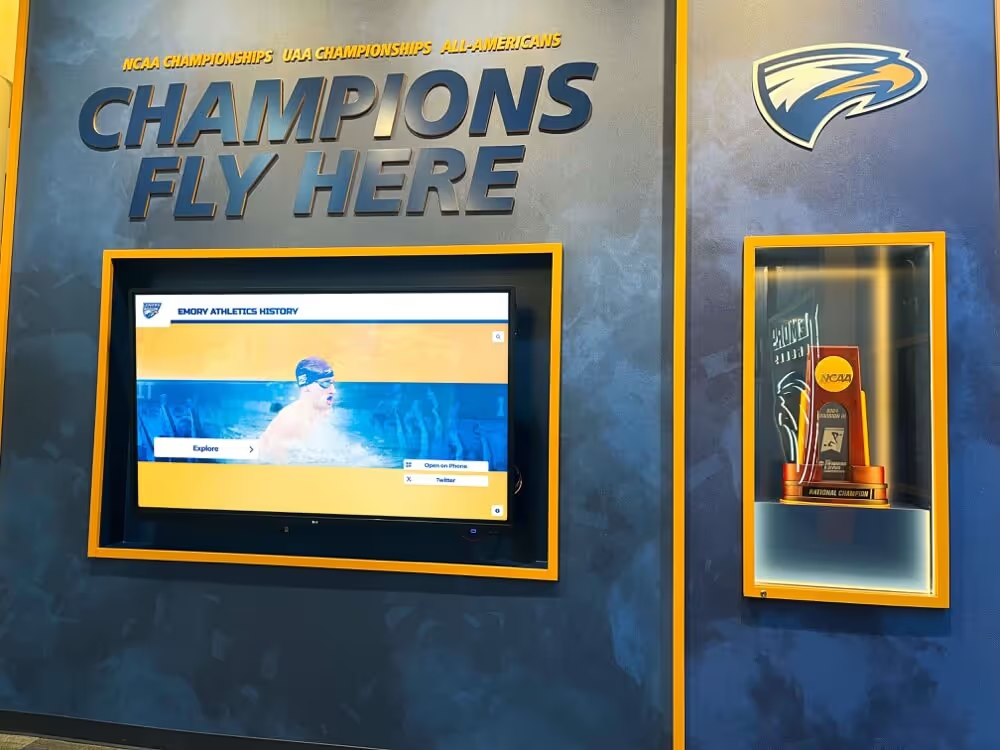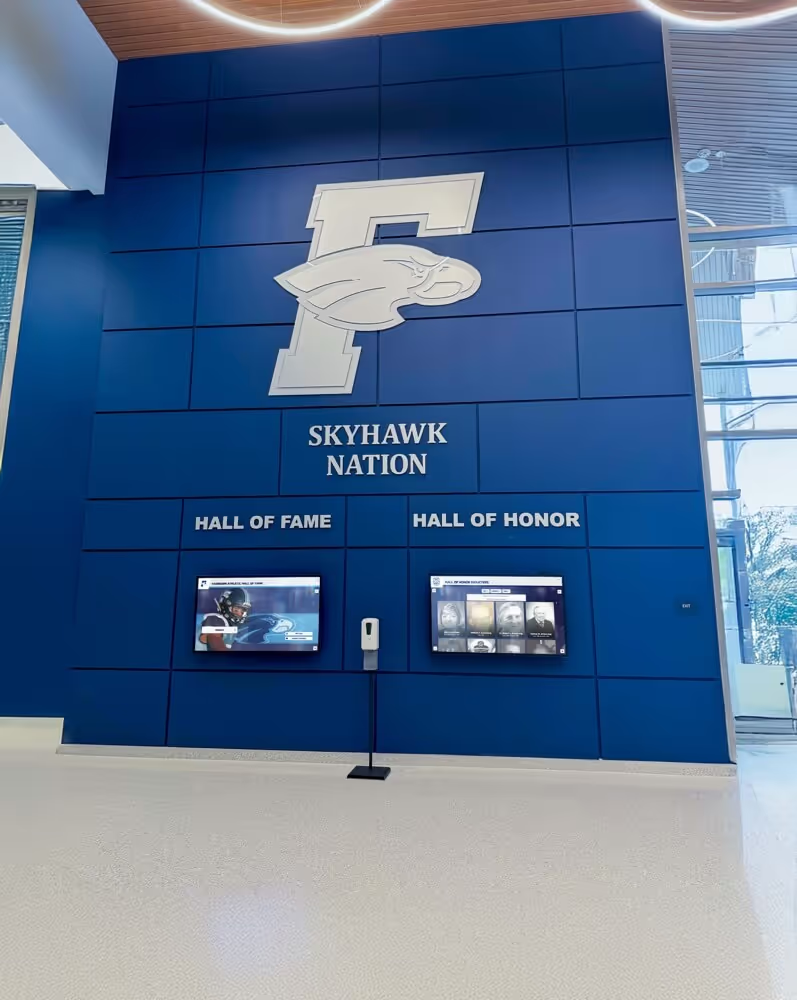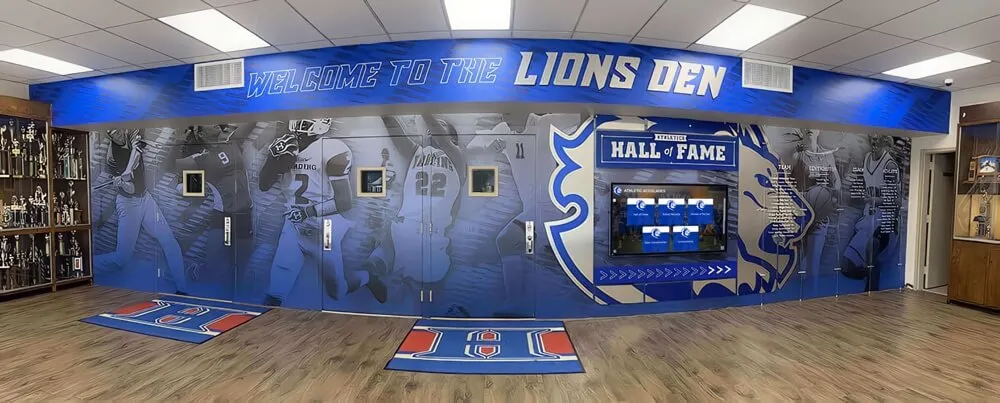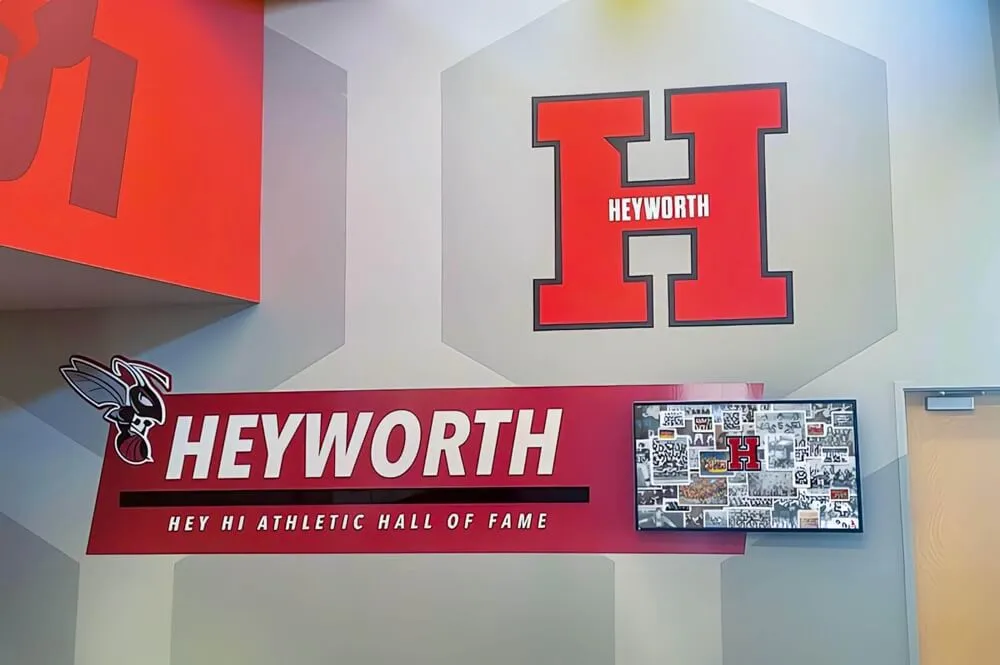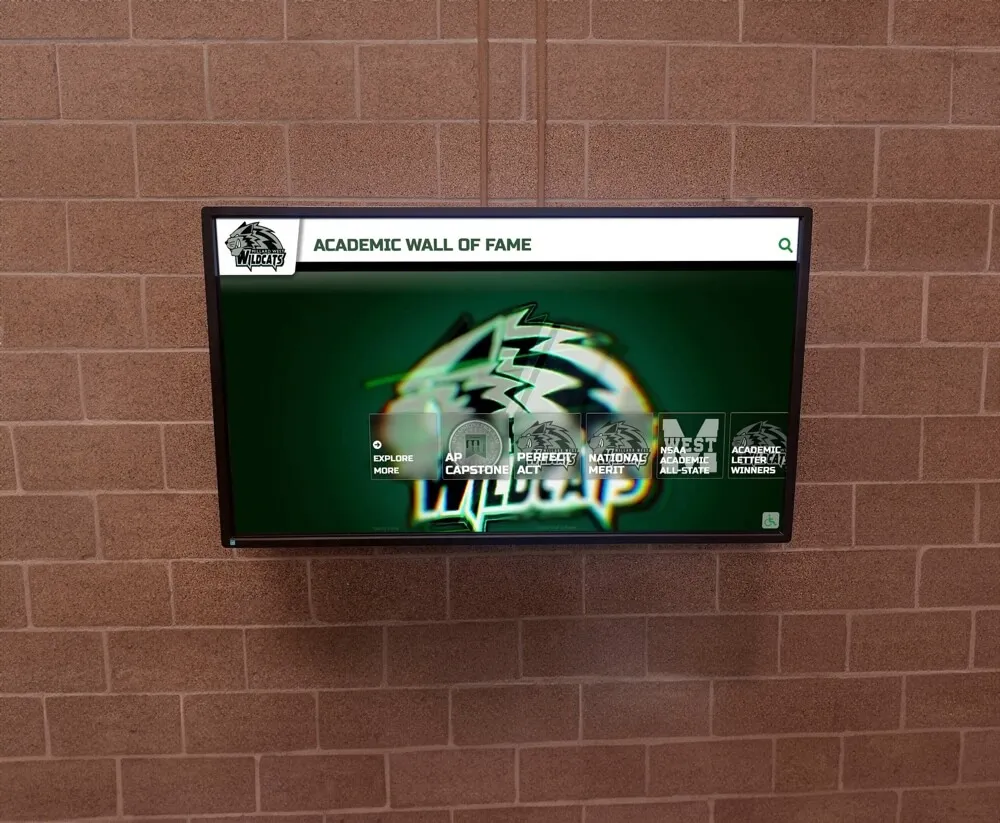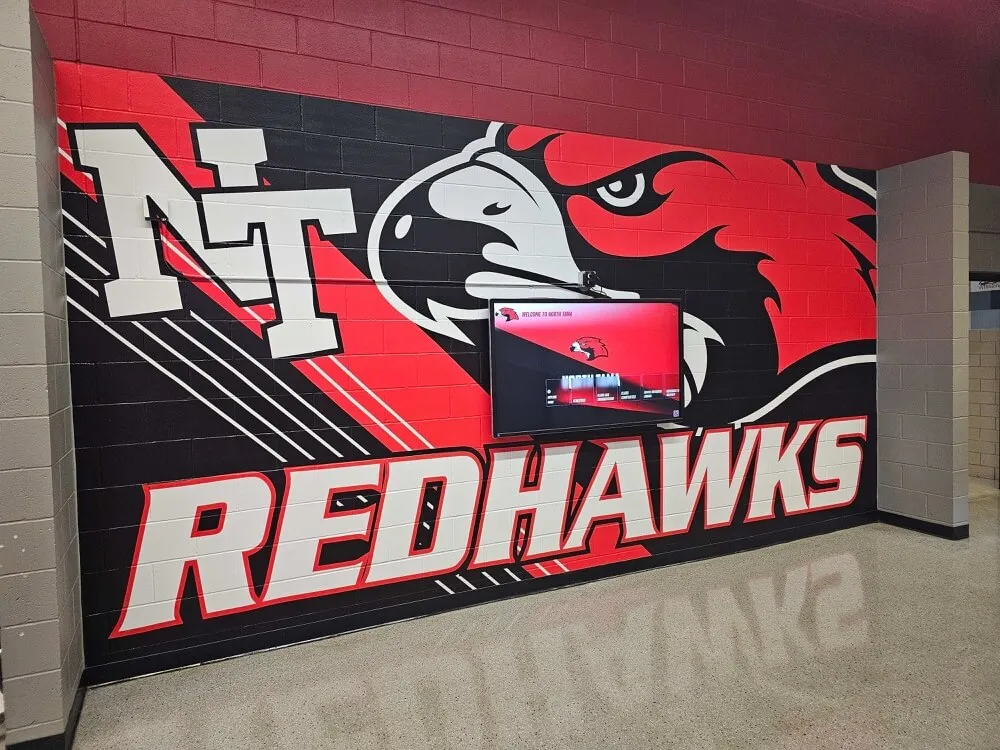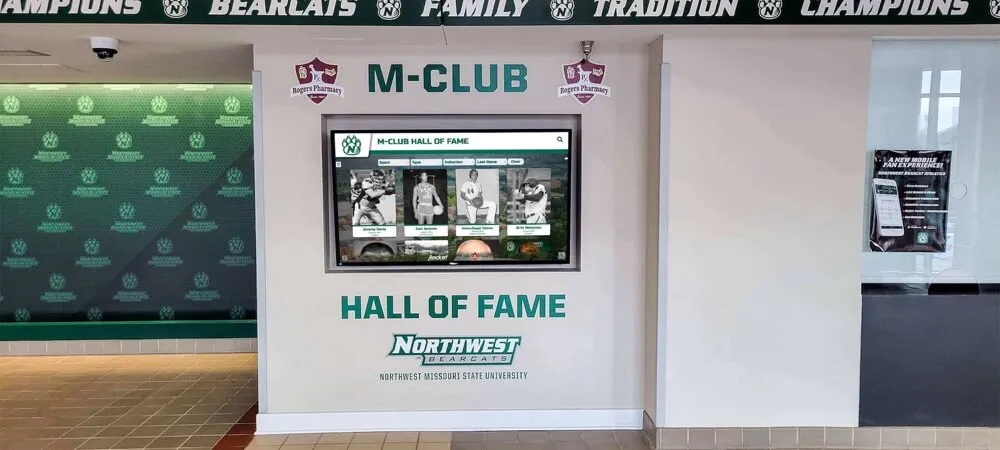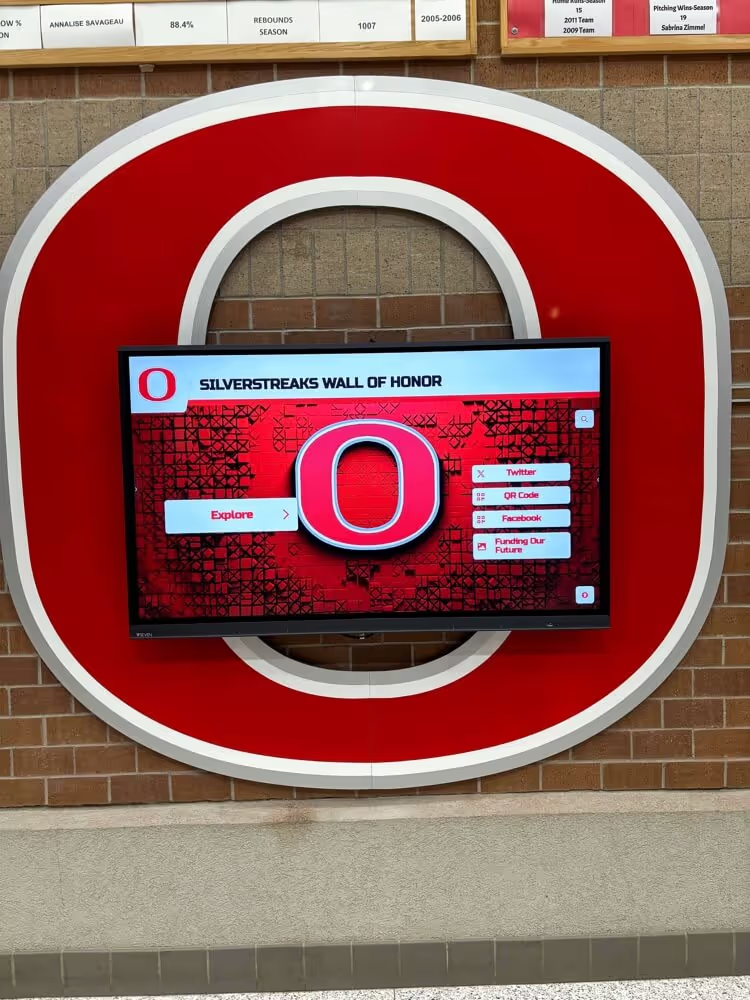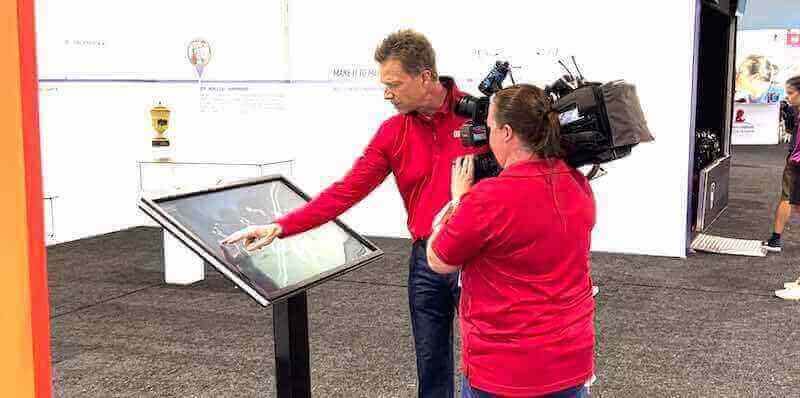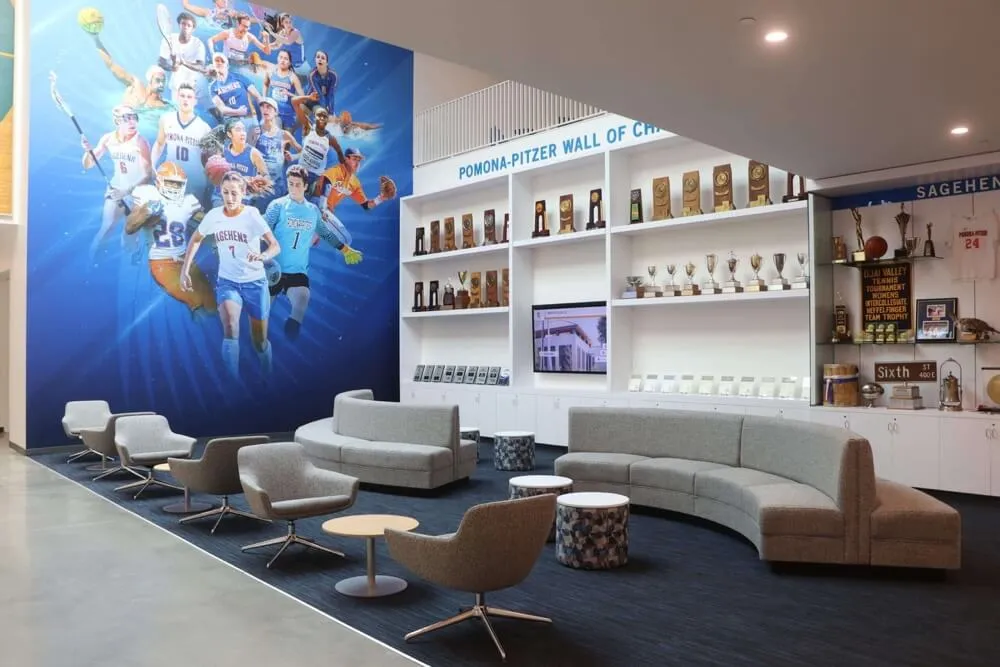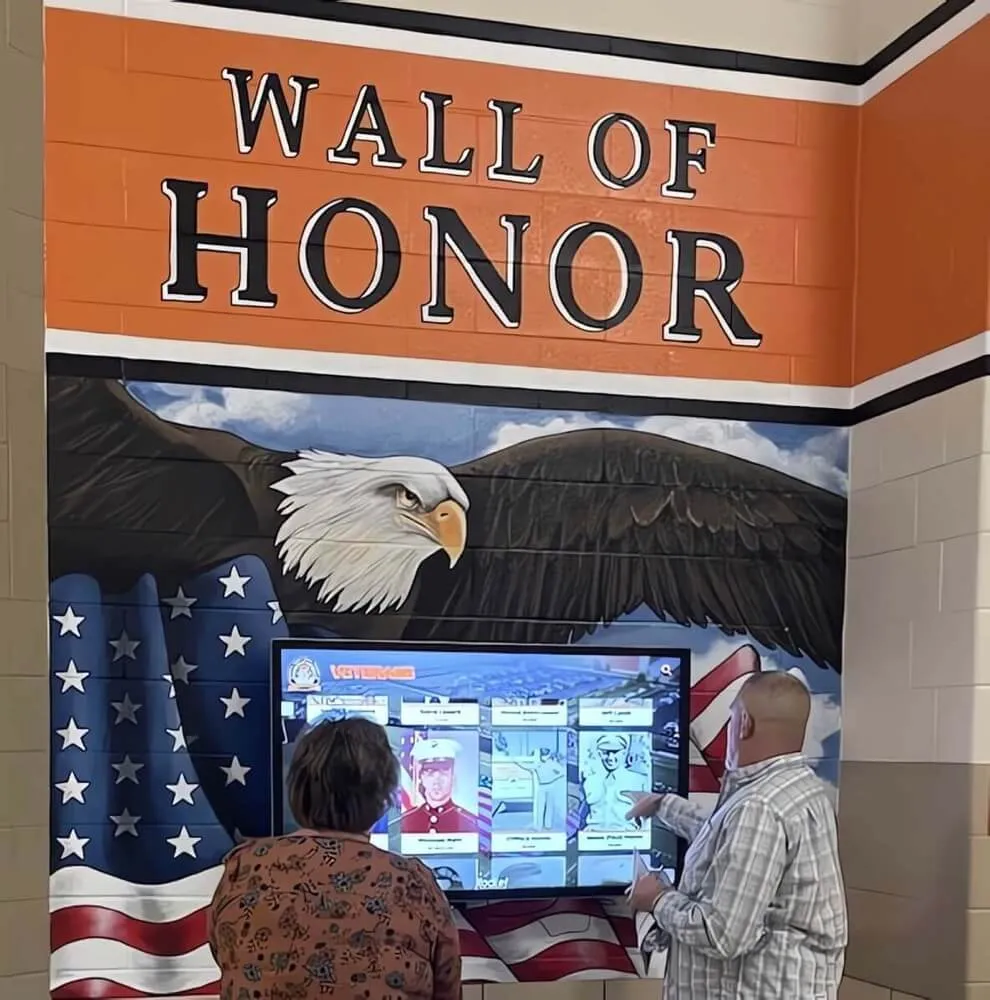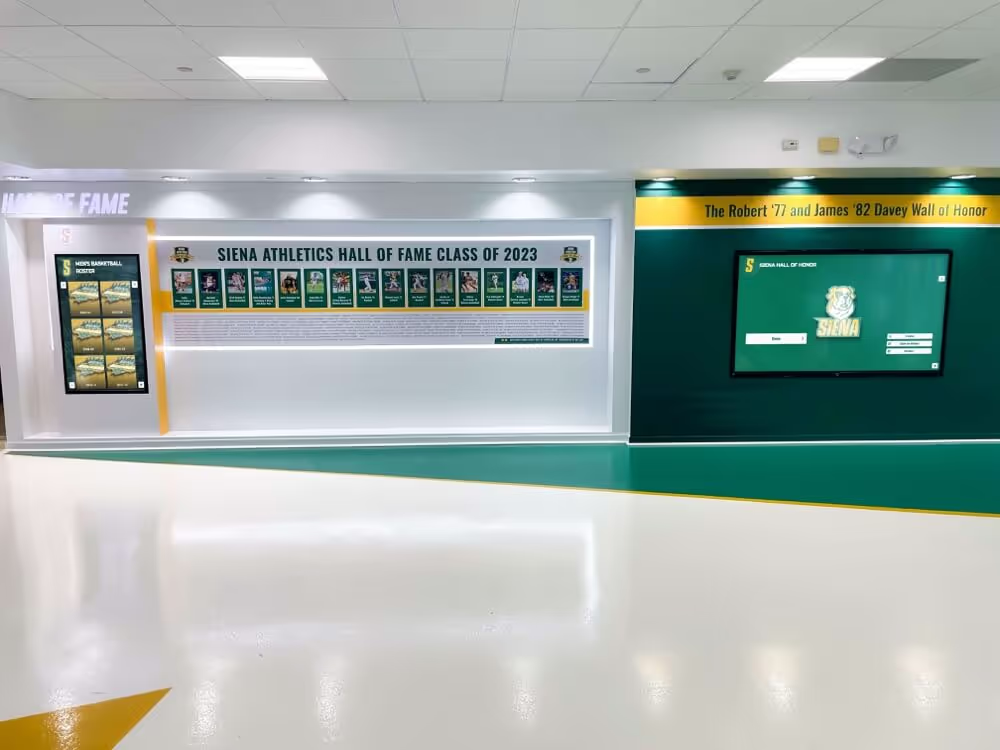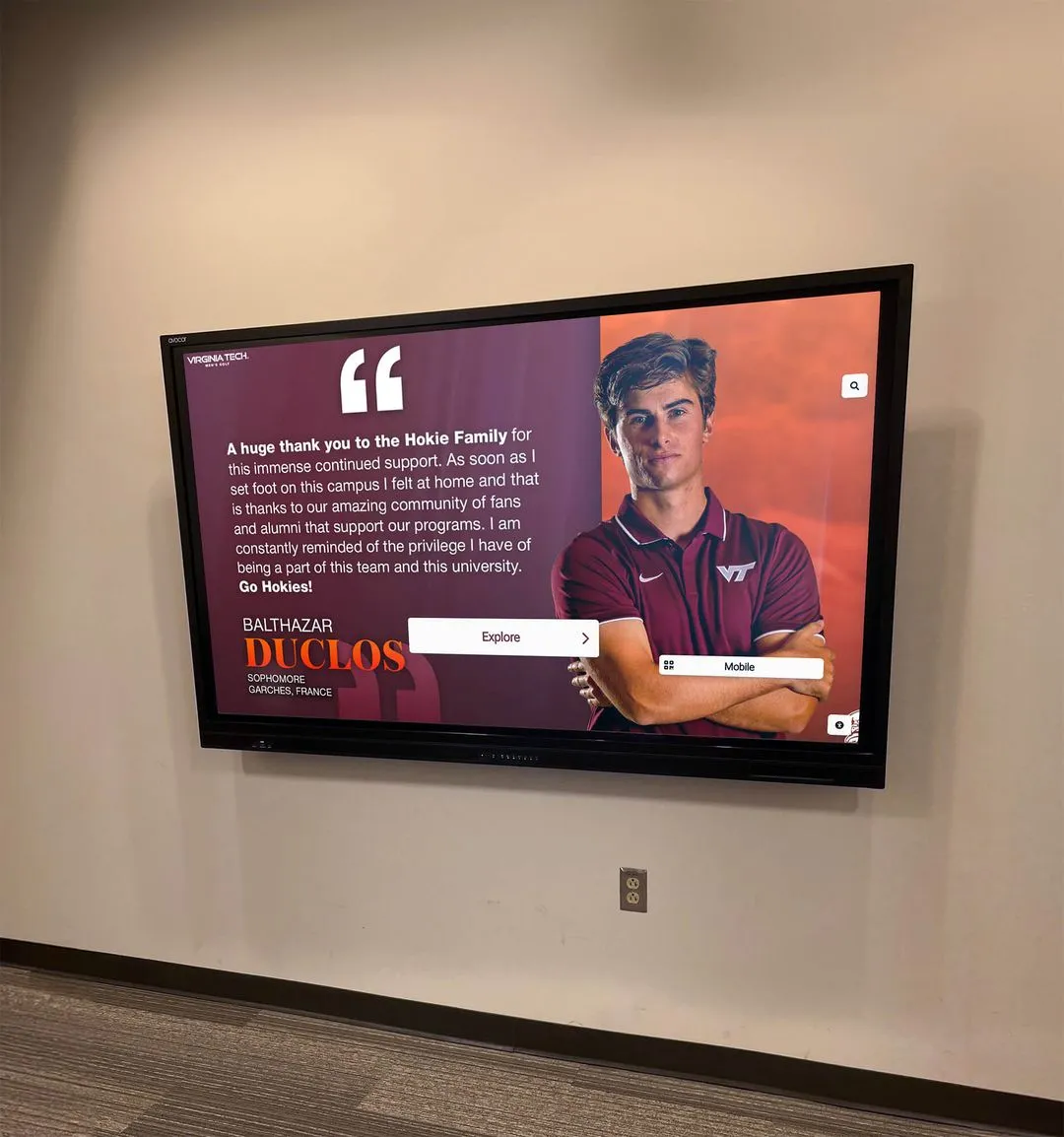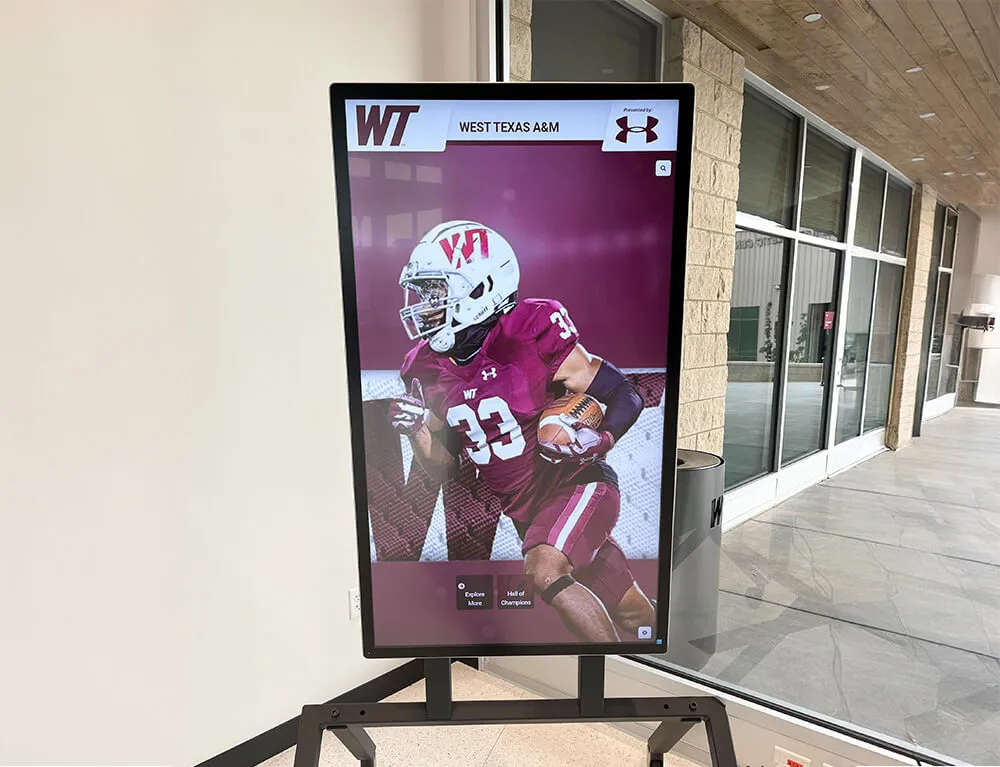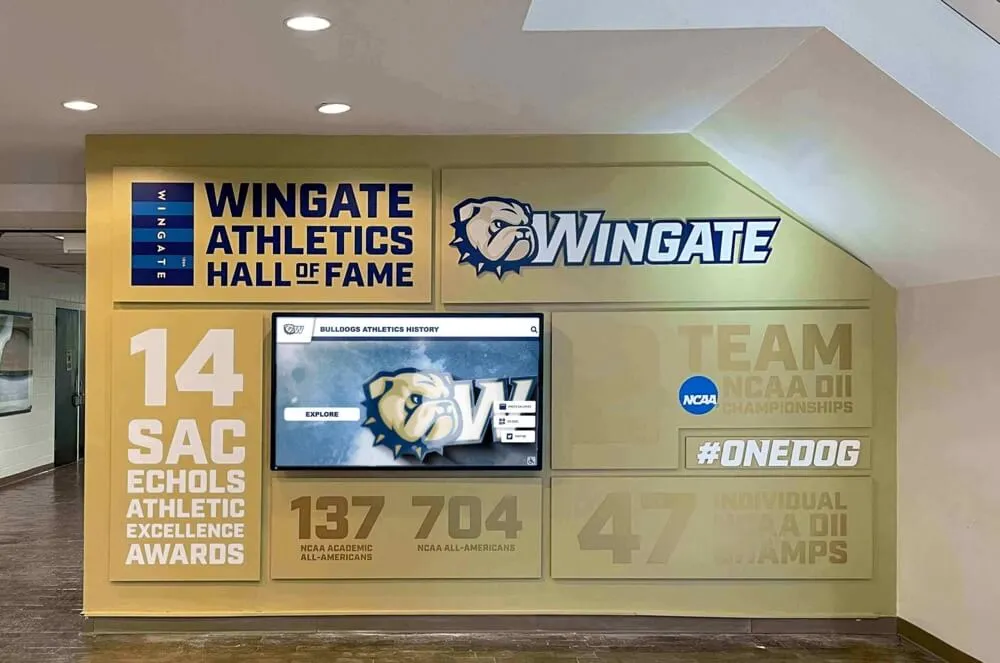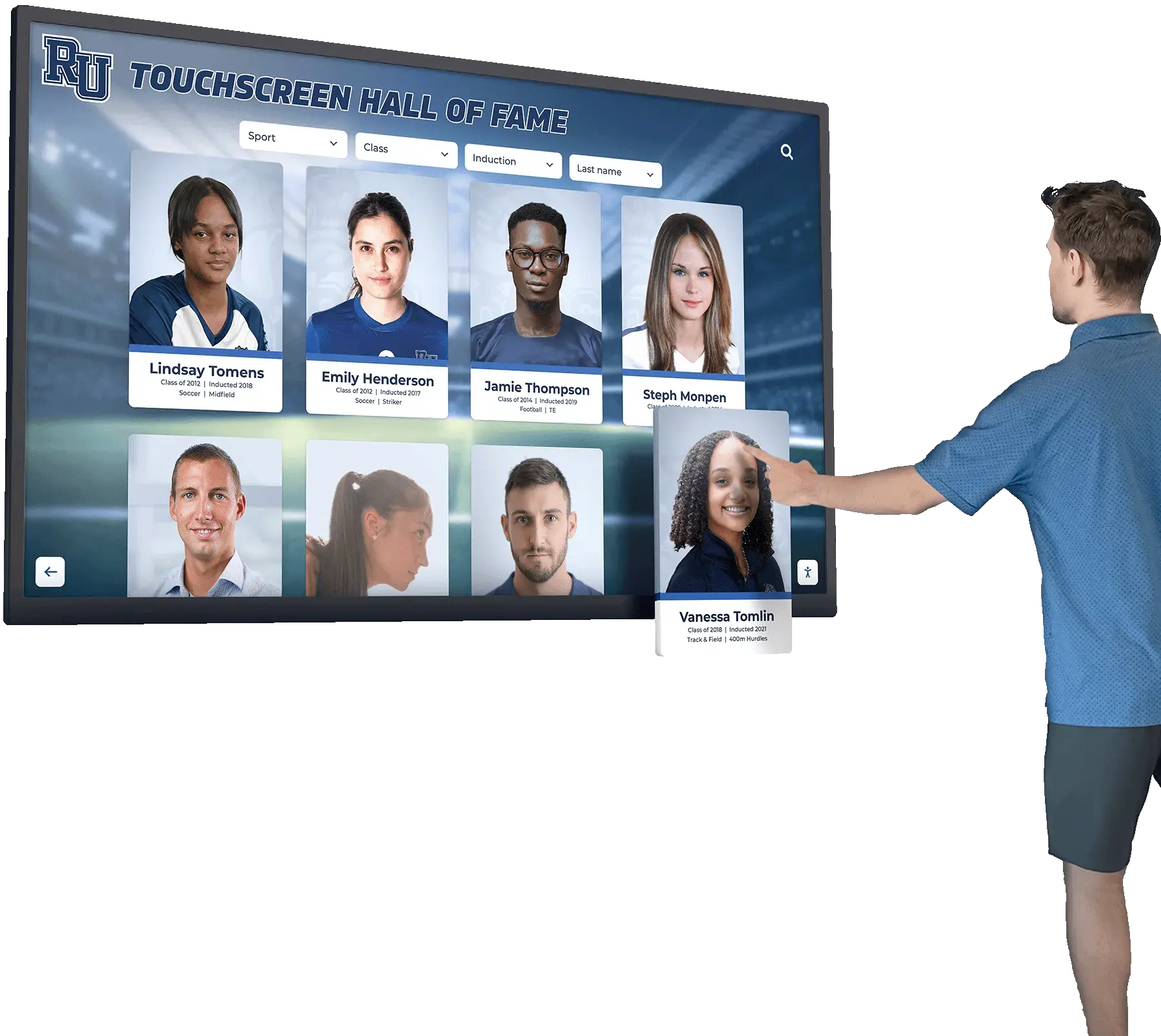




When you deploy an interactive touchscreen display in your school’s lobby, museum exhibit, or corporate recognition wall, the software driving that touch experience matters tremendously. While many organizations focus on the visible content management layer, the underlying touch driver software determines how responsive, accurate, and reliable that experience will be.
UPDD Touch Software represents a specialized solution in the touchscreen ecosystem—one that fills critical gaps in operating system support, enables legacy hardware to function with modern systems, and provides advanced configuration options for unusual hardware configurations. Whether you’re an IT administrator troubleshooting touch calibration issues or an organization evaluating touchscreen solutions for an upcoming installation, understanding UPDD’s role in the broader touchscreen landscape will help you make informed decisions.
What is UPDD Touch Software?
UPDD (Universal Pointer Device Driver) is designed to support any type of pointer device including touchscreens, whiteboards, digitizers, mice, UMPC devices, light pens, TabletPC systems, interactive signage, and specialized pointer device controllers. Developed by Touch-Base Ltd, a company established in 1989, UPDD has been at the forefront of touch driver development for over three decades.
Core Purpose and Functionality
The UPDD driver software fills gaps in native operating system touch support and offers enhanced functionality where standard drivers fall short. While modern operating systems include built-in support for many HID (Human Interface Device) compliant touchscreens, UPDD provides several key advantages:
Legacy Hardware Support: UPDD extends the life of older touch equipment by enabling it to work with the latest operating system releases, even when manufacturers have discontinued driver support.
Enhanced Configuration Options: The software brings a wealth of touch functionality and hardware configuration options not supported by native HID drivers, giving system administrators granular control over touch behavior.
Universal Compatibility: UPDD supports all modern HID devices while also offering support for legacy serial and non-HID USB devices, creating a single driver solution across diverse hardware.
Multi-Platform Consistency: By providing a unified interface across Windows, macOS, Linux, and Android, UPDD enables consistent touch behavior regardless of the underlying operating system.

UPDD Software Suite Components
UPDD consists of several integrated applications that work together to deliver comprehensive touch functionality:
UPDD Console
UPDD Console runs on Windows, Mac OS X, and Linux desktop systems and serves as the primary configuration interface for end users. This application allows users to:
- Configure common driver features and settings
- Identify and calibrate touch screens
- Access the calibration interface where users touch cross-anchor points until the circle turns blue
- Configure multi-monitor setups to ensure touch input corresponds to the correct display
- Adjust settings when touch screen calibration is inaccurate
The Console provides a user-friendly interface for the most frequently accessed touch configuration tasks without requiring deep technical knowledge.
UPDD Commander
UPDD Commander focuses on defining touch behaviors and gesture settings across applications. This utility enables administrators to:
- Setup touch behavior definitions for all applications
- Configure multi-touch gestures (when using compatible hardware)
- Define custom touch actions and responses
- Create application-specific touch profiles
- Implement advanced gesture controls
For organizations deploying interactive touchscreen software in public-facing environments, Commander provides the tools to customize the touch experience to match specific use cases.
UPDD Daemon
The Daemon component contains the core driver functionality and runs continuously in the background. It manages:
- Touch connection status monitoring
- Calibration settings storage
- Testing features for troubleshooting
- System-level touch event processing
- Communication between hardware and operating system
Additional Utilities
The UPDD suite includes several specialized utilities:
- Annotate: Allows users to draw or write on the screen
- Calibrate: Dedicated calibration tool for precise touch alignment
- Test: Diagnostic tool for verifying touch functionality
- Uninstall: Clean removal utility
UPDD V6 and V7: Current Platform Support
The latest major version, UPDD V6, supports the main operating systems including Windows, macOS, Linux, and Android. UPDD V7 represents the cutting edge, offering a universal binary driver with native support for both Intel and ARM processors.
Operating System Compatibility
Windows: Full support across Windows 10 and Windows 11, including both x86 and ARM versions. UPDD integrates with Windows virtual mouse and multi-touch HID interfaces.
macOS: UPDD V7 provides native support for both Intel-based Macs and Apple Silicon (M1, M2, M3) systems, ensuring compatibility as the Mac platform transitions to ARM architecture.
Linux: Comprehensive support across major distributions, making UPDD valuable for organizations deploying Linux-based kiosk systems or embedded devices.
Android: Android support enables touch functionality on specialized hardware running Android-based digital signage or kiosk solutions.
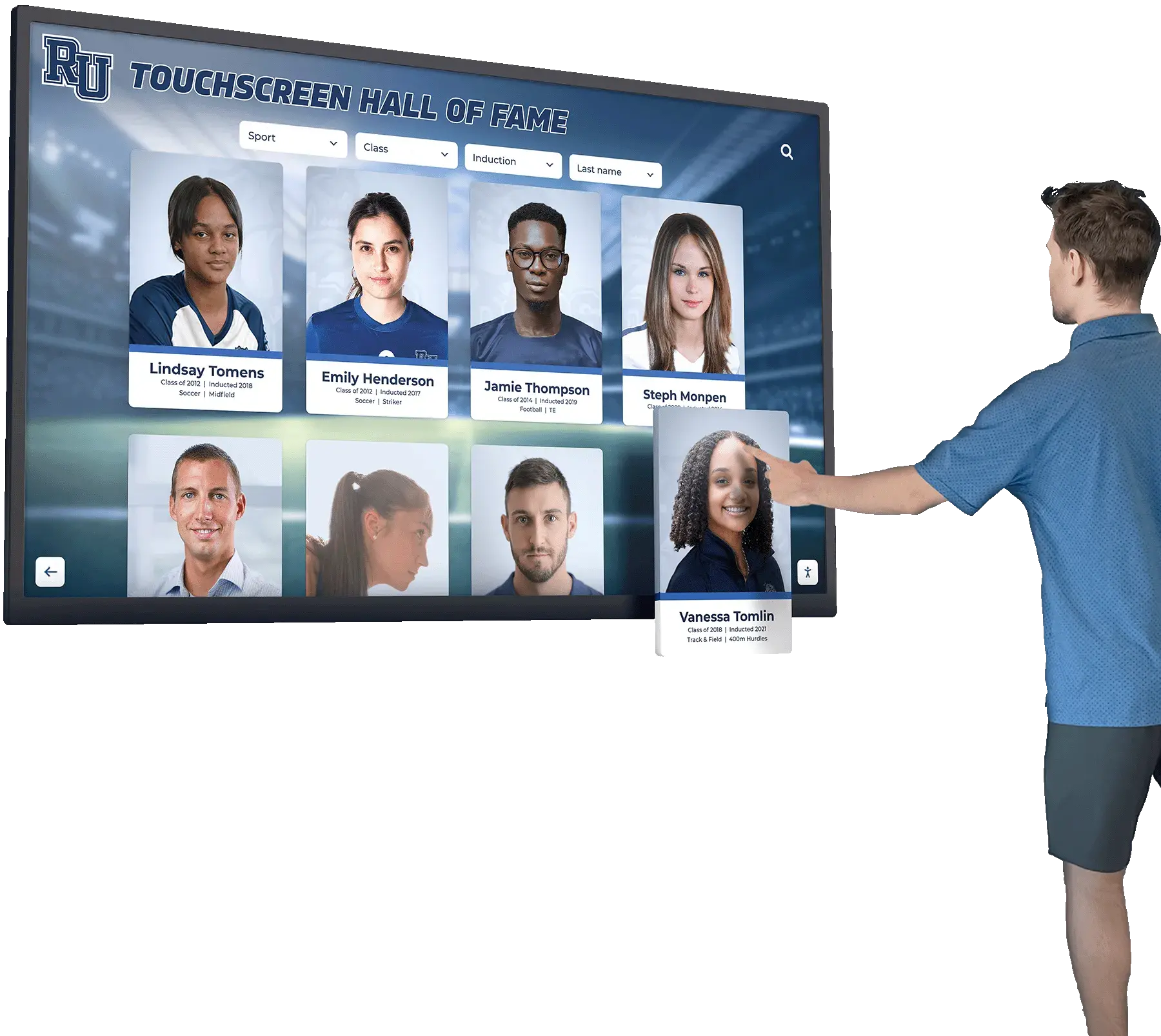
Multi-Touch Capabilities and Gesture Support
When using a multi-touch touchscreen, UPDD supports full multi-touch gestures, mimicking the functionality of a multi-touch trackpad or magic mouse. This capability has become increasingly important as users expect gesture-based interactions similar to their smartphones and tablets.
Supported Gestures
Modern touchscreen deployments, particularly for interactive digital boards and recognition displays, benefit from gesture support including:
- Pinch-to-zoom for exploring detailed content
- Two-finger scrolling for navigating long lists
- Rotation gestures for image manipulation
- Multi-finger tap recognition
- Swipe gestures for navigation
The gesture configuration in UPDD Commander allows administrators to enable, disable, or customize these behaviors based on the specific application requirements.
Installation and Setup Process
Installing UPDD varies slightly by operating system, but follows a consistent pattern designed to minimize complexity.
Basic Installation Steps
- Download the Appropriate Driver: Obtain the UPDD driver package from the Touch-Base website or your hardware manufacturer’s support portal
- Run the Installer: Double-click the package file and follow the installation dialog instructions
- Complete Installation: Continue through the installation wizard until the “Installation has completed” screen appears
- Restart if Required: Some operating systems may require a restart to load the driver
Initial Configuration
After installation, the calibration screen typically appears automatically on single-monitor systems. Users should touch each calibration cross in turn as shown on the screen. Calibration is only necessary if the screen is not filling the display completely or if touch points don’t align with visual targets.
For organizations deploying multiple displays, such as various screen types used for digital signage, the initial setup requires careful attention to ensure each touch display maps correctly to its corresponding visual output.
Multi-Monitor Configuration
In multi-monitor environments, UPDD Console provides configuration tools to ensure touch input moves the system pointer on the correct monitor. This configuration is essential for installations where multiple touchscreens operate simultaneously or where a single touch display is part of a larger multi-monitor setup.

Advanced Calibration and Troubleshooting
Calibration aligns the pointer device coordinate system with the video coordinate system, ensuring that where you touch is where the system registers the input.
When Calibration is Needed
Calibration becomes necessary when:
- Touch points don’t align with visual targets
- The display resolution has changed
- The physical display has been replaced
- Touch is moving the system pointer on the wrong monitor
- The touch screen is not filling the display completely
Calibration Process
The simplest way to achieve calibration is to invoke the Configure option from the Daemon menu. During calibration:
- A graphic appears on the touch screen
- Users press and hold each cross-anchor point
- The circle at each point turns blue to confirm registration
- The process continues through all calibration points
- Settings are saved automatically upon completion
Comprehensive Debugging Tools
UPDD implements comprehensive debugging and diagnostics tools built into the drivers to assist with support and maintenance. These tools enable IT administrators to:
- Verify touch hardware is properly recognized
- Monitor touch events in real-time
- Identify communication issues between hardware and software
- Generate diagnostic reports for technical support
- Test multi-touch functionality
For complex installations, particularly in educational environments deploying interactive announcement feeds or museum exhibits, these diagnostic capabilities prove invaluable for maintaining reliable operation.
UPDD API and Developer Integration
UPDD implements a comprehensive API interface available under all operating systems, allowing applications to directly interface with the touch device rather than indirectly via mouse emulation or native system interfaces.
Integration Options
The UPDD software suite can interface with underlying systems or applications in multiple ways:
OS Virtual Mouse: Standard mouse event emulation compatible with all applications
Multi-Touch HID Interfaces: Native multi-touch event delivery to supporting applications
TUIO Protocol: Touch event delivery using the TUIO protocol popular in creative installations
UPDD API: Direct API access for custom application development requiring precise touch control
For organizations developing custom touchscreen experiences, the UPDD API provides low-level access to touch events, enabling sophisticated interactions beyond what standard mouse emulation can deliver.
Use Cases and Industry Applications
UPDD driver is distributed by many touch manufacturers and system integrators to support their touch products across various industries.
Educational Technology
Schools and universities utilize UPDD in several contexts:
- Interactive whiteboards for classroom instruction
- Library touchscreen interactive displays for catalog browsing
- Student information kiosks in lobbies and common areas
- Digital recognition displays for athletic and academic achievements
- Self-service check-in systems for campus facilities
Museums and Cultural Institutions
Museums rely on UPDD for:
- Interactive exhibit displays with multimedia content
- Wayfinding kiosks for visitor navigation
- Digital archives accessible via touchscreen
- Educational content delivery systems
- Artifact information displays
Corporate and Retail Environments
Business deployments include:
- Employee recognition displays in lobbies
- Interactive building directories
- Customer information kiosks
- Digital signage with touch capabilities
- Conference room scheduling displays
Industrial and Specialized Applications
UPDD supports specialized deployments in:
- Manufacturing control panels
- Healthcare information systems
- Government public service kiosks
- Transportation information displays
- Hospitality check-in systems
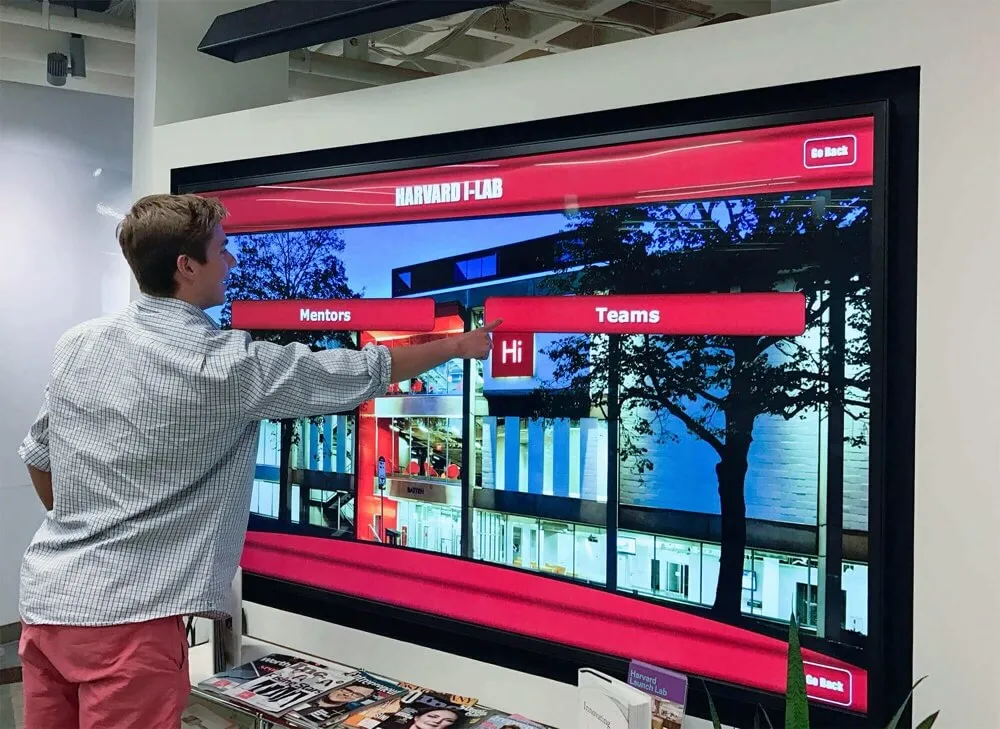
UPDD Compared to Modern Touchscreen Solutions
While UPDD provides essential driver-level functionality, it’s important to understand how it fits into the broader touchscreen software ecosystem and when alternative approaches may better serve your needs.
What UPDD Provides
UPDD excels at the driver layer, providing:
- Universal hardware compatibility across manufacturers
- Legacy device support extending hardware lifespan
- Advanced calibration and configuration options
- Cross-platform consistency
- Low-level API access for developers
What UPDD Doesn’t Provide
UPDD operates at the driver level and does not include:
- Content management systems for updating display information
- User interface design tools for creating interactive experiences
- Analytics and engagement tracking
- Remote content deployment capabilities
- Pre-built templates for common use cases
Organizations deploying touchscreen systems need to understand that UPDD solves the driver compatibility challenge but requires separate solutions for content creation, management, and analytics.
Integrated Solutions for Schools and Institutions
For educational institutions, museums, and organizations seeking complete touchscreen solutions, purpose-built platforms like Rocket Alumni Solutions provide comprehensive systems that include both the underlying touch functionality and the content management layer.
These integrated solutions offer several advantages over assembling separate components:
Unified Support: Single vendor responsibility for the entire system, from hardware compatibility to content management
Optimized Performance: Software designed to work together delivers better responsiveness and reliability than pieced-together solutions
Simplified Management: Administrators work with one interface rather than managing drivers separately from content
Professional Design: Pre-built templates and professional design services ensure polished, consistent experiences
Analytics and Insights: Built-in tracking reveals which content resonates with viewers and where users spend time
Ongoing Updates: Regular feature additions and improvements without managing driver updates separately
For organizations without dedicated IT resources or those prioritizing reliability and ease of use, comprehensive touchscreen kiosk software solutions often prove more practical than managing driver-level software separately.
Technical Considerations for IT Administrators
Deploying UPDD in enterprise or institutional environments requires attention to several technical factors.
Licensing and Distribution
UPDD is distributed through multiple channels:
- Direct from Touch-Base Ltd for end users
- Bundled with touchscreen hardware from manufacturers
- Through system integrators and resellers
- As part of OEM agreements for hardware vendors
Understanding your licensing arrangement affects support availability and update access.
Update Management
Touch-Base regularly releases UPDD updates with:
- Operating system compatibility improvements
- Support for new hardware devices
- Bug fixes and stability enhancements
- Feature additions and refinements
Organizations should establish processes for testing and deploying UPDD updates, particularly in environments with multiple deployed systems. For critical installations such as touchscreen kiosks in public spaces, updates should be tested in non-production environments before broad deployment.
Security Considerations
Touch driver software operates at a system level and requires appropriate security attention:
- Verify driver packages come from trusted sources
- Test updates in isolated environments before production deployment
- Implement access controls for driver configuration utilities
- Monitor driver behavior through security software
- Document approved driver versions for compliance purposes
Performance Optimization
Several factors affect UPDD performance:
Hardware Quality: The underlying touch sensor quality significantly impacts responsiveness regardless of driver capabilities
Operating System Configuration: Ensure the OS is properly configured for the specific touch hardware being used
Application Design: Applications must be designed to handle touch events efficiently; driver performance alone cannot compensate for poorly optimized applications
Network Considerations: For remote management scenarios, network latency can affect configuration and diagnostics
Evaluating Touchscreen Solutions for Your Organization
When planning a touchscreen deployment, whether you need UPDD or a different solution depends on your specific requirements and circumstances.
When UPDD Makes Sense
Consider UPDD when:
- You have legacy touch hardware that lacks modern driver support
- You need cross-platform consistency across Windows, Mac, Linux, and Android
- You require advanced calibration options beyond standard drivers
- You’re developing custom applications requiring low-level touch API access
- Your hardware manufacturer recommends or bundles UPDD with their products
- You have technical staff capable of managing driver-level software
When Integrated Solutions Make More Sense
Consider purpose-built touchscreen platforms when:
- You need content management capabilities in addition to touch functionality
- Your organization lacks dedicated IT resources for managing drivers separately
- You want analytics and engagement tracking built into the system
- You require professional design and templates for recognition displays
- You need vendor support for the entire system, not just the driver layer
- Remote content management is important for your use case
- You’re deploying systems for specific purposes like digital trophy walls or hall of fame displays
Total Cost of Ownership
When evaluating solutions, consider the complete picture:
Driver-Level Approach (UPDD + Separate Content Software):
- Initial driver cost or hardware bundle
- Separate content management software licensing
- IT staff time for integration and ongoing management
- Support contracts for multiple vendors
- Training for staff on multiple systems
Integrated Platform Approach:
- Single comprehensive platform cost
- Unified support from one vendor
- Reduced IT burden through managed services
- Training on one integrated system
- Predictable ongoing costs
For many organizations, particularly schools and smaller institutions, the integrated approach delivers better total cost of ownership despite potentially higher initial costs, because it eliminates the complexity and ongoing burden of managing multiple systems.
Best Practices for Touchscreen Deployments
Regardless of which software approach you choose, several best practices ensure successful touchscreen installations.
Hardware Selection
Choose Quality Touch Sensors: The most sophisticated driver software cannot compensate for poor-quality touch hardware. Invest in quality sensors with proven track records.
Consider Environmental Factors: Public spaces experience heavy use, temperature variations, and exposure to dust and liquids. Choose hardware rated for your specific environment.
Plan for Screen Size: Larger displays require multi-touch capability and careful interface design to ensure all areas remain accessible to users.
Account for Mounting Height: Position touchscreens at appropriate heights for your audience, typically lower for children and accounting for wheelchair accessibility.
Software Configuration
Optimize Touch Responsiveness: Configure software to provide immediate visual feedback when users touch the screen, ideally within 100 milliseconds.
Implement Session Management: For public kiosks, automatically reset sessions after periods of inactivity to protect privacy and ensure a fresh experience for the next user.
Enable Analytics: Track usage patterns to understand which content engages users and where improvements are needed.
Plan for Updates: Establish processes for regularly updating both driver software and content without disrupting users.
Content Design
Design for Touch: Touchscreen interfaces require larger touch targets (minimum 44x44 pixels) and different interaction patterns than mouse-based interfaces.
Minimize Typing: Touch keyboards are slower than physical keyboards; design experiences that minimize text entry requirements.
Provide Clear Affordances: Make it obvious what elements are touchable through visual design cues.
Test with Real Users: Observe actual users interacting with the system to identify usability issues before deployment.
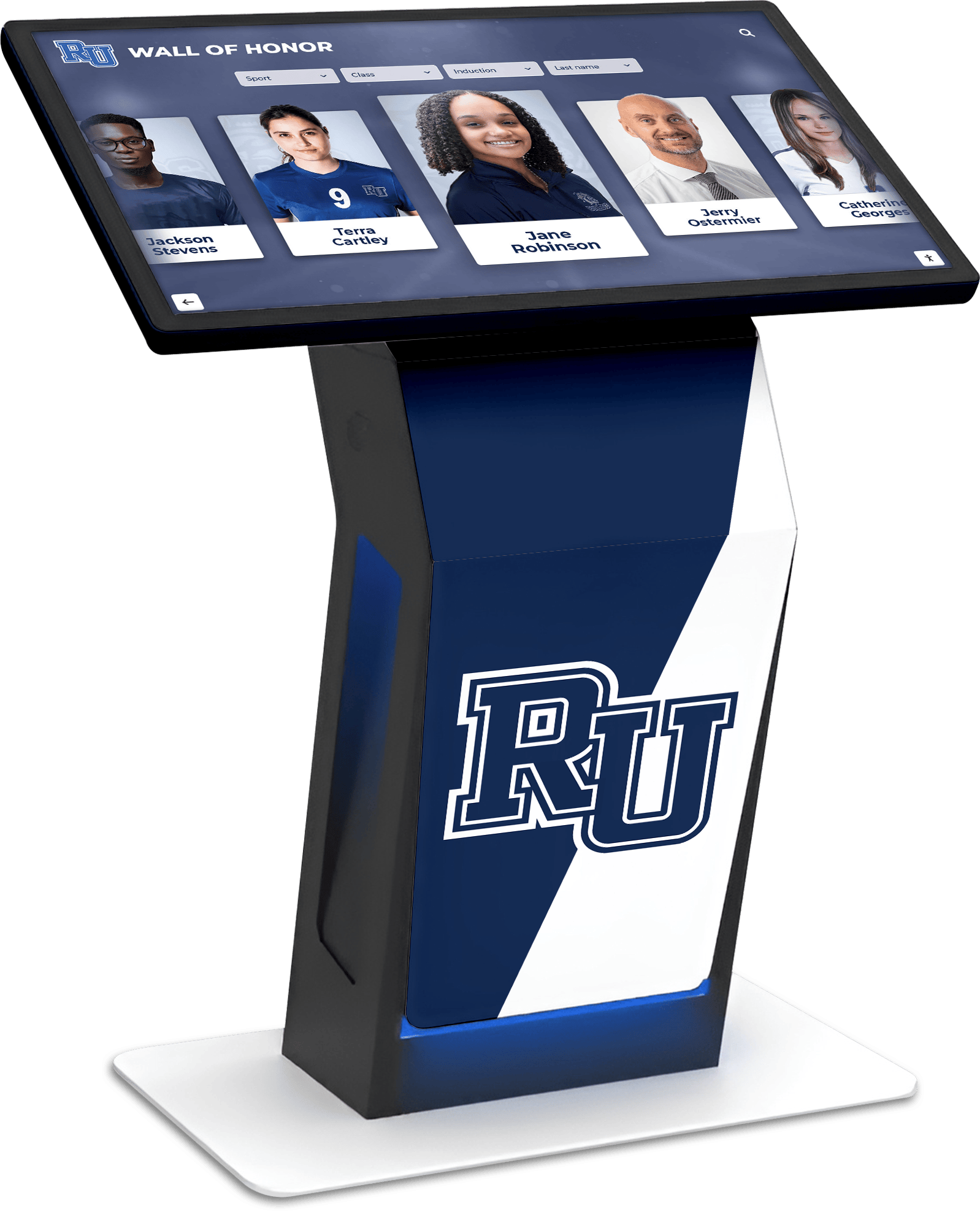
The Future of Touchscreen Technology
Touchscreen technology continues to evolve rapidly, with several trends shaping the future landscape.
Emerging Technologies
Haptic Feedback: Advanced haptic systems provide tactile feedback when touching virtual buttons, creating more satisfying interactions.
Force Sensing: Next-generation displays can detect how hard users press, enabling additional interaction modes.
Larger Formats: Touch technology now scales to wall-sized displays, enabling collaborative multi-user experiences.
Improved Accuracy: Enhanced sensors deliver stylus-level precision for applications requiring fine detail work.
Software Evolution
AI Integration: Artificial intelligence enables touchscreen systems to personalize content based on user behavior and preferences.
Cloud Management: Modern platforms leverage cloud architecture for seamless content updates across distributed installations.
Enhanced Analytics: Advanced analytics reveal not just what users touch, but how they engage, how long they spend, and what paths they follow through content.
Accessibility Improvements: Enhanced support for users with disabilities through voice control, adjustable interfaces, and assistive technology integration.
Industry Adoption
Organizations across sectors continue expanding touchscreen deployments:
- Educational institutions replacing traditional bulletin boards with interactive digital displays
- Museums creating immersive exhibit experiences
- Corporate offices implementing employee recognition systems
- Healthcare facilities deploying wayfinding and check-in kiosks
- Retail environments engaging customers through interactive product displays
Conclusion: Making the Right Choice for Your Organization
UPDD Touch Software serves an important role in the touchscreen ecosystem, providing universal driver compatibility and enabling legacy hardware to function with modern operating systems. For organizations with specific technical requirements, custom application development needs, or legacy hardware investments, UPDD offers powerful capabilities and extensive configuration options.
However, most educational institutions, museums, and organizations deploying touchscreen systems for recognition, wayfinding, or public engagement purposes benefit from comprehensive platforms that integrate touch functionality with content management, analytics, and professional support. Solutions like Rocket Alumni Solutions provide turnkey systems designed specifically for recognition and engagement use cases, eliminating the complexity of assembling and managing separate driver, content, and analytics components.
When evaluating options for your next touchscreen project, consider not just the immediate technical requirements but the ongoing management burden, total cost of ownership, and the complete user experience you want to deliver. The right choice depends on your specific circumstances, technical resources, and organizational priorities.
For schools seeking to showcase athletic achievements, museums creating interactive exhibits, or organizations implementing employee recognition displays, purpose-built platforms deliver professional results with manageable complexity. For specialized applications requiring custom development or organizations with specific legacy hardware requirements, UPDD provides the low-level capabilities needed to build exactly the experience you envision.
Ready to explore how modern interactive touchscreen solutions can transform recognition and engagement at your institution? Connect with experienced providers who can assess your specific needs and recommend solutions aligned with your goals, resources, and vision. Whether your path leads through driver-level software like UPDD or comprehensive platforms like Rocket Alumni Solutions, the touchscreen revolution offers exciting possibilities for creating meaningful connections with your community.