Intent: research
Interactive touch screen digital signage has moved from specialty installations to standard infrastructure in schools, universities, museums, corporate facilities, and public venues. Yet many buyers enter procurement uncertain about the underlying technology, what hardware components an installation requires, which software systems tie everything together, and how to evaluate long-term cost. This guide addresses those gaps directly, using publicly available technical specifications, industry deployment patterns, and recognized standards—so decision-makers can evaluate options with defensible reasoning rather than vendor-supplied talking points.
Research Summary
- Projected Capacitive (PCAP) technology accounts for the majority of new commercial interactive display installations at sizes up to 65 inches, while infrared remains the dominant choice for very large-format displays above 65 inches (IHS Markit, Interactive Display Market Report, 2024)
- The Americans with Disabilities Act (ADA) 2010 Standards and WCAG 2.1 AA govern operable-parts placement, touch target sizing, and alternative navigation for public-facing interactive displays—non-compliant installations in public institutions carry documented legal risk
- Total cost of an interactive touch screen digital signage deployment spans five cost centers: display hardware, media player, software licensing, installation labor, and ongoing content management; buyers who evaluate only hardware price routinely underestimate 5-year ownership costs by 40–60%
- Schools and universities that deploy purpose-built recognition and information platforms report higher engagement with interactive displays than those running general-purpose digital signage software not designed for structured recognition content (Rocket Alumni Solutions internal deployment analysis, N=85 installations, 2022–2025)
Methodology note: This analysis synthesizes publicly available technical documentation from display manufacturers, recognized accessibility standards (ADA 2010, WCAG 2.1), industry analyst reports, and Rocket Alumni Solutions internal installation data collected across K-12 schools, higher education institutions, and community organizations in the United States from 2022–2025.
What Is Interactive Touch Screen Digital Signage?
Interactive touch screen digital signage refers to digitally driven display systems that respond to direct user input—finger touch, stylus, or gesture—rather than delivering content passively to viewers. A passive display shows a scheduled sequence of images or video. An interactive display lets visitors navigate, search, filter, zoom, and explore content on demand.
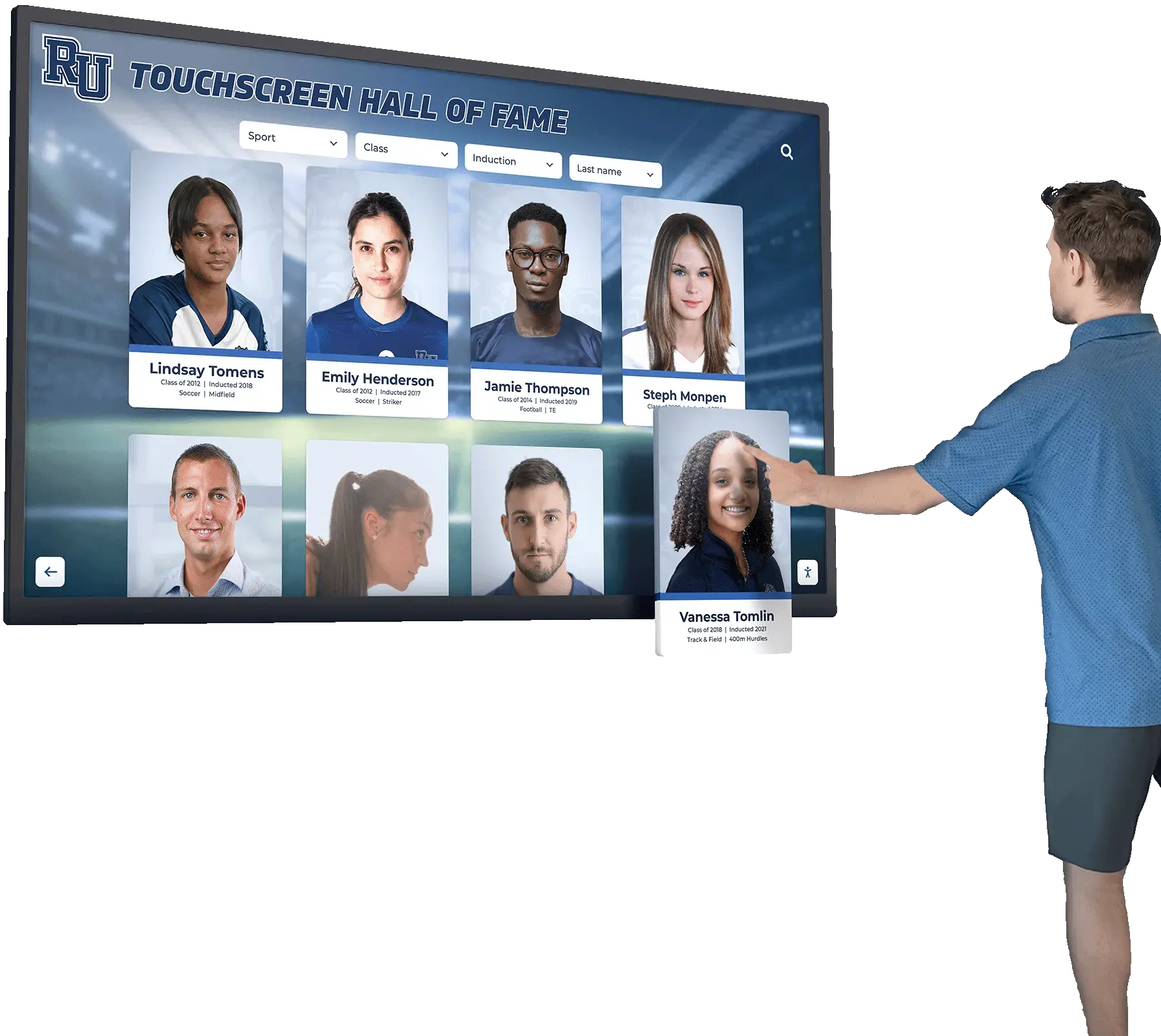
The distinction matters practically. A lobby screen cycling through athletic photos is passive signage. A kiosk in that same lobby where visitors can search by athlete name, browse by sport, and pull up full career statistics is interactive signage. Both require display hardware and content management, but interactive systems add a touch input layer, a more sophisticated software application, and meaningfully higher content architecture requirements.
Interactive displays appear across sectors because the underlying value is durable: self-service information access reduces staff burden, increases content depth beyond what a passive slide show can hold, and creates richer visitor experiences. For institutions with large archives—athletic records, alumni databases, donor histories, academic recognitions—interactive displays are often the only format that makes that volume of content accessible at a single touch.

How Touchscreen Technology Works
Every interactive display requires a mechanism for detecting where and how a user touches the screen. Four technologies dominate commercial installations: resistive, projected capacitive (PCAP), infrared, and optical. Each uses a different physical principle, producing different performance characteristics, input requirements, and cost profiles.
Resistive Touchscreens
Resistive panels consist of two electrically conductive layers separated by a small gap. When a user presses the screen, the layers make contact at that point, completing a circuit the controller uses to calculate touch coordinates. Because pressure—not conductivity—registers a touch, resistive screens respond to fingers, gloves, and styluses alike.
Resistive panels are inexpensive and durable in industrial settings, but they suffer from reduced optical clarity (the multi-layer construction absorbs light), limited multi-touch capability, and wear degradation under sustained public use. They appear in industrial control panels, medical equipment, and legacy point-of-sale systems but are uncommon in modern institutional signage.
Projected Capacitive (PCAP) Touchscreens
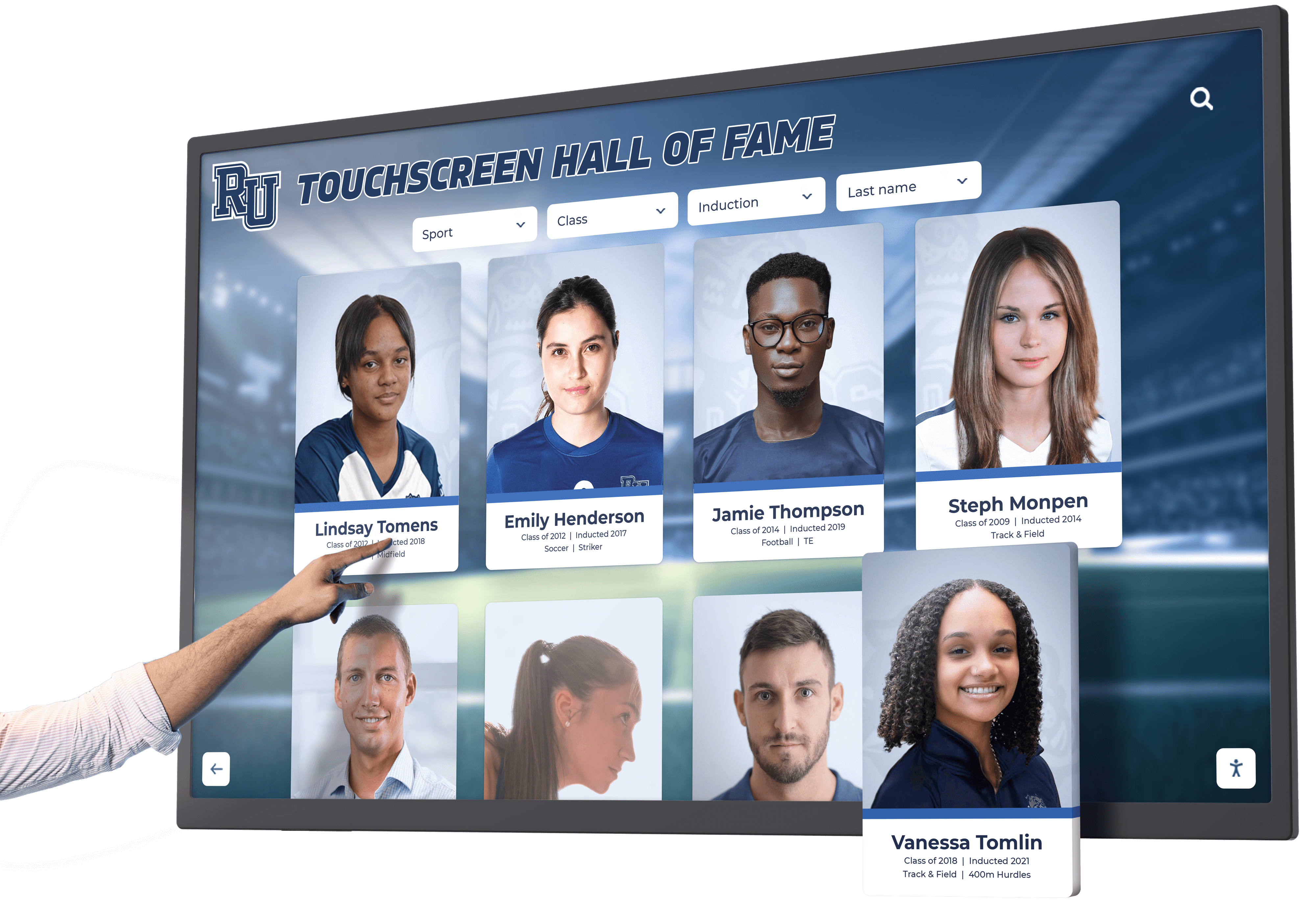
PCAP technology places a grid of electrodes beneath a glass surface, detecting the electrical capacitance change that a bare fingertip creates at precise coordinates. PCAP supports 10 or more simultaneous touch points, enabling swipe, pinch, and multi-finger gestures. Response latency in quality commercial PCAP panels runs at or below 10 milliseconds—fast enough to feel instantaneous to users. Glass-front construction provides optical clarity superior to resistive alternatives.
PCAP is the dominant technology in commercial interactive displays sized up to approximately 65 inches. The limitation is input specificity: PCAP requires a bare finger or a capacitively active stylus; heavy gloves or non-conductive tools will not register, which matters for outdoor installations or environments where users regularly wear protective gear.
Infrared Touchscreens
Infrared systems project a grid of invisible IR beams across the display surface. When a finger or object interrupts beams at a coordinate intersection, the controller logs a touch. Because IR detection depends on beam interruption rather than conductivity, these systems accept any input: bare fingers, gloved hands, styluses, even a blunt pointer.
IR technology scales economically to very large formats—55, 75, 86, 98 inches and beyond—where embedding PCAP electrode grids becomes cost-prohibitive. For digital signage applications in schools where large-format displays in common areas serve many simultaneous users with varying input styles, IR remains widely deployed. Touch accuracy in high-density IR arrays meets commercial requirements; very fast and precise gestures on lower-density grids may register with slight imprecision.
Optical and Surface Acoustic Wave Systems
Optical systems use cameras and image processing to detect touch positions, supporting any input type across very large surfaces. Surface Acoustic Wave (SAW) systems transmit ultrasonic waves across the screen surface and detect disruptions caused by touch. Both are less common in standard institutional signage than PCAP and IR, but appear in collaboration boards and high-end exhibit applications.
Consistent touch sensitivity calibration and verification should be part of the commissioning process for any technology type, since environmental factors—temperature, humidity, surface contamination—can affect touch response over time.
Technology Comparison at a Glance
| Technology | Typical Size Range | Multi-Touch | Input Objects | Optical Clarity | Common Setting |
|---|---|---|---|---|---|
| Resistive | Under 32" | Limited | Any | Reduced | Industrial, legacy POS |
| PCAP | 10"–65" | Yes (10+ points) | Bare finger, active stylus | High | Commercial kiosks, interactive displays |
| Infrared | 32"–110"+ | Yes | Any | High | Large-format wall displays |
| Optical / SAW | 40"–100"+ | Yes | Any | High | Collaboration boards, exhibits |
Understanding which technology underlies a display informs how touch calibration should be maintained, what maintenance the frame requires, and how the system will perform under sustained public use.
The Hardware Stack: What an Installation Requires
Interactive touch screen signage is not a single product. A complete installation assembles multiple hardware components that must be specified and matched to each other.
Display Panel
The display panel generates the image. Buyers specify diagonal size (typically 32–98 inches for institutional installations), panel technology (IPS for wide viewing angles, VA for high contrast), brightness in nits, and resolution (Full HD at 1920×1080 or 4K at 3840×2160).
Brightness is frequently underspecified. A display rated at 350 nits looks vivid in a dimly lit conference room but washes out in a brightly lit lobby with south-facing windows. Commercial-grade displays rated 500–700 nits provide buffer for varied ambient conditions. Anti-glare coatings reduce reflections but can slightly reduce clarity—evaluate both in the intended installation environment before specifying.
Touch Layer
For PCAP displays, the touch layer is integrated at the factory. For large-format infrared installations, the touch frame is often a separate component, which allows organizations to retrofit touch capability onto existing commercial displays—provided dimensions match and the display’s mounting arrangement allows proper frame alignment.
When evaluating touch hardware, look for touch point count (minimum 10 for responsive multi-user operation), reported response latency (under 10ms for quality commercial systems), and compatibility with the software platform you plan to run.
Media Player and System Computer
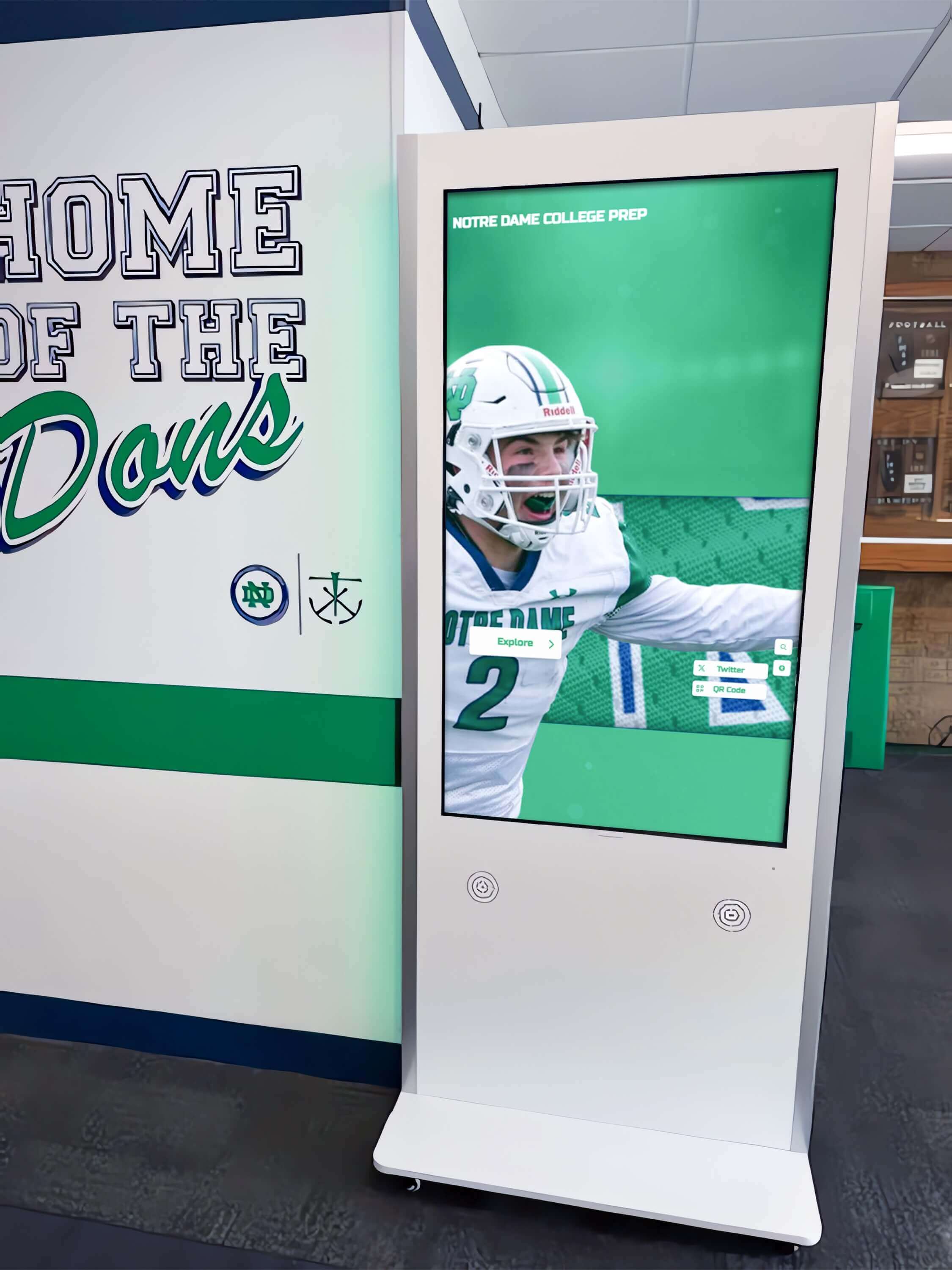
The media player runs the interactive application and manages the connection to content sources. Options range from small-form-factor PCs (Windows, Linux) to Android-based System-on-Chip modules embedded directly in commercial displays, to full workstation computers for computationally intensive applications.
For institutional recognition displays, hall-of-fame systems, and interactive directories, a small-form-factor Windows PC provides sufficient processing headroom for most use cases. Embedded SoC solutions reduce cable runs and power requirements but constrain software compatibility; verify that the platform fully supports the intended software stack before committing to embedded hardware.
Mounting and Enclosure
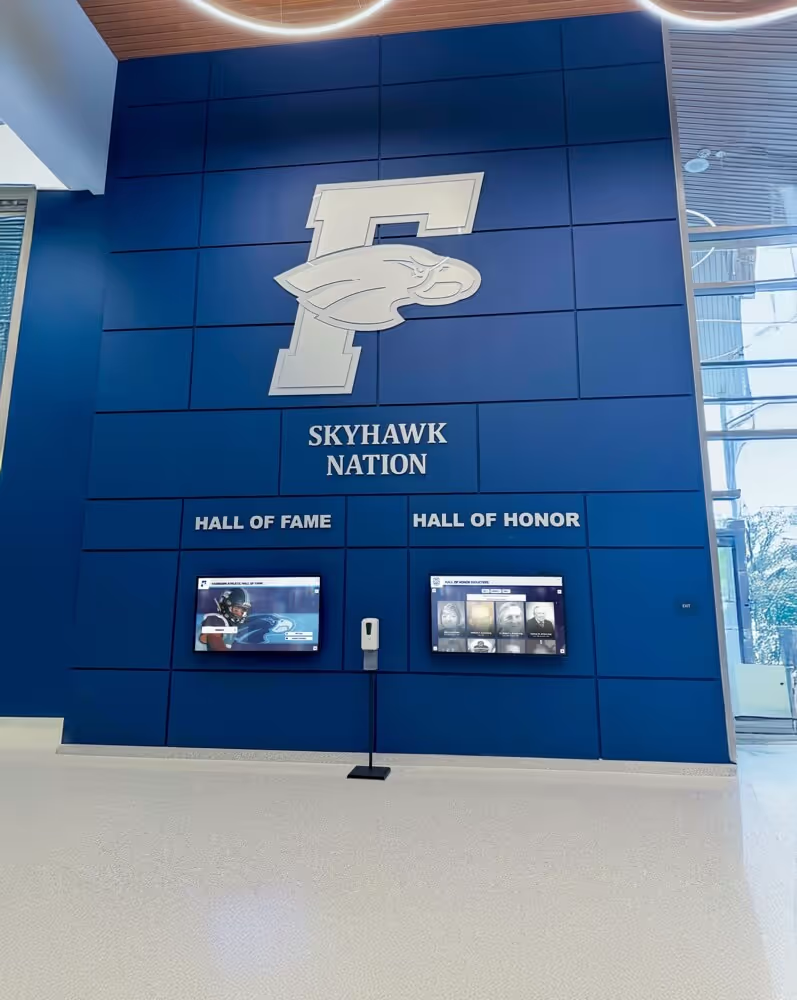
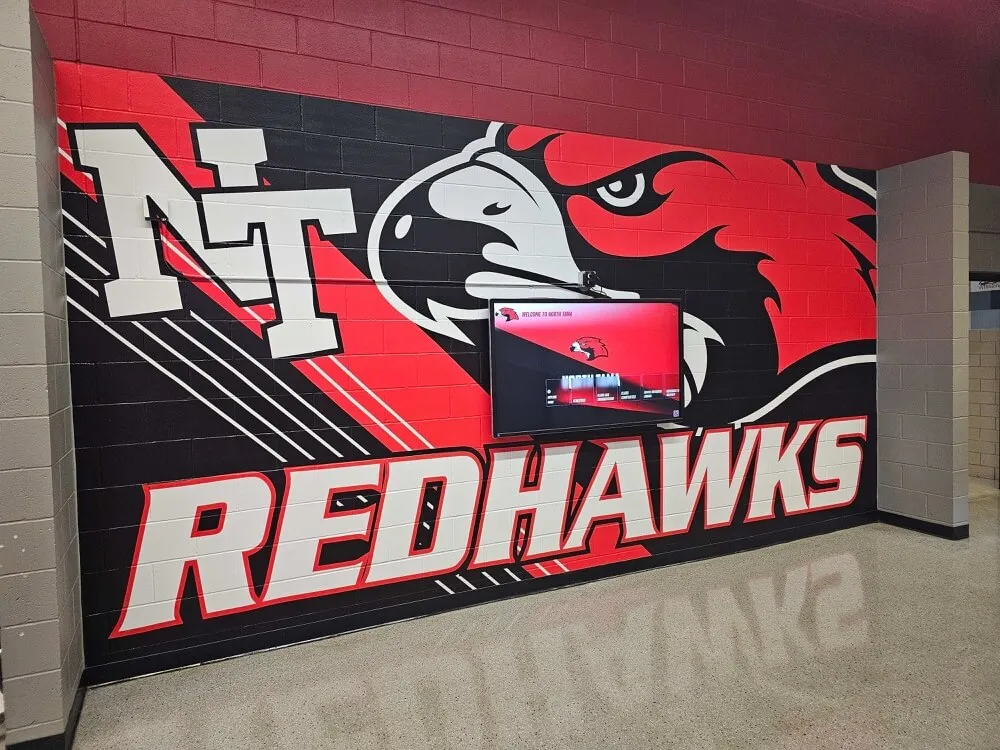
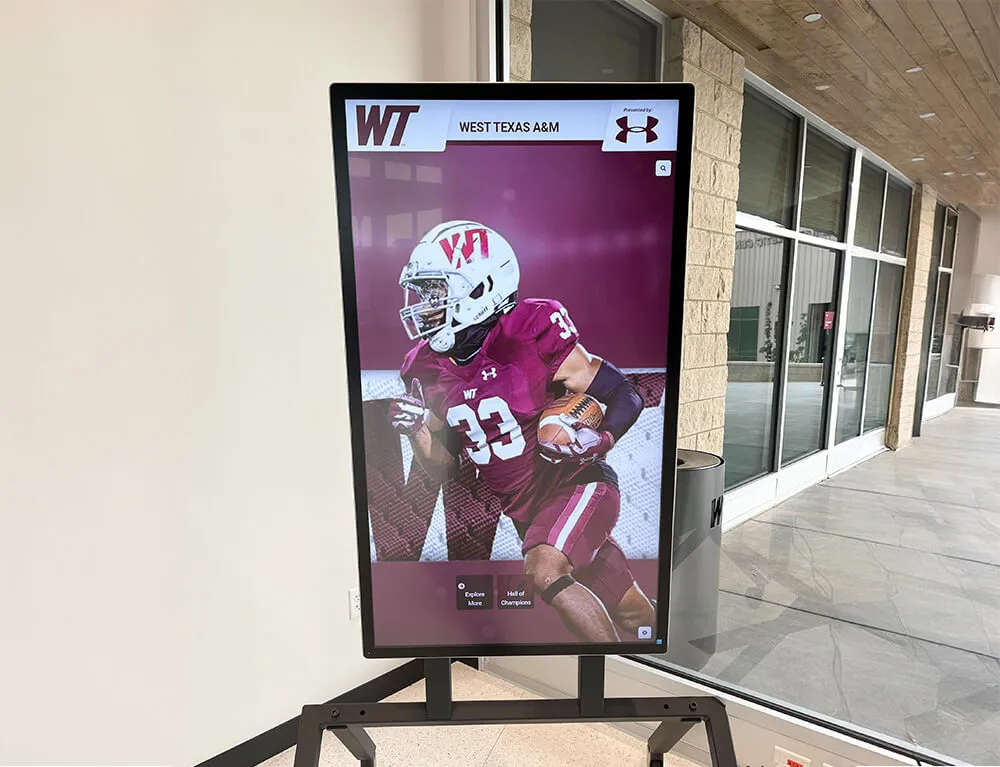
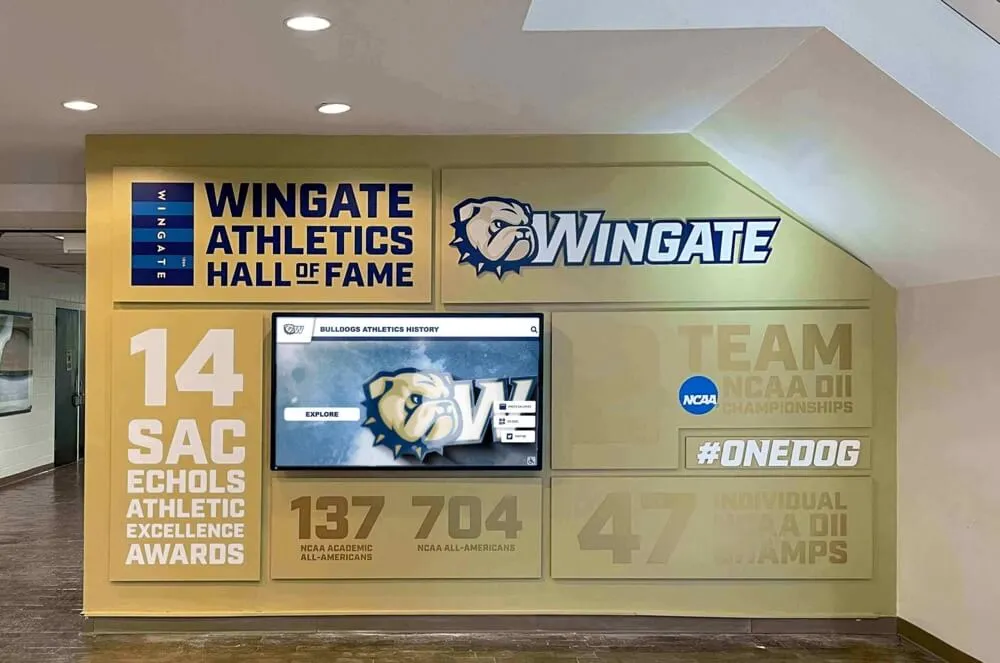
Interactive displays mount flush against walls (VESA bracket or custom millwork), project from walls on articulating arms, stand as freestanding floor kiosks, or embed within architectural feature walls. The mounting decision affects viewing angle, ADA compliance, cable management complexity, and the visual character of the installation.
ADA Standards for Accessible Design (2010) require that operable parts—including touchscreens used for information retrieval—be reachable within specified reach ranges. For forward reach, the maximum height is 48 inches from the finished floor to the highest operable part. Side reach limits vary by the depth of the adjacent obstruction. These requirements should be incorporated into mounting design from the start, not treated as an afterthought.
Network and Power Infrastructure
Interactive displays require reliable power—dedicated circuits for commercial-grade displays, not shared office circuits—and network connectivity for cloud-based content management. A gigabit wired Ethernet connection per display is the preferred baseline; Wi-Fi is acceptable for content delivery but introduces variability in high-traffic wireless environments that wired connections eliminate.
Content management systems that update display data from cloud sources require consistent outbound internet access. Facilities with strict network policies should verify that the display’s management traffic can reach the software vendor’s servers and that firewall rules accommodate update intervals.
Buyers evaluating display components independently should review panel specifications, touch frame sourcing options, and media player selection criteria before finalizing hardware orders.
Software Systems: The Layer That Makes Displays Interactive
Hardware creates the surface. Software creates the experience. Three software layers work together in a typical interactive signage deployment.
Content Management System (CMS)
The CMS is the administrative tool through which authorized users add, edit, organize, and schedule display content. For recognition applications—halls of fame, alumni spotlights, athletic records, donor acknowledgments—the CMS must accommodate structured data (profiles with photos, statistics, career timelines) rather than just images and videos.
Evaluating CMS capability matters as much as evaluating hardware. A display showing outdated inductees because updating the CMS is technically complex is not a solved operational problem. Touchscreen software platforms designed for recognition provide CMS interfaces that communications directors, athletic directors, and advancement staff can operate without IT department involvement for routine updates.
Player Software
The player software runs on the media player hardware and renders the interactive application visible on screen. It manages full-screen display, touch input routing, application lifecycle (auto-restart on crash), operating system lockdown (preventing users from exiting to the desktop), and network communication with the CMS.
The difference between web-based and native-app player architectures has practical consequences for update deployment speed, cross-platform compatibility, and long-term maintenance requirements. Web-based players update content centrally without touching individual display hardware; native players require device-level update processes that add friction for multi-display deployments.
Interactive Application Layer
The application layer is what the end user sees and touches. It defines information architecture (how content is categorized and navigated), interaction models (browsing, searching, filtering, scrolling), animation and transition behavior, accessibility features (font scaling, contrast modes, keyboard navigation), and session management (idle timeout, automatic return to the home screen).
Purpose-built platforms for institutional recognition deliver application layers designed for the specific use case, rather than requiring organizations to configure general-purpose CMS tools to approximate recognition-specific experiences. This distinction often determines adoption success: staff who can maintain the system actually do so, and displays stay current.
Installation Planning: What to Prepare Before Hardware Arrives
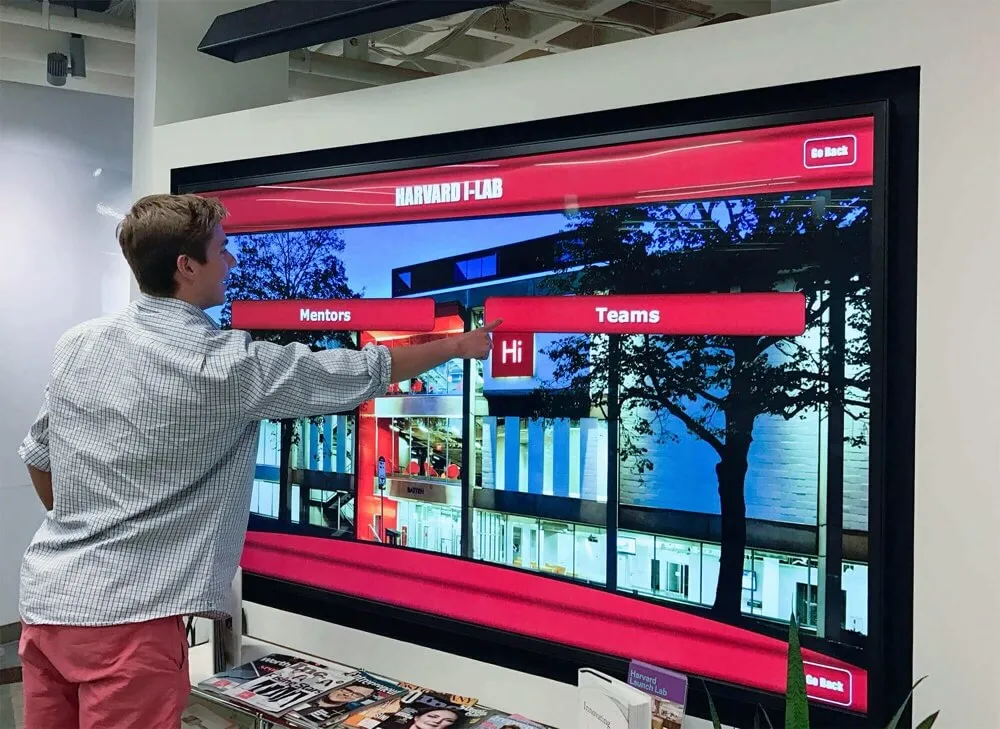
Successful installations address five infrastructure questions before purchasing decisions are finalized.
Power: Commercial-grade displays draw 150–500 watts depending on size and brightness. Each display should have a dedicated electrical circuit; shared circuits with other high-draw equipment introduce voltage fluctuation that can shorten display hardware life. A licensed electrician should verify circuit capacity and install appropriate outlets during facility preparation—before the display hardware is on site.
Network: Plan dedicated wired Ethernet runs to each display location. Coordinate with IT to provision switch ports, assign static IP addresses or DHCP reservations, and open necessary firewall rules for content management traffic. Network provisioning delays are among the most common causes of installation schedule overruns; complete this work before installation day.
Mounting surface: Verify that wall surfaces can support display weight. A 75-inch commercial display with mounting hardware and media player can weigh 80–120 pounds. Hollow drywall on standard studs is insufficient for direct mounting without blocking behind the drywall; masonry and steel stud walls with appropriate anchors are preferred. Structural assessment should occur during the pre-installation site visit.
Conduit and cable management: Surface-mounted cable runs in visible public spaces are visually obtrusive and vulnerable to accidental damage. Plan for in-wall conduit routing of power and data cables. Coordinate conduit work with electrical rough-in before drywall is finished in renovation or new construction contexts.
Ambient environment: Operating temperature ranges for commercial displays typically fall between 32°F and 104°F (0°C–40°C). Displays mounted in direct sunlight, near loading docks, in un-conditioned spaces, or adjacent to HVAC supply vents may experience thermal stress. Evaluate environmental conditions at each proposed installation location before committing to mounting positions.
Content Strategy: What Goes on an Interactive Display
Hardware and software deliver capability; content delivers value. Interactive displays that attract consistent visitor engagement share structural content characteristics that passive signage does not require.
Depth over breadth. Interactive displays justify the investment when they hold more information than a physical trophy case or bulletin board could. A school’s interactive hall of fame can profile every inductee with photos, career statistics, and current whereabouts—content that would require hundreds of physical plaques to approximate. Designing content architecture to hold this depth from day one, rather than planning to add it later, determines whether the display actually serves visitors at launch.
Search and filtering. Visitors arrive at an interactive display with specific queries: “I want to see football players from the 1990s” or “Which alumni went on to professional careers?” Building content architecture that enables these searches is more important for engagement than visual animation. Content ideas for digital signage screens and kiosks include specific strategies for organizing large recognition databases in ways that match how visitors naturally navigate.
Regular updates. Displays that show the same content for years stop drawing visitors after the first few months. Build an update cadence into the operational plan: new inductees, current season rosters, recent alumni accomplishments, upcoming events. Interactive signage platforms that allow non-technical staff to add content are far more likely to stay current than those requiring IT tickets for each update.
Session design. Most interactive display sessions in high-traffic public areas run between 30 seconds and 3 minutes. Navigation must reach any content within two to three taps. Idle timeout should return the display to an engaging home screen—not a blank or error state—after a configurable period.
Use Cases by Sector
Schools and Universities: Recognition and Institutional History
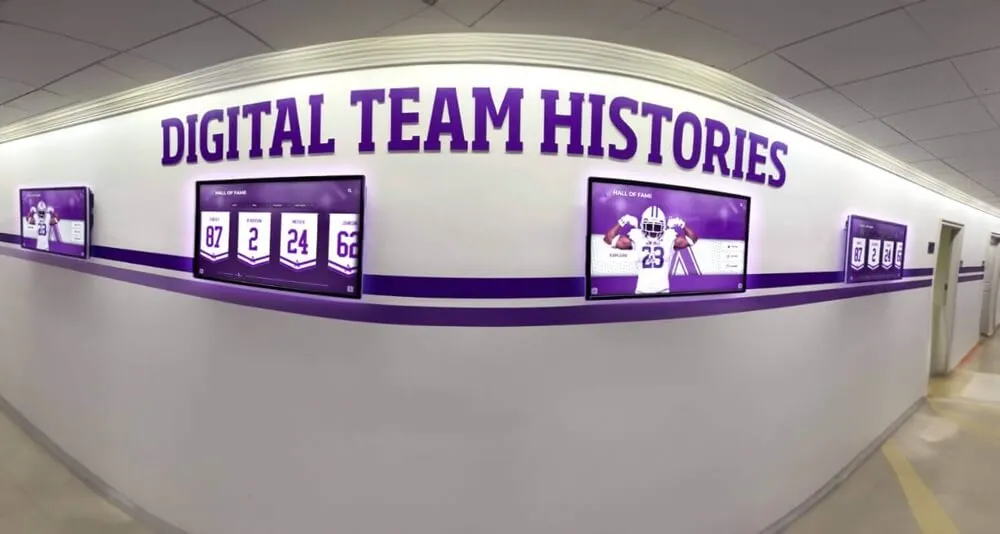
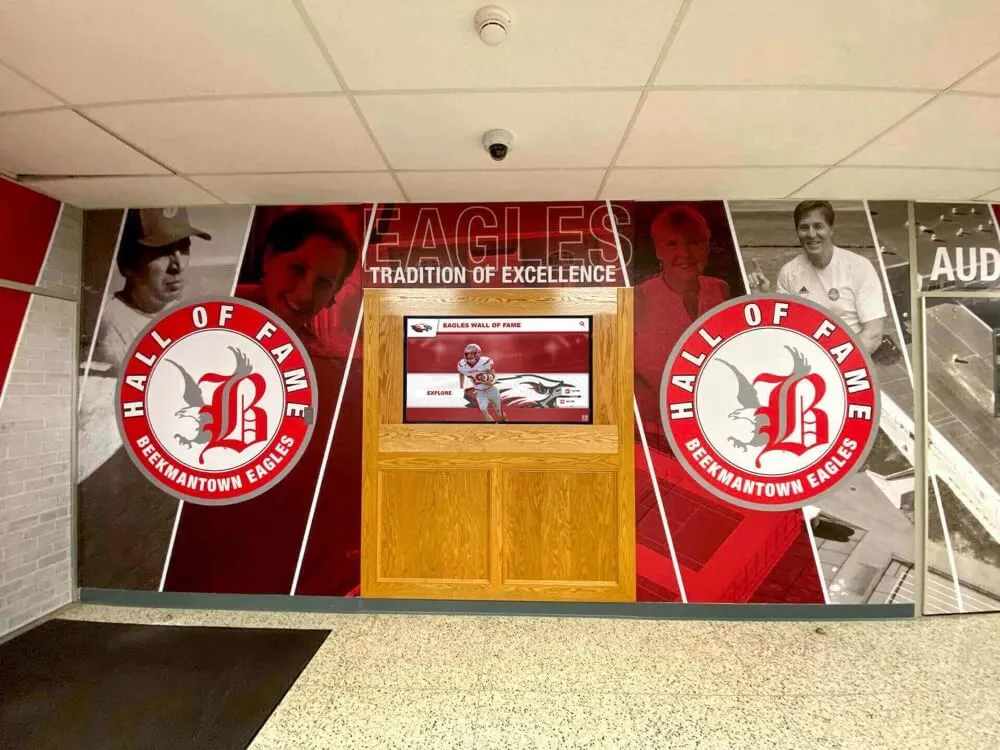
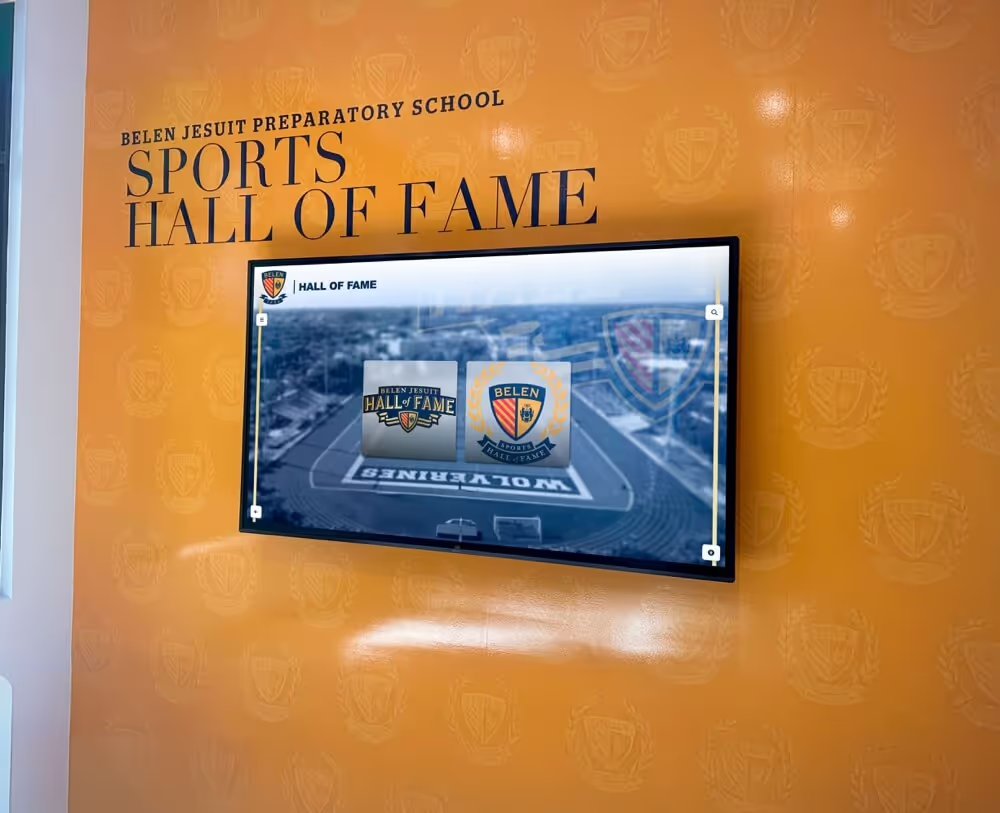
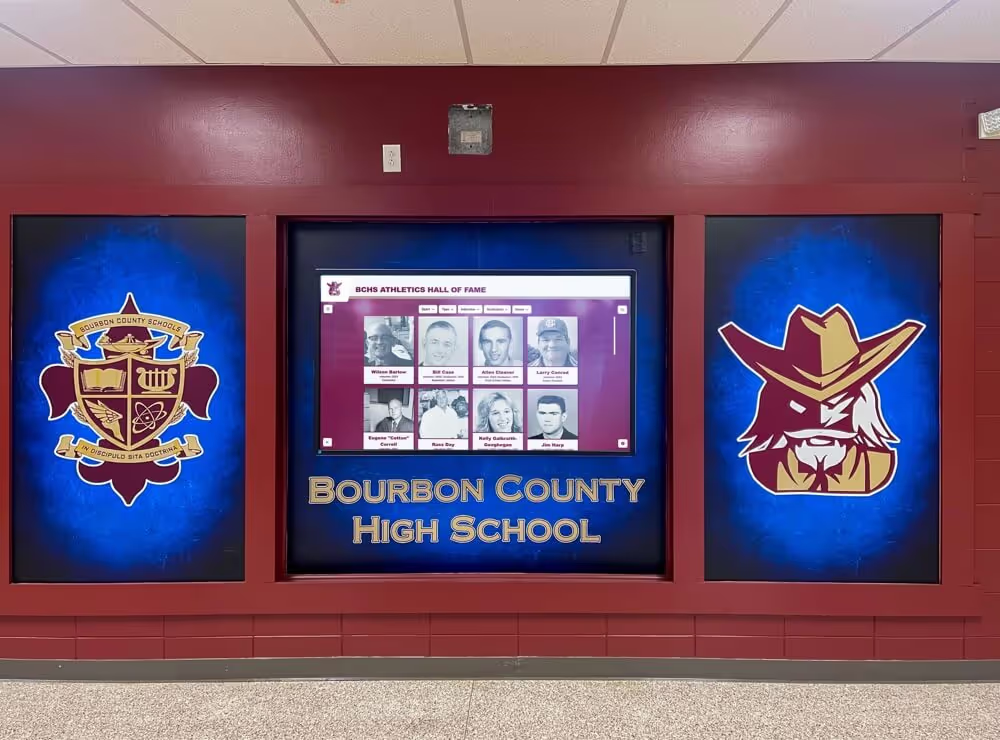
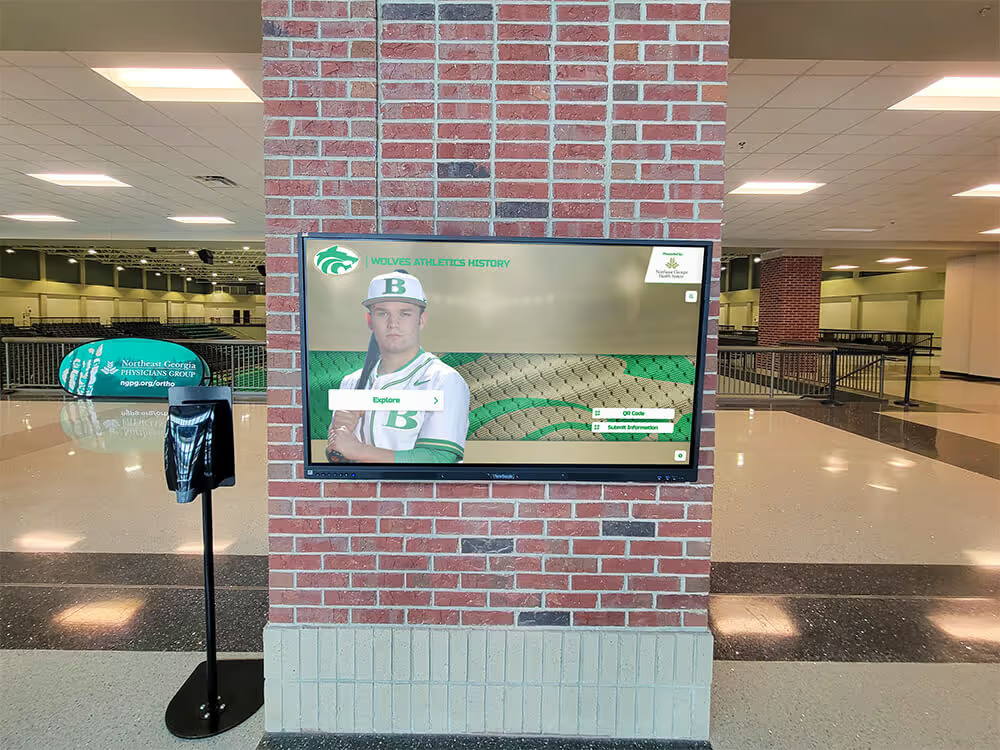
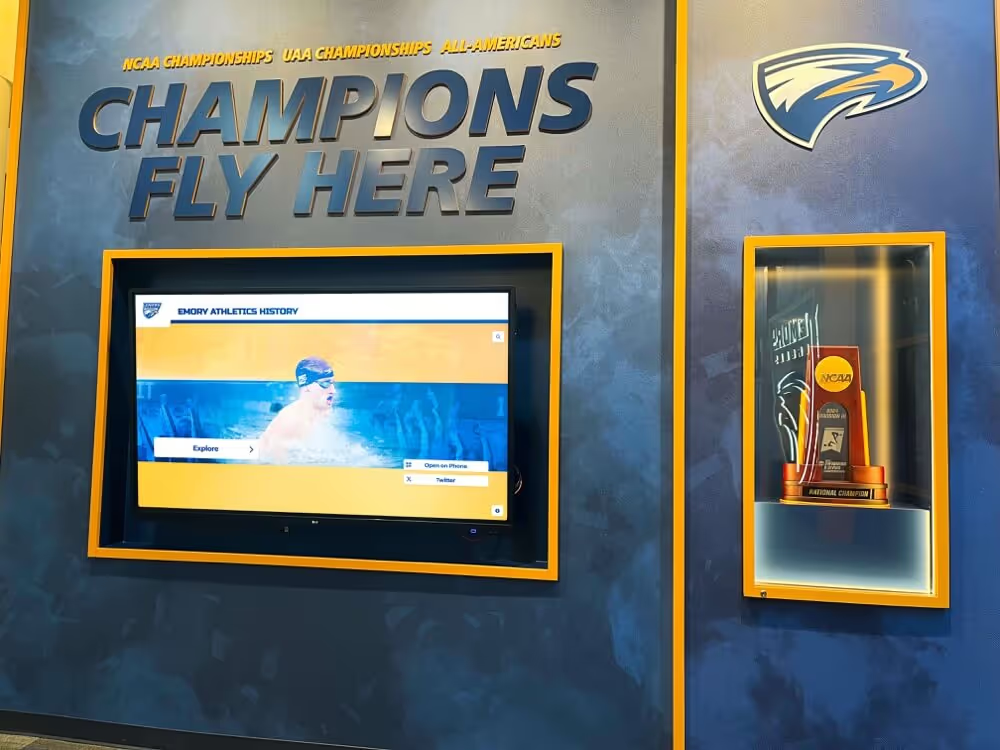
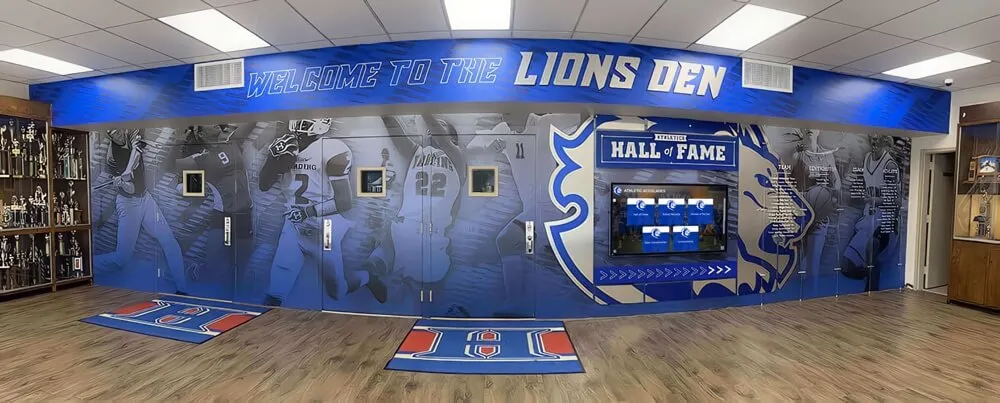
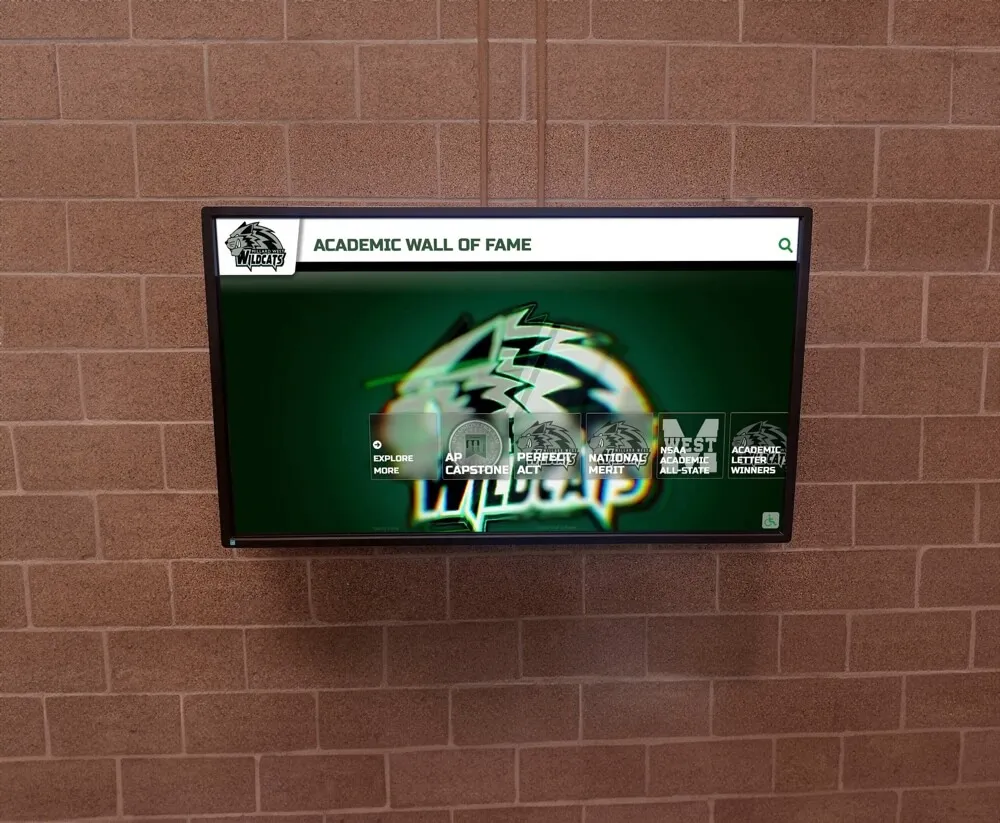
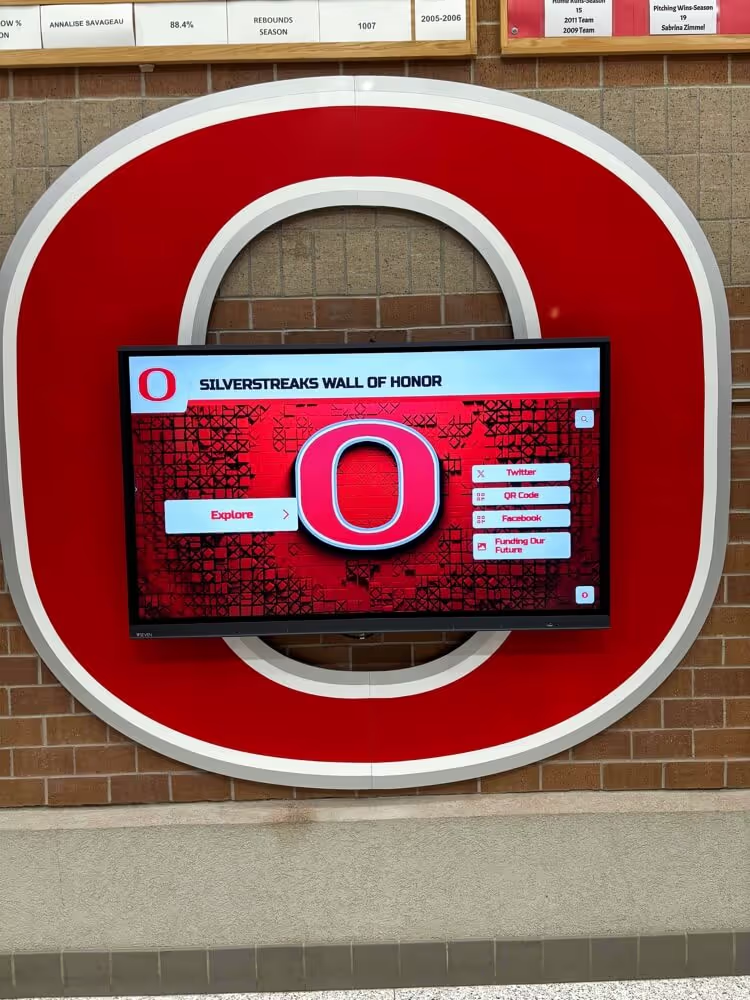
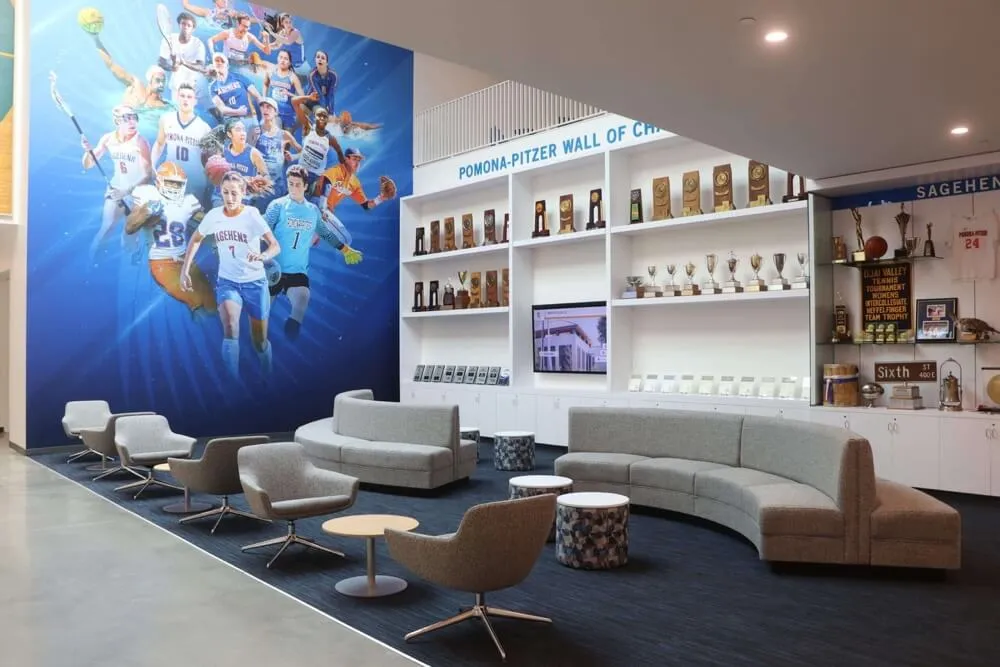
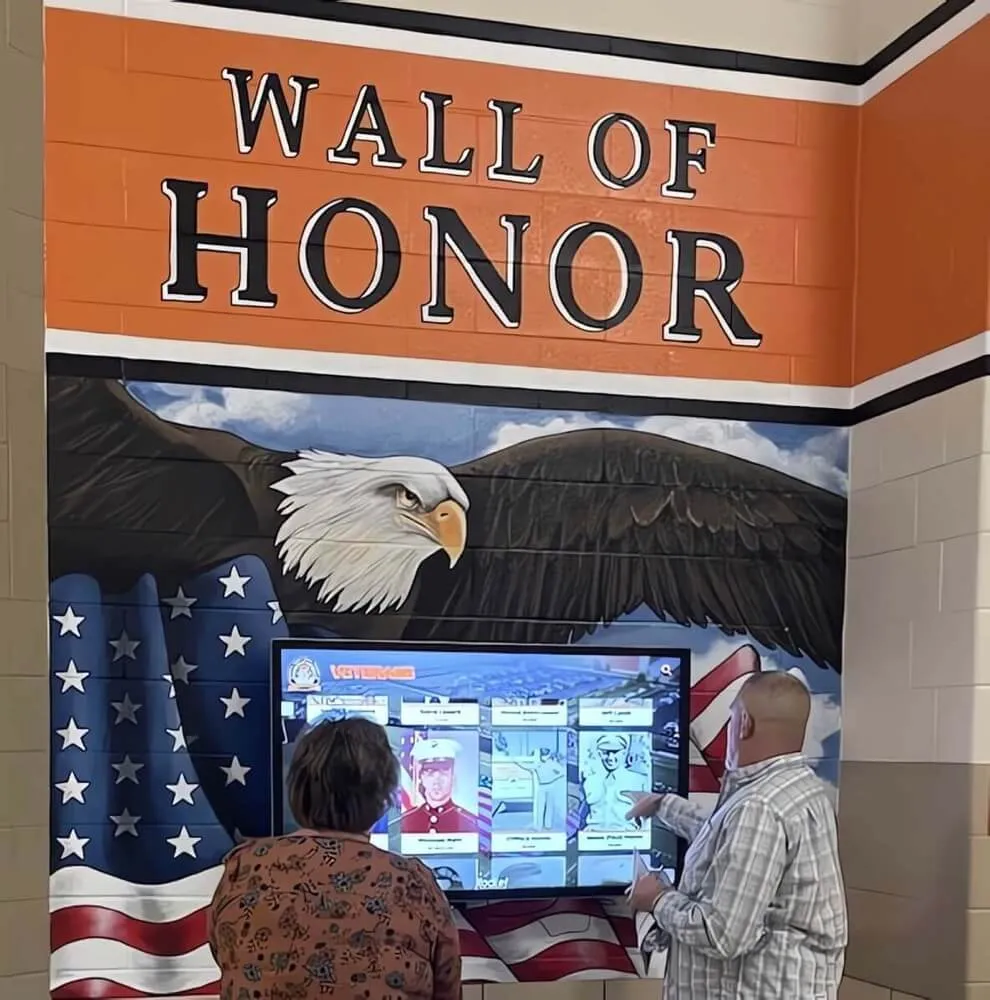
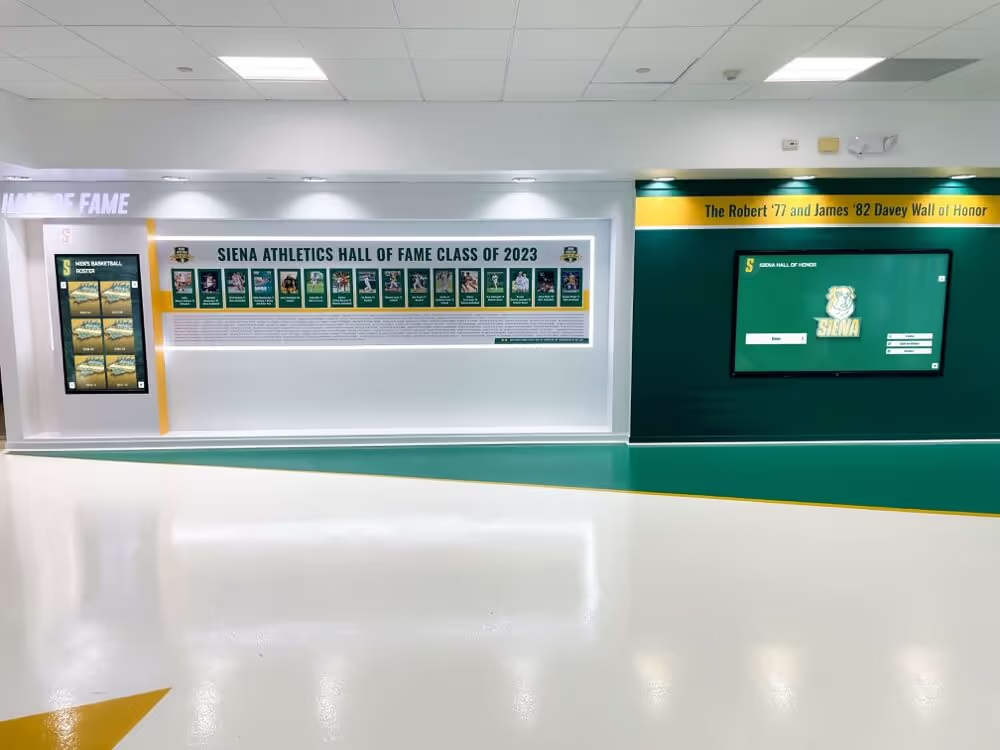
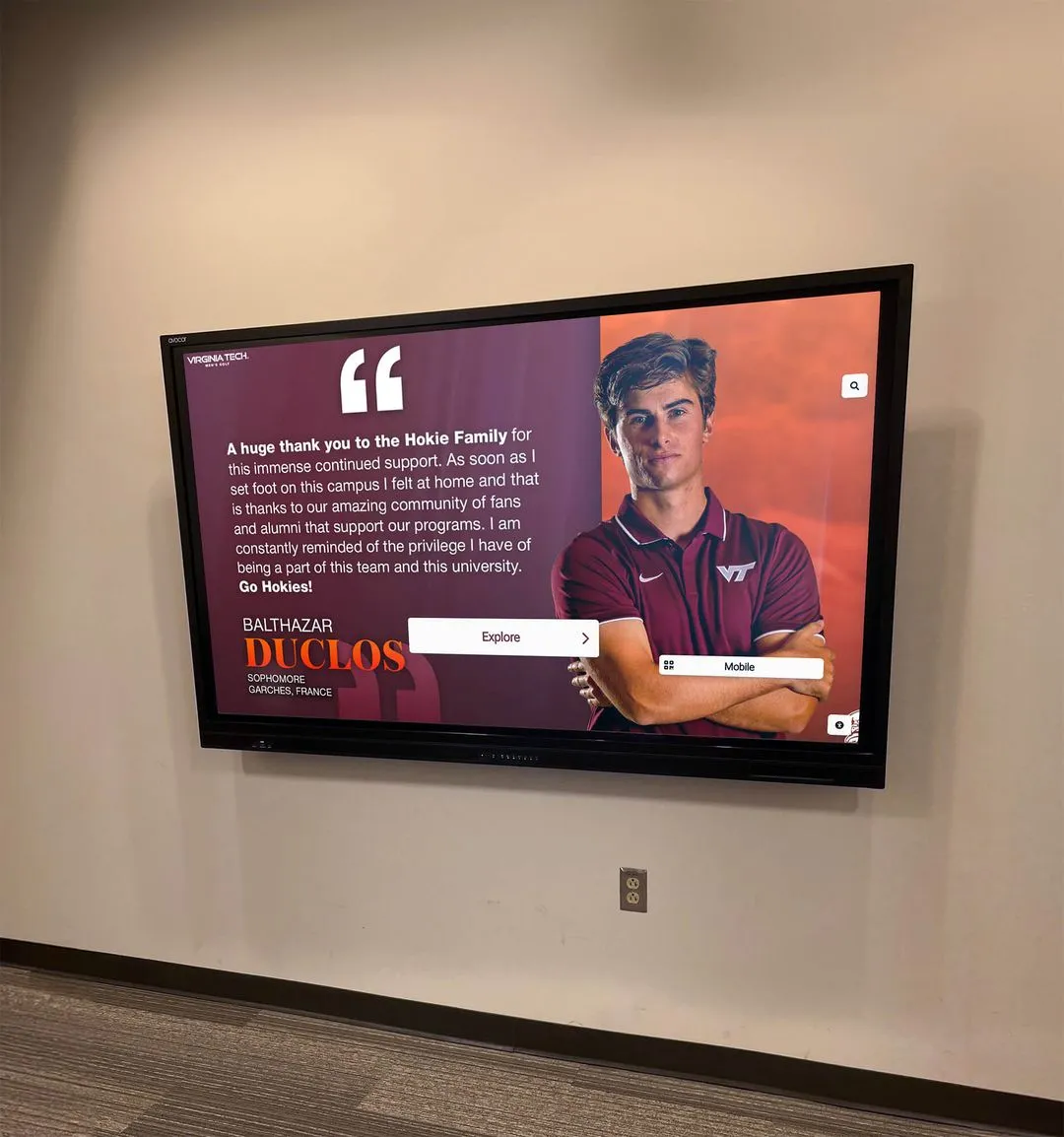
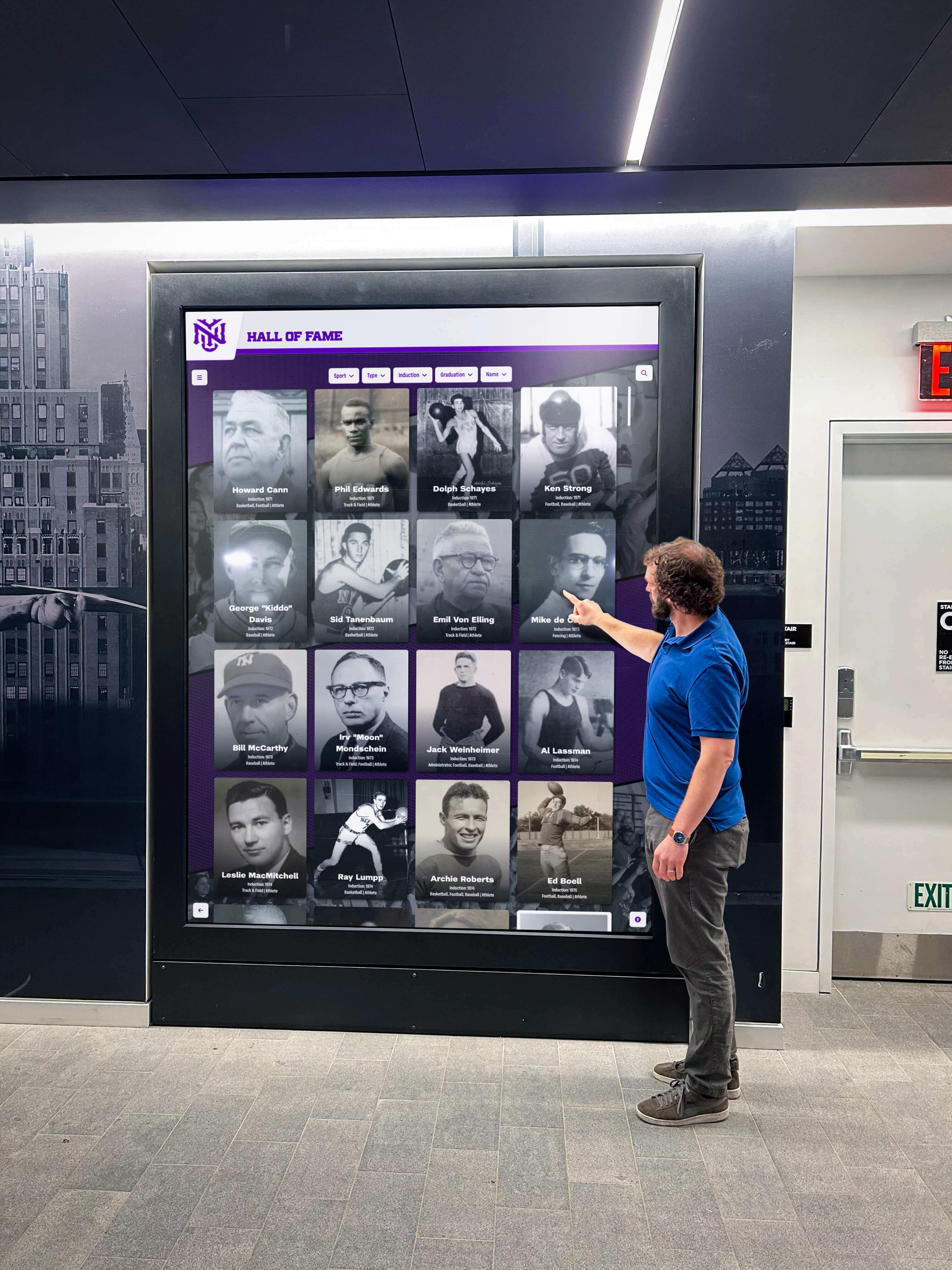
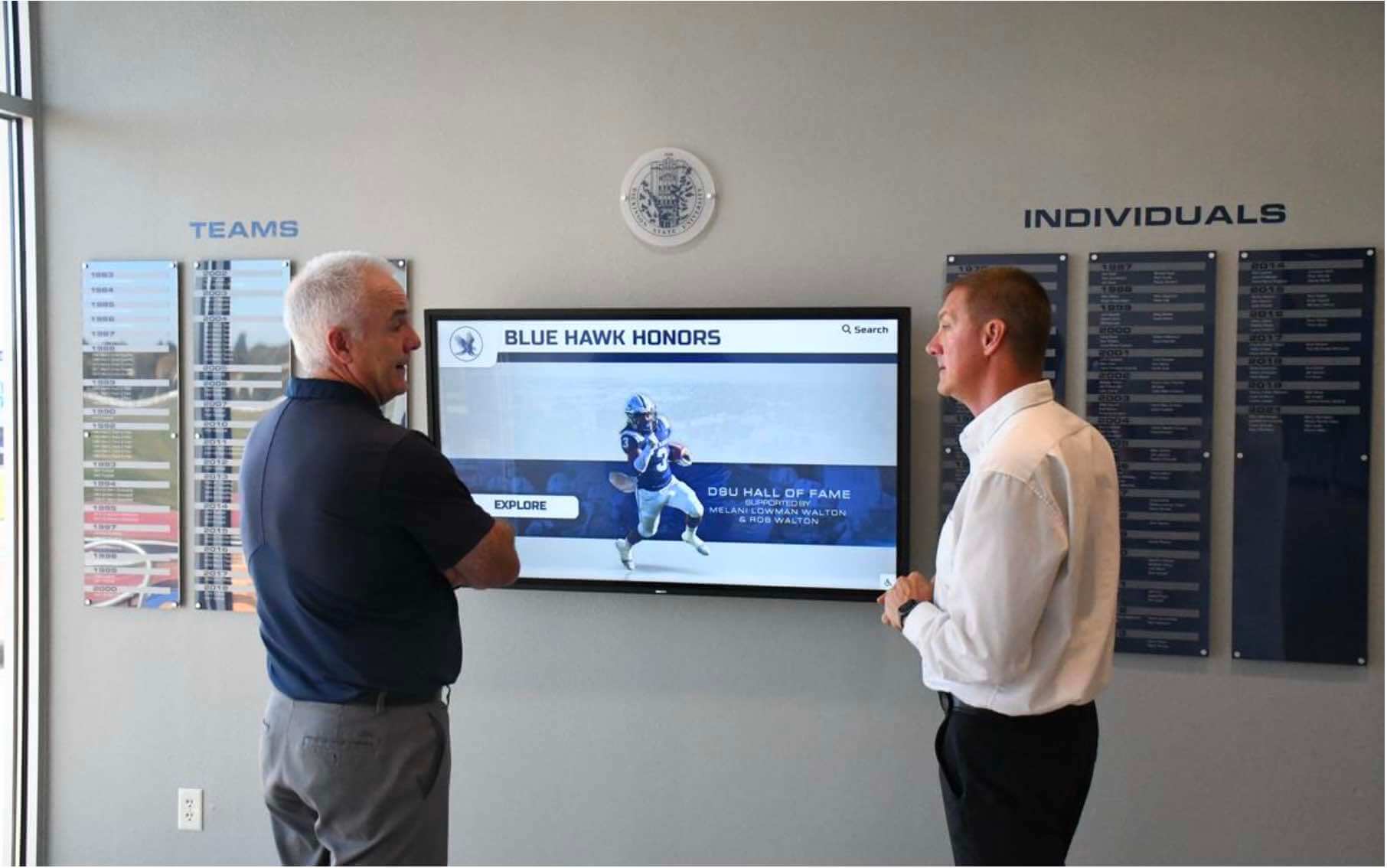
Educational institutions deploy interactive touch screen signage most commonly in athletic facilities, lobby areas, alumni centers, and library common spaces. The primary use cases are recognition (halls of fame, honor rolls, athlete profiles, academic achievement displays), historical archives (school history timelines, year-by-year championship records), and wayfinding or directory applications.
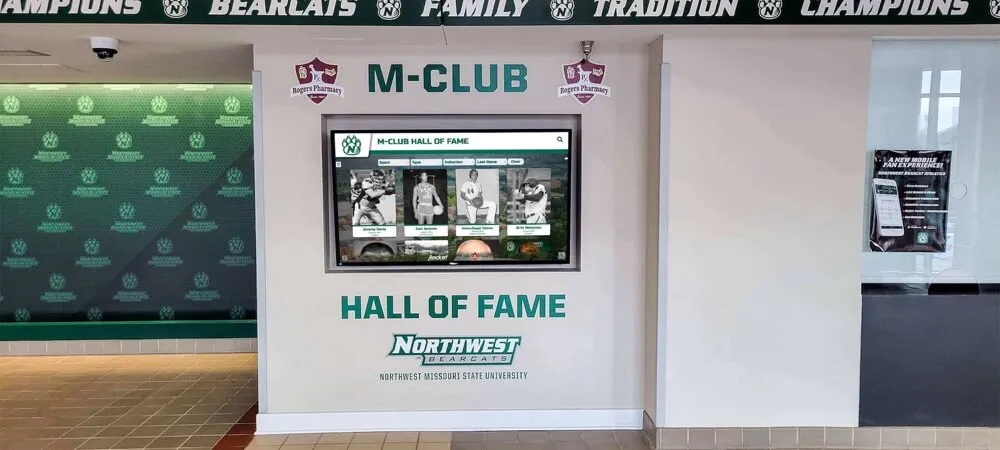
Touchscreen displays in high school gym lobbies and athletic facilities serve a specific audience: students, families, and alumni arriving for events. Content depth and fast navigation matter more than high-end animation; the goal is that a parent visiting for a game can find their child’s photo or locate their own senior year on the record board within a few taps.
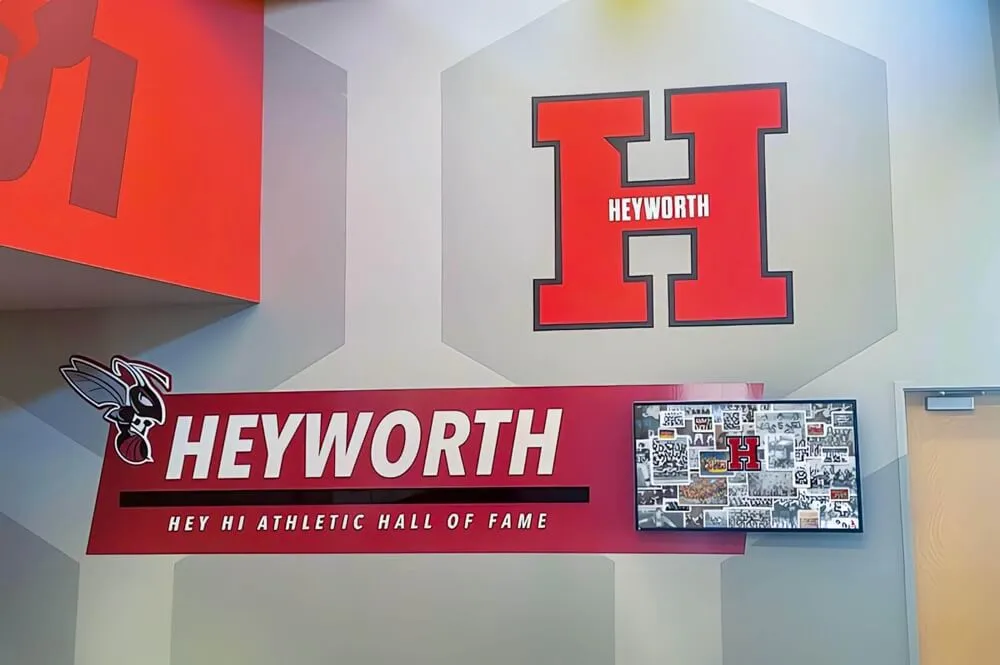
Solutions like Rocket Alumni Solutions build specifically for this use case, providing purpose-designed platforms for athletic halls of fame, alumni recognition walls, and digital trophy cases that schools can operate and update without ongoing technical support.
Museums and Cultural Institutions
Museums use interactive signage for exhibit interpretation, visitor wayfinding, collection exploration, and program information. Interactive touchscreens in museum and gallery settings require emphasis on multimedia (audio, video, high-resolution image zoom), multilingual support, and the ability to connect individual exhibit items to broader collection themes—content requirements distinct from recognition applications.
Corporate and Nonprofit Environments
Corporations deploy interactive signage in lobbies (visitor directories, company histories, mission communication), conference centers (room scheduling, wayfinding), and employee-facing spaces (recognition boards, internal communications). Interactive digital displays for donor and stakeholder recognition have also become standard in healthcare facilities, nonprofit organizations, and higher education advancement offices where acknowledging major contributors publicly supports ongoing fundraising culture.
Events and Temporary Installations
Event applications—expos, conferences, trade shows, athletic tournaments—deploy interactive kiosks for attendee directories, sponsor recognition, session wayfinding, and exhibitor information. These applications typically run on shorter hardware lease or rental arrangements rather than permanent installation, which affects the procurement approach and total cost calculation.
Cost Considerations: Ownership vs. Rental
The total cost of an interactive touch screen digital signage deployment spans five cost centers across a multi-year ownership period:
| Cost Center | Typical Range (Single Display) | Notes |
|---|---|---|
| Display hardware (commercial grade) | $1,500–$8,000 | Varies by size (32"–98"), panel grade, and brand tier |
| Touch overlay / PCAP integration | Included in most commercial panels; IR frame add-ons $300–$1,200 | Separate IR frame cost when retrofitting non-touch commercial display |
| Media player / system computer | $300–$1,200 | Windows mini-PC most common in institutional deployments |
| Software licensing (annual) | $500–$3,600/year | Purpose-built recognition platforms differ from general-purpose CMS pricing |
| Installation labor | $1,000–$4,000 | Electrical, network, mounting, commissioning; varies by site complexity |
| Content production (initial load) | $500–$5,000+ | Data entry, photo sourcing, design; varies widely by content volume |
| Annual content management | $0 (self-managed) to $1,500+ (managed service) | Platform usability determines whether staff maintain in-house or outsource |
Evaluating touch screen kiosk rental versus owned deployment is a meaningful decision point for K-12 schools and institutions with capital budget constraints. Rental or lease arrangements distribute hardware cost across the deployment period and typically include maintenance and hardware replacement provisions, reducing the risk of carrying obsolete or failed hardware. Owned deployments have higher upfront cost but lower total cost when the installation runs for five or more years without premature hardware failure.
Accessibility and Compliance Requirements
Public-facing interactive displays in institutional settings carry legal accessibility obligations that hardware selection and software configuration must satisfy.
ADA Standards for Accessible Design (2010) govern physical reach range, as noted in the mounting section above. WCAG 2.1 AA governs the digital accessibility of the interactive application itself—requiring sufficient color contrast (minimum 4.5:1 for body text against its background), visible focus indicators for keyboard-navigable elements, text alternatives for non-text content, and interfaces that do not rely solely on color to convey meaning.
Institutions subject to Section 508 (federal agencies and federal fund recipients) or state equivalents should verify that candidate software platforms have completed VPAT (Voluntary Product Accessibility Template) documentation and, where possible, have undergone third-party accessibility audits. Claims of “ADA compliant” without supporting documentation should be verified rather than accepted at face value.
Vendor Evaluation Framework
Buyers selecting an interactive touch screen digital signage vendor or platform should evaluate across five dimensions:
Hardware specification and sourcing. Does the vendor specify commercial-grade displays with appropriate warranties (typically 3-year commercial), or are they sourcing consumer-grade panels? Commercial panels carry longer mean-time-between-failure ratings and support backlight warranty coverage that consumer TV warranties exclude.
Software platform fit. Does the software match the content model? General-purpose digital signage CMS platforms designed for retail digital menus or corporate announcement screens are a poor fit for athletic hall-of-fame or alumni recognition use cases. Purpose-built platforms designed for the specific content type reduce configuration burden and produce better end-user experiences.
Content management accessibility. Who in your organization will update the display, and can they realistically use the CMS without IT support? Responsive touchscreens that retain user engagement depend on content being kept current—which requires the CMS to be accessible to non-technical staff. Platforms that require IT tickets for routine profile updates will quickly fall behind.
Support and service model. What happens when the display fails at 7 PM before a major event? Vendors should articulate their support hours, first response time commitment, remote diagnostics capability, and on-site service policies. White-glove installation and ongoing support are particularly valuable for institutions without in-house AV or IT staff experienced in commercial display management.
Scalability and integration. Can the platform grow from one display to five, or from one building to a multi-campus deployment? Does it integrate with existing student information systems, athletic databases, or alumni record platforms? Platforms vary significantly in their integration capabilities; verify these before committing to any vendor.
What This Means for Schools
Administrators evaluating interactive touch screen digital signage for athletic facilities, lobby areas, and alumni spaces are making a procurement decision that will shape how their community experiences institutional history for a decade or more. The technology decisions—touch type, display size, software platform—matter, but the operational decisions matter equally.
The most consistently successful school deployments share two traits: they chose software that their staff could maintain without external support, and they allocated content population time before launch rather than assuming content would be added after the display went live. Displays that open with sparse content and wait months to fill generate weak early engagement, which in turn reduces internal commitment to the project.
For schools specifically, solutions like Rocket Alumni Solutions are built around the reality that athletic directors, advancement staff, and communications coordinators—not IT departments—are the primary content stewards. Platforms designed for this operational reality deliver displays that stay current and continue earning visitor attention long after launch-day activity fades. Touchscreen recognition storytelling for schools translates institutional history into a format that communities actively engage with rather than walk past.
The most productive first step for any school evaluating this technology is requesting a demo from a platform vendor and asking three specific questions: Who on my staff would manage content updates, and can they walk through the CMS right now? What does a typical update look like—adding one new inductee or updating a record—and how many clicks does it take? What happens to our content if we change software platforms in five years?
The answers reveal more about long-term fit than any hardware specification sheet.
Request a Research Briefing
Organizations evaluating interactive touch screen digital signage for recognition, alumni engagement, or institutional history applications can request a personalized consultation with Rocket Alumni Solutions to assess hardware specifications, software fit, installation requirements, and budget alignment for their specific context.
Book a demo to see the platform in action and discuss how a purpose-built interactive signage platform delivers outcomes that general-purpose digital signage tools cannot match.
Disclosure: This content was produced by or on behalf of Rocket Alumni Solutions. All product names, software platforms, and technology references are property of their respective owners. Comparative statements reflect Rocket Alumni Solutions’ interpretation of publicly available information and general industry observations as of August 2026.
This analysis is based on publicly available information as of August 2026. All product names and trademarks belong to their respective owners. Comparative statements reflect Rocket Alumni Solutions’ interpretation of available data and may change over time.