



When you’re caring for family members with dementia—whether it’s your mother, your wife, or other loved ones—finding economical yet meaningful solutions to support their daily experience becomes a practical priority. Many family caregivers search for touchscreen displays that can help loved ones with dementia stay connected to memories, recognize family members, and maintain a sense of identity as cognitive abilities change.
This guide addresses the specific question many family caregivers ask: “I need to set up memory displays for two family members with dementia—is there an economical solution when it’s just me doing the caregiving?” The answer is yes, and this comprehensive resource explains practical, budget-conscious options for implementing touchscreen memory displays in home care settings.
We’ll explore economical hardware options that deliver meaningful functionality without unnecessary expense, simple setup approaches that don’t require technical expertise, content strategies that maximize therapeutic benefit for dementia care, practical management when you’re a solo caregiver, and how technology designed for institutional recognition can adapt to personal memory care needs.
Understanding Memory Display Benefits for Dementia Care
Before exploring specific solutions, it’s helpful to understand why touchscreen memory displays can provide meaningful support for individuals with dementia and their family caregivers.
How Visual Memory Cues Support Dementia Care
Consistent Identity Reinforcement: Dementia progressively affects memory formation and recall. Prominently displayed photos of family members, particularly from earlier life periods, help individuals maintain connection to personal identity and relationships. Regular visual exposure to familiar faces can reduce anxiety and provide comfort even when verbal recall fails.
Temporal Orientation Support: Many individuals with dementia experience disorientation regarding time and place. Displays showing current date, season, and relevant daily information alongside memory photos can provide gentle, ongoing orientation cues without requiring repeated verbal reminders that may cause frustration.
Reduced Repetitive Questioning: When individuals with dementia can see visual answers to common questions—where family members are, what day it is, what’s happening today—the frequency of repetitive questions often decreases. This reduces caregiver stress while providing independence for the person with dementia to self-reference information.
Meaningful Engagement: Interactive displays provide appropriate engagement activities. Browsing photos, seeing familiar faces, and reminiscing about captured memories offer cognitive stimulation and emotional connection that supports wellbeing without requiring complex skills that may have declined.
Family Connection During Visits: When family members visit, memory displays provide natural conversation starters and shared activities. Looking at photos together, identifying people and places, and telling stories create positive interactions even when conversational abilities have diminished.
Specific Considerations for Home-Based Dementia Care
Solo Caregiver Efficiency: When you’re the only person managing care, solutions must be maintainable without constant attention. Displays that update reliably, don’t require frequent troubleshooting, and can be managed remotely when you’re away from home provide practical value for solo caregivers balancing multiple responsibilities.
Multiple Individual Needs: When caring for two family members with dementia—for example, both your mother and your wife—you need systems that can serve both individuals appropriately. This might mean different content for each person’s location or shared content that’s meaningful to both, depending on your specific situation and their relationship.
Budget Constraints in Family Care: Unlike institutional facilities with large budgets, family caregivers typically work within household budgets that require cost-effective solutions. The goal is finding the most economical option that still delivers meaningful benefit, not necessarily the most advanced or expensive technology.
Limited Technical Support: In home settings, you are the IT department. Solutions must be simple enough that you can set up, maintain, and troubleshoot without specialized technical knowledge or the ability to call dedicated support staff. User-friendly platforms designed for non-technical users become particularly important.
Economical Hardware Options for Home Memory Displays
Several hardware approaches can create effective memory displays at various price points. Understanding options helps you select solutions matching your budget while meeting your family’s needs.
Budget-Friendly Tablet Solutions ($150-$400)
Basic Tablets as Memory Displays: Consumer tablets represent the most economical entry point for touchscreen memory displays. Current-generation tablets from major manufacturers typically cost $150-$400 depending on screen size and specifications.
Key Advantages: Tablets offer built-in touchscreen capability with intuitive interfaces, integrated WiFi for remote content updates, simple photo slideshow and gallery apps, portable form factors that can move between rooms, and relatively low failure risk given the modest investment.
Implementation Approach: Secure tablets in fixed locations using mounting stands or wall mounts. Configure them to display photo slideshows or photo gallery apps. Enable kiosk mode or guided access features that prevent accidental navigation away from photo content. Set up auto-brightness and sleep schedules appropriate for your environment.
Practical Considerations: Tablets work well for smaller room applications where 8-11 inch screens provide adequate visibility. Battery-powered operation means you’ll need power connections for continuous use. Basic stands cost $20-$50, while wall mounts run $30-$80. Total cost for two locations: approximately $300-$900 including tablets, mounts, and setup accessories.
Mid-Range Digital Display Monitors ($300-$800)
Purpose-Built Digital Displays: Larger digital monitors offer better visibility than tablets for living room or common area applications where viewing distance exceeds a few feet. 21-32 inch touchscreen monitors designed for consumer use typically cost $300-$800.
Key Advantages: Larger screens provide visibility across rooms, better suited for individuals with vision challenges, commercial panels offer longer operational lifespan than consumer tablets, built-in speakers enable audio components like music or voice narration, and wall mounting creates permanent installations that won’t be accidentally moved or disturbed.
Implementation Approach: Connect monitors to small-form-factor computers or media streaming devices running photo gallery or slideshow software. Many modern smart displays include built-in photo frame modes that pull images from cloud storage or USB drives without requiring separate computers.
Practical Considerations: Larger displays provide better visibility but require wall mounting or substantial stands. Many smart displays include frame modes specifically designed for continuous photo display. Consider energy-efficient models for continuous operation. Total cost for two locations: approximately $600-$1,600 including displays and any necessary media players.
All-in-One Digital Photo Frame Solutions ($100-$500)
Dedicated Digital Frames: Purpose-built digital photo frames designed specifically for displaying photos offer another economical option. Modern WiFi-enabled frames with 10-15 inch displays typically cost $100-$500.
Key Advantages: Zero configuration complexity—designed specifically for photo display, cloud connectivity enabling family members to share photos remotely, elegant designs that look like traditional frames rather than technology, energy-efficient operation designed for continuous use, and extremely simple operation appropriate for non-technical caregivers.
Implementation Approach: Set up frames with WiFi connectivity, configure associated mobile apps or email addresses for photo sharing, position frames in locations where your family members spend time, and establish content management routines for updating photos regularly. Like interactive displays in museums, simplicity of use determines whether the technology successfully engages its audience.
Practical Considerations: Digital frames lack full touchscreen interactivity but offer simplicity and reliability. Limited screen sizes may not work for all viewing situations. Most models support slideshow features but lack advanced interactive capabilities. Total cost for two locations: approximately $200-$1,000 including frames and setup.
Professional-Grade Budget Options ($500-$1,500)
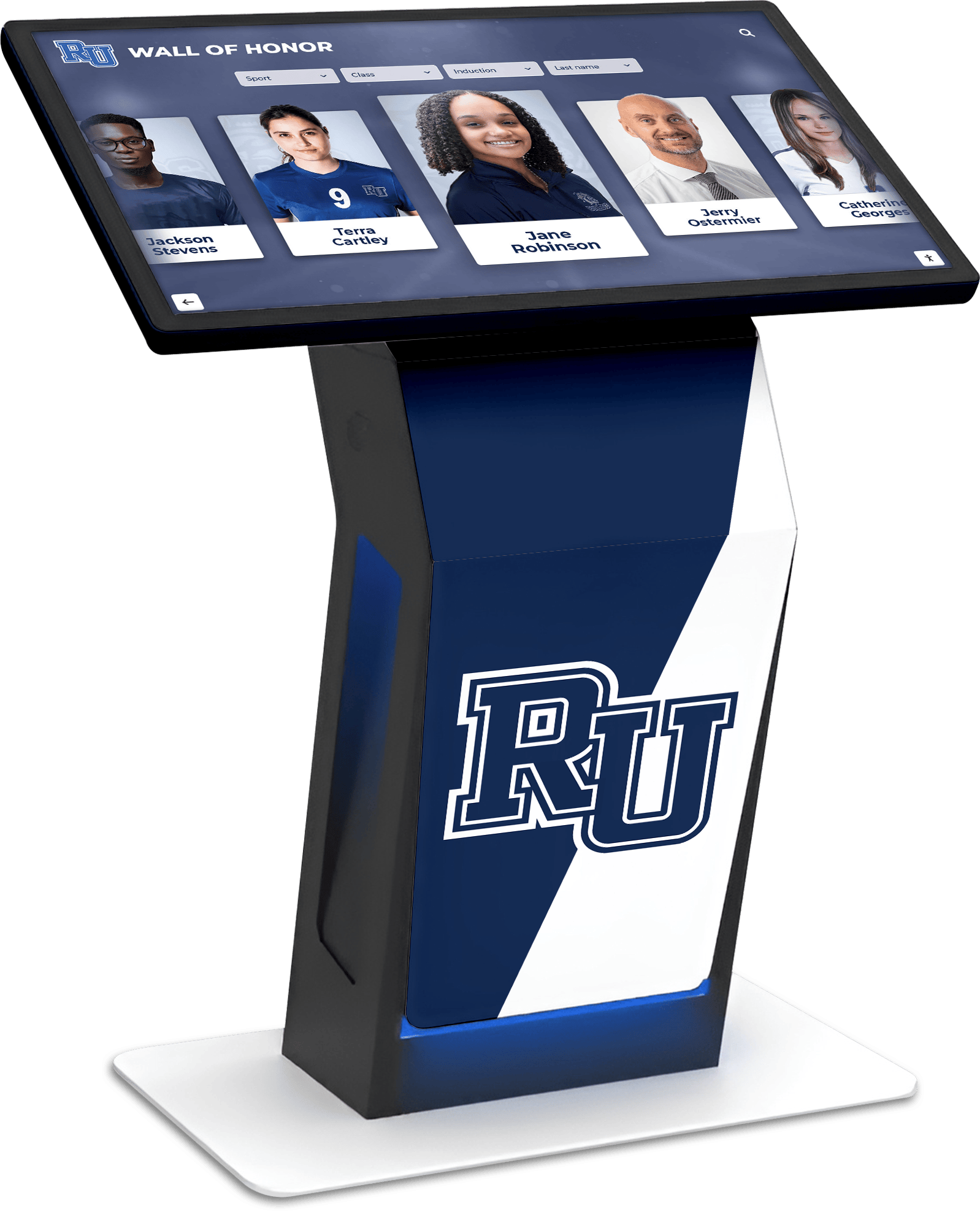
Refurbished or Budget Commercial Displays: Refurbished commercial touchscreen kiosks or budget commercial display systems can provide professional capabilities at economical prices. Refurbished units from institutional settings often cost 40-60% less than new equipment.
Key Advantages: Commercial-grade reliability designed for continuous operation, larger screen formats appropriate for living areas, proper touchscreen functionality enabling interaction, professional mounting and housing designed for permanent installation, and significantly reduced cost compared to new commercial equipment.
Implementation Approach: Source refurbished displays from commercial display dealers or online marketplaces, verify functionality and warranty coverage, configure with simple photo gallery or slideshow software, and install in appropriate locations. Professional display technology need not be expensive when purchasing carefully sourced refurbished equipment.
Practical Considerations: Refurbished equipment requires careful sourcing from reputable sellers, may have cosmetic imperfections that don’t affect function, and warranty coverage varies significantly. Carefully evaluate each unit’s condition and testing. Total cost for two locations: approximately $1,000-$3,000 including displays and installation.
Simple Setup and Content Management Strategies
Once you’ve selected economical hardware, straightforward setup and content management approaches help you maintain meaningful displays without technical expertise or excessive time investment.
Photo Content Organization and Selection
Curating Meaningful Photo Collections: Select photos that provide maximum therapeutic benefit through recognition of immediate family members with clear, well-lit faces, photos from life periods with strongest memory retention (often earlier adult years), images showing familiar places like family homes or favorite locations, pictures from meaningful events like weddings, holidays, and celebrations, and current family photos maintaining connection to present relationships.
Photo Quantity Considerations: Start with manageable collections of 50-100 photos per person rather than overwhelming libraries of thousands of images. This allows adequate rotation to keep content engaging while enabling you to carefully curate which images provide most benefit. You can always expand collections over time.
Photo Quality Standards: Use clear, high-resolution photos where faces are readily visible, images with good lighting that don’t strain vision, close-up photos showing faces clearly rather than distant group shots where individuals are hard to identify, and labeled images with names or captions identifying people and contexts.
Technology Setup Approaches
Slideshow Software Options: Most devices include built-in slideshow capabilities. Configure slideshow settings to show photos for 10-30 seconds each (longer viewing time appropriate for dementia care), enable shuffle or random display preventing repetitive sequences, include transitions that are gentle rather than distracting, and loop continuously without requiring restart.
Cloud Storage Integration: Use cloud photo services like Google Photos, iCloud Photos, or Dropbox for photo storage. This enables remote updates from your smartphone or computer, sharing across multiple displays from single photo library, backup protection for irreplaceable family photos, and collaborative access if other family members want to add photos.
Kiosk Mode Configuration: Most tablets and displays can be configured to prevent accidental disruption including enabling guided access modes that lock devices to single apps, disabling home buttons or navigation that might interrupt display, setting automatic wake and sleep schedules, and configuring auto-restart if devices experience issues.
Network and Remote Management: Connect displays to reliable home WiFi for content updates and remote management, enable remote desktop or remote management apps allowing troubleshooting without being physically present, set up automatic updates for software and security, and create simple documentation of login credentials and reset procedures.
Maintenance and Update Routines
Weekly Content Review: Spend 15-30 minutes weekly reviewing displayed content, rotating in new photos to maintain freshness, observing which images your family members engage with most, removing any images that cause confusion or distress, and adding seasonal or current event photos maintaining temporal connection.
Monthly Technical Maintenance: Check that all displays are functioning properly, clean screens with appropriate cleaners, verify power connections and mounting security, update software if needed, and test remote access capabilities you may need for troubleshooting.
Family Participation: Consider establishing simple systems where other family members can contribute photos via shared albums or email addresses, creating ongoing fresh content while distributing maintenance responsibilities across your broader family network even if you’re the primary caregiver.
Practical Considerations for Two-Person Care Situations
When you’re managing memory displays for two family members with dementia, several approaches can simplify implementation while serving both individuals appropriately.
Shared Versus Individual Content Strategies
Shared Content Approach: If both family members benefit from the same photos—for example, if they’re married or have long shared history—you can maintain single photo libraries displayed on both screens. This minimizes content management work while ensuring both individuals see meaningful, familiar images.
Individual Content Approach: If the two individuals have different backgrounds or need different visual content—for example, a parent and spouse with different family histories—you may need separate photo libraries. Modern cloud storage and simple folder organization enables managing distinct content sets without excessive complexity.
Hybrid Approach: Many family caregivers find success with mostly shared content supplemented by location-specific images. For example, displays might show 80% shared family photos with 20% individual content specific to each person’s location or particular memory needs.
Physical Placement Strategies
Common Area Display: Place one larger display in a shared living space where both family members spend time. This creates a focal point for shared reminiscence activities and conversation while requiring only one display installation and content stream.
Bedroom or Personal Space Displays: Consider smaller displays in individual bedrooms or personal spaces. These provide private memory support during time spent alone and can show more personalized content relevant to each individual’s specific needs and preferences.
Multi-Location Synchronized Content: If using multiple displays showing the same content, synchronization features in many slideshow apps enable all screens to display the same images simultaneously. This creates consistency across your home without requiring manual coordination.
Managing Limited Caregiver Time
Batch Content Updates: Rather than updating displays daily, establish weekly or bi-weekly routines where you prepare and upload new photo sets. Batch processing is more efficient than frequent small updates. Similar to how schools manage digital recognition displays, establishing regular update schedules maintains freshness without constant attention.
Automated Routines: Configure displays to handle routine functions automatically including scheduled wake and sleep times matching your family members’ routines, automatic photo rotation without manual intervention, self-recovery from minor technical glitches through auto-restart settings, and automated software updates during overnight hours.
Remote Management Priority: Prioritize solutions that enable remote management from your smartphone or laptop. This allows content updates, troubleshooting, and adjustments from anywhere rather than requiring physical presence at each display location—particularly valuable if you need to manage displays in different rooms or locations.
Adapting Institutional Display Technology for Home Use
While professional display technologies are often designed for schools, businesses, or care facilities, many principles and even some specific solutions can adapt economically to home dementia care settings.
Principles from Professional Recognition Displays
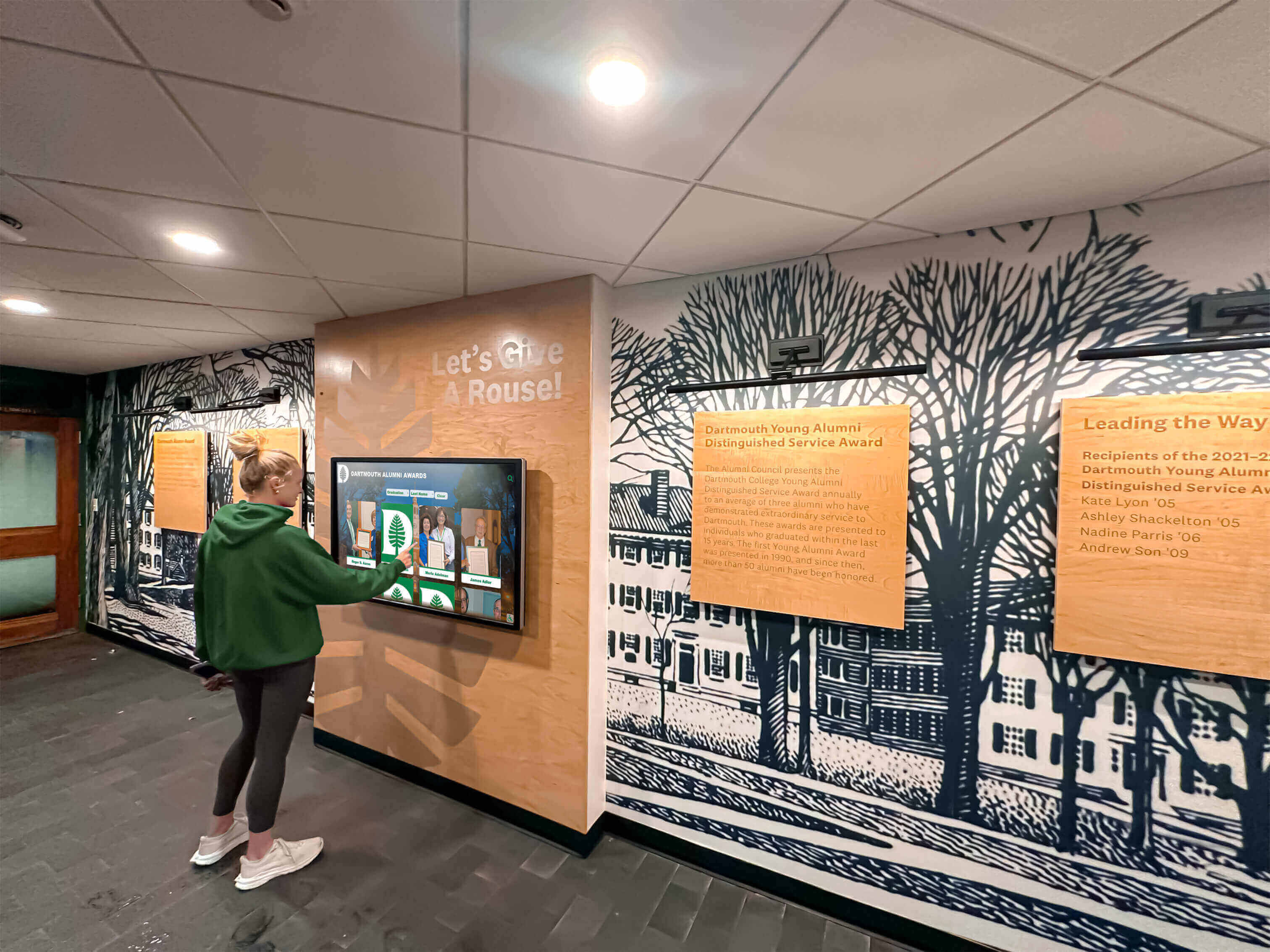
Intuitive Interface Design: Professional displays emphasize intuitive navigation that users can understand without instruction. This same principle benefits dementia care displays—simple, obvious interactions that don’t require learning new skills or remembering complex navigation. Museum touchscreen design principles focusing on accessibility and immediate comprehension apply equally to home memory care.
Visual Consistency: Institutional displays maintain consistent layouts, color schemes, and navigation patterns. Applying this principle to home displays—using consistent photo layouts, predictable slideshow patterns, and stable visual design—reduces cognitive load for individuals with dementia who benefit from predictability.
Content Currency: Professional displays emphasize keeping content current and relevant. For memory care displays, this means regular photo rotation, seasonal content updates, and inclusion of recent family events alongside historical memories to maintain temporal connection.
Budget-Conscious Professional Solutions
Entry-Level Commercial Software: Some companies offering professional display software provide entry-level tiers or smaller-scale licensing appropriate for home use at significantly reduced cost. These maintain professional reliability and ease of use while accommodating individual household budgets.
DIY Implementation of Professional Approaches: You can implement professional display principles using consumer technology through thoughtful setup of consumer devices using professional design principles, careful content curation applying institutional best practices, systematic management routines similar to those used in facilities, and attention to reliability and uptime that professional environments require.
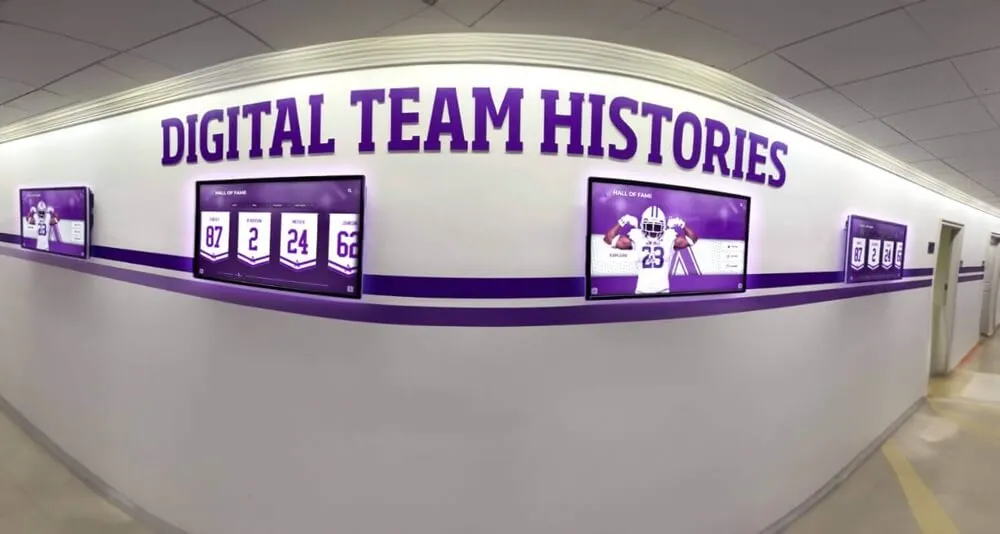
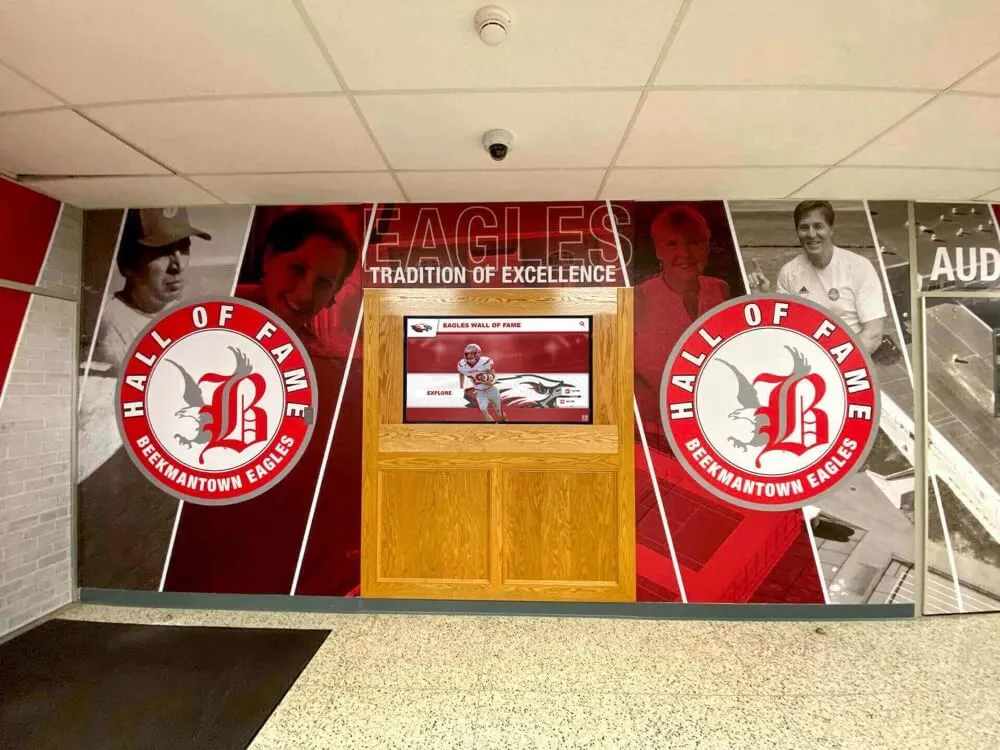
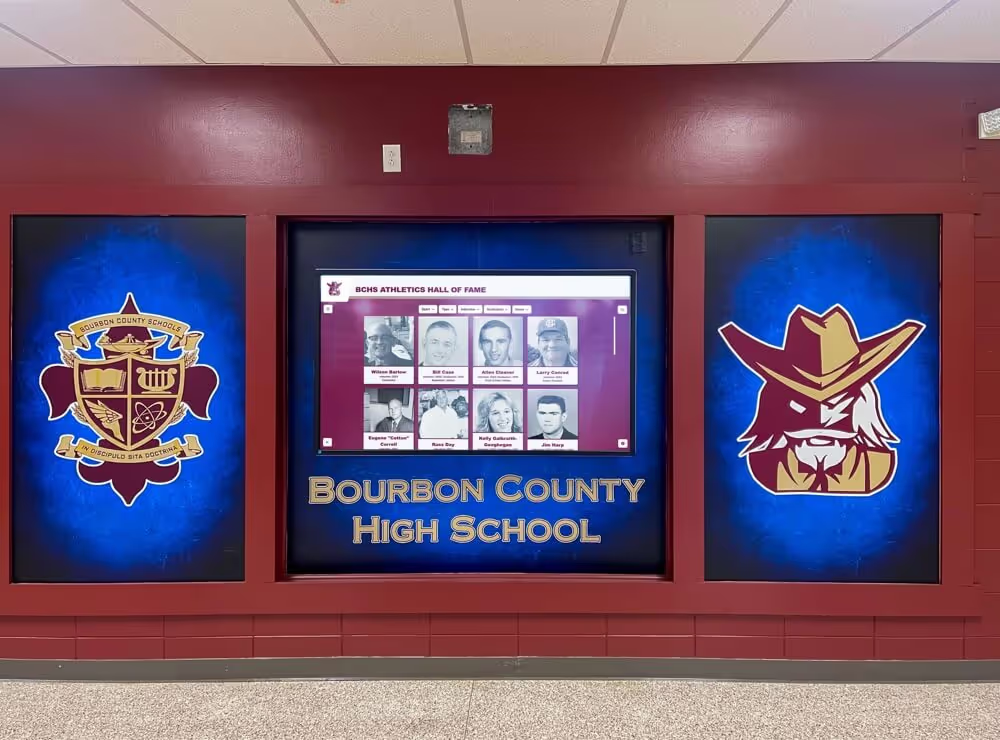
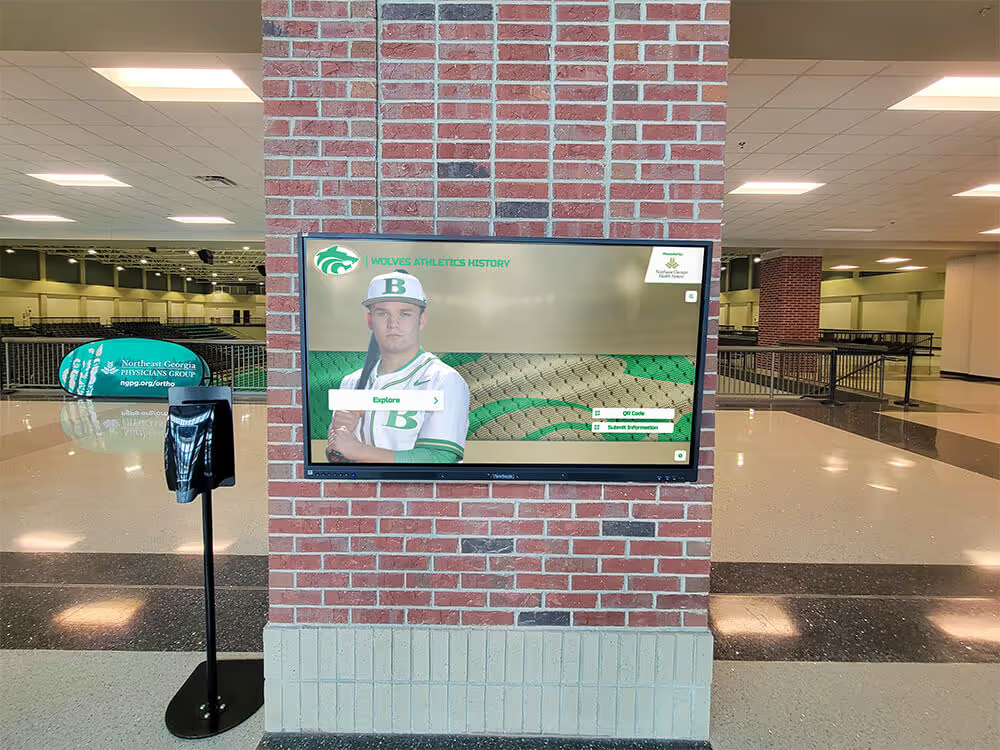
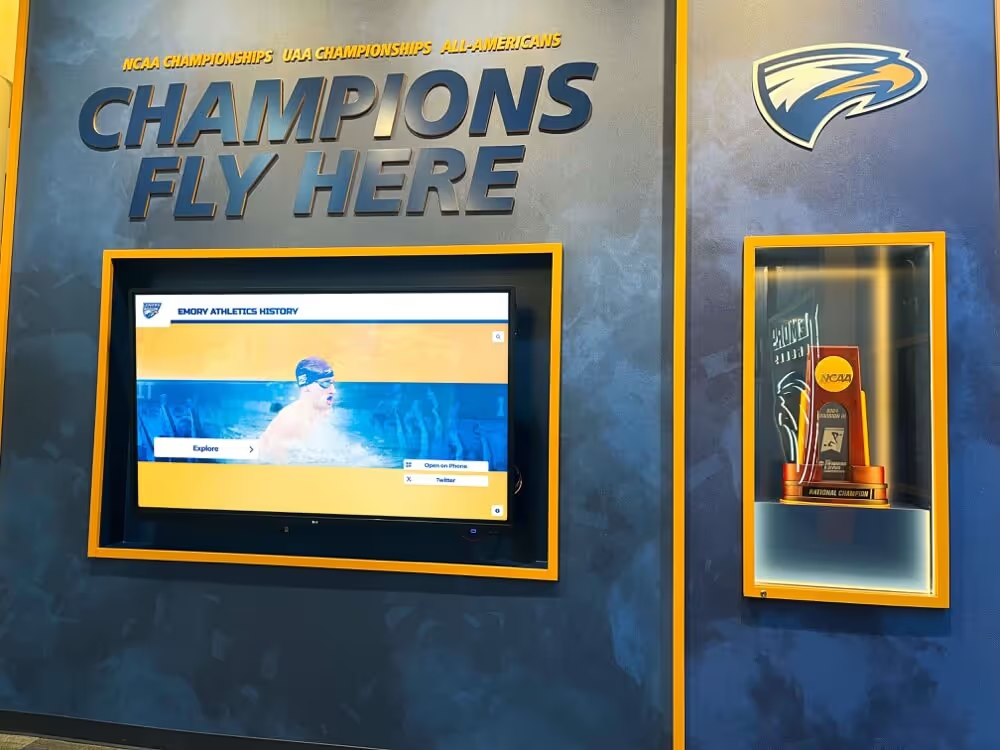
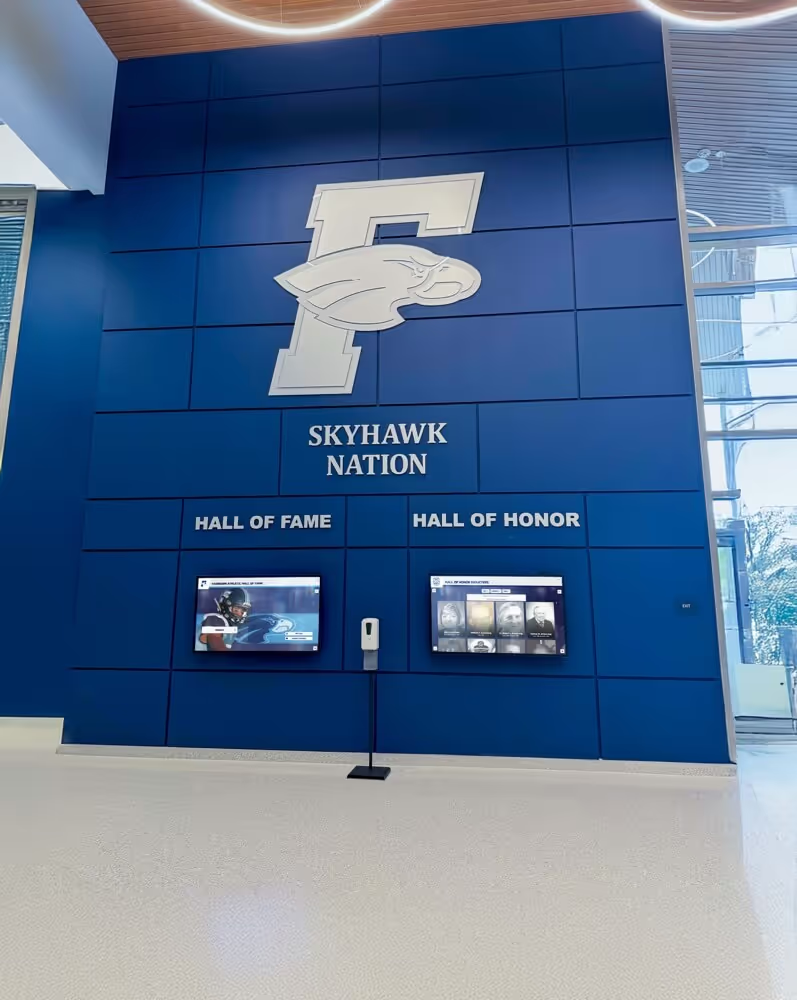
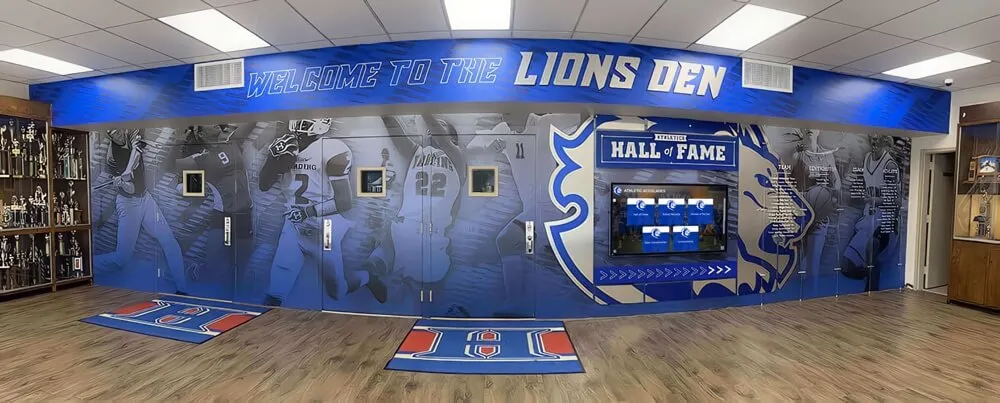
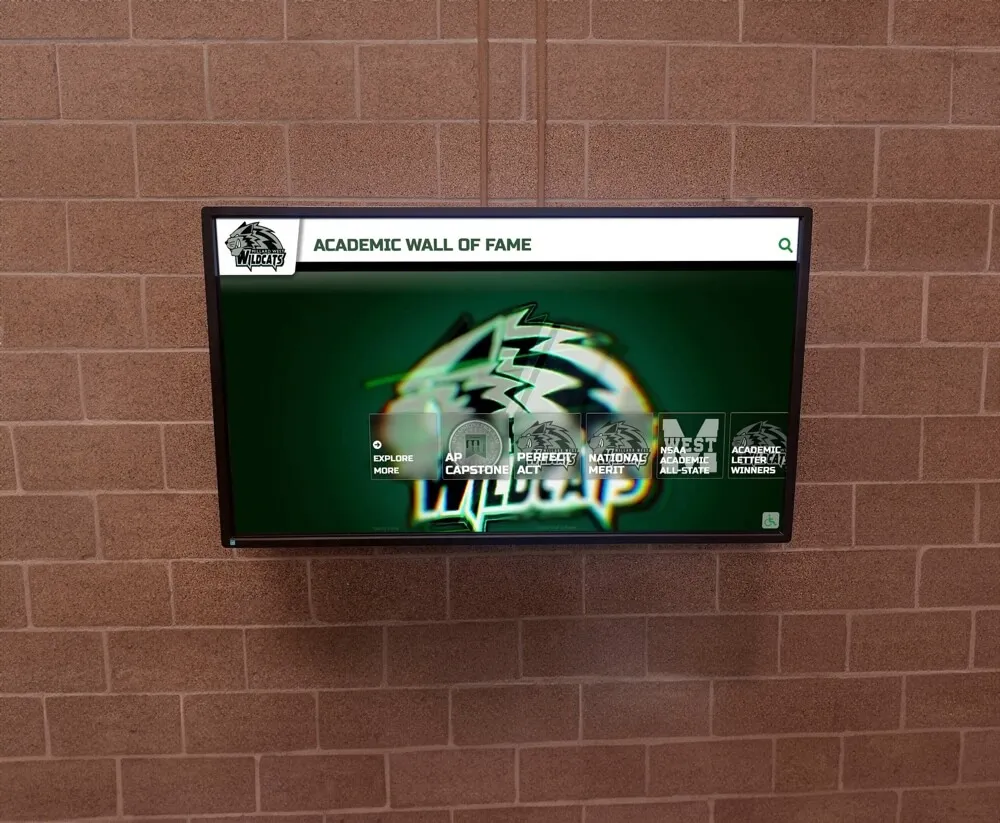
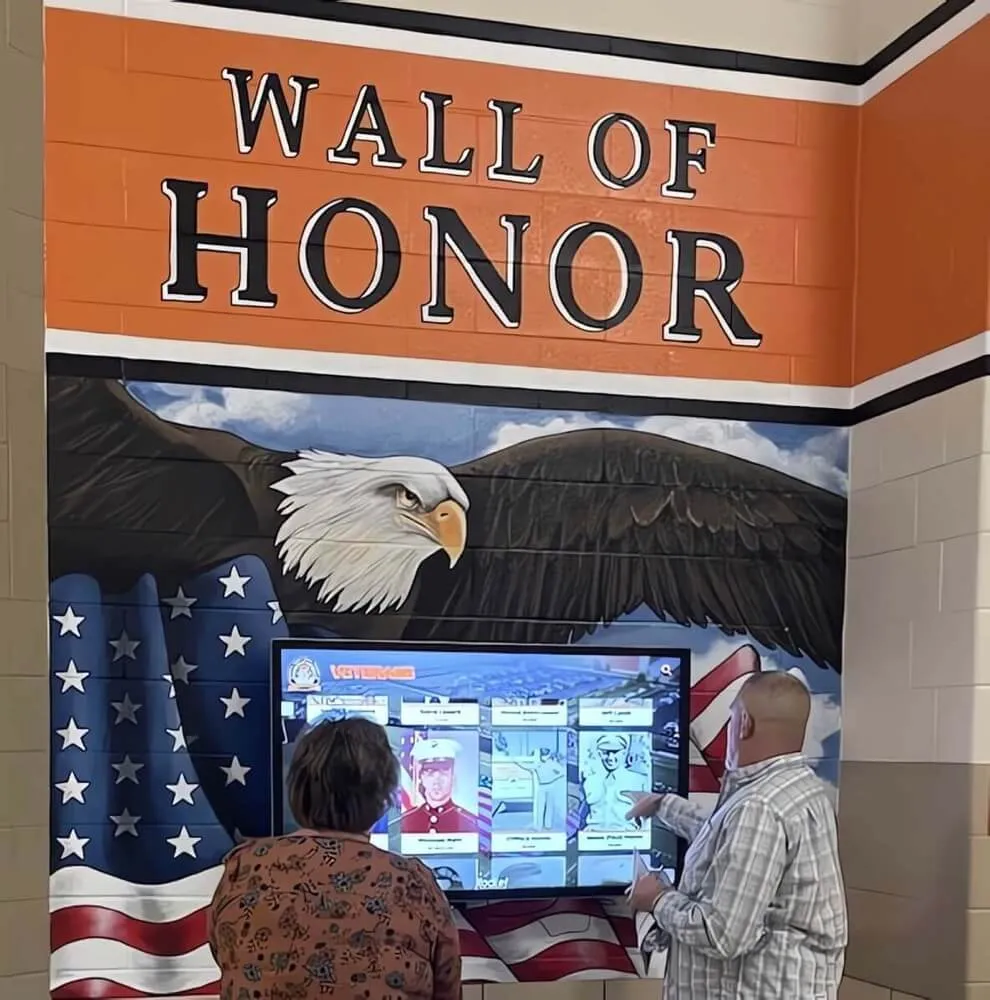
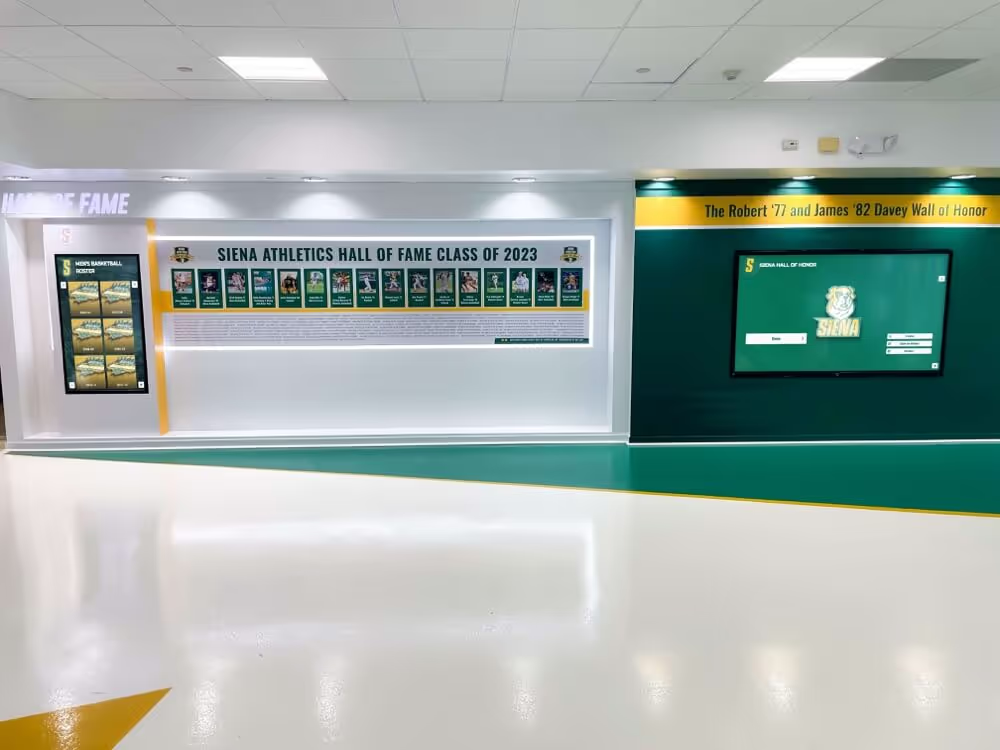
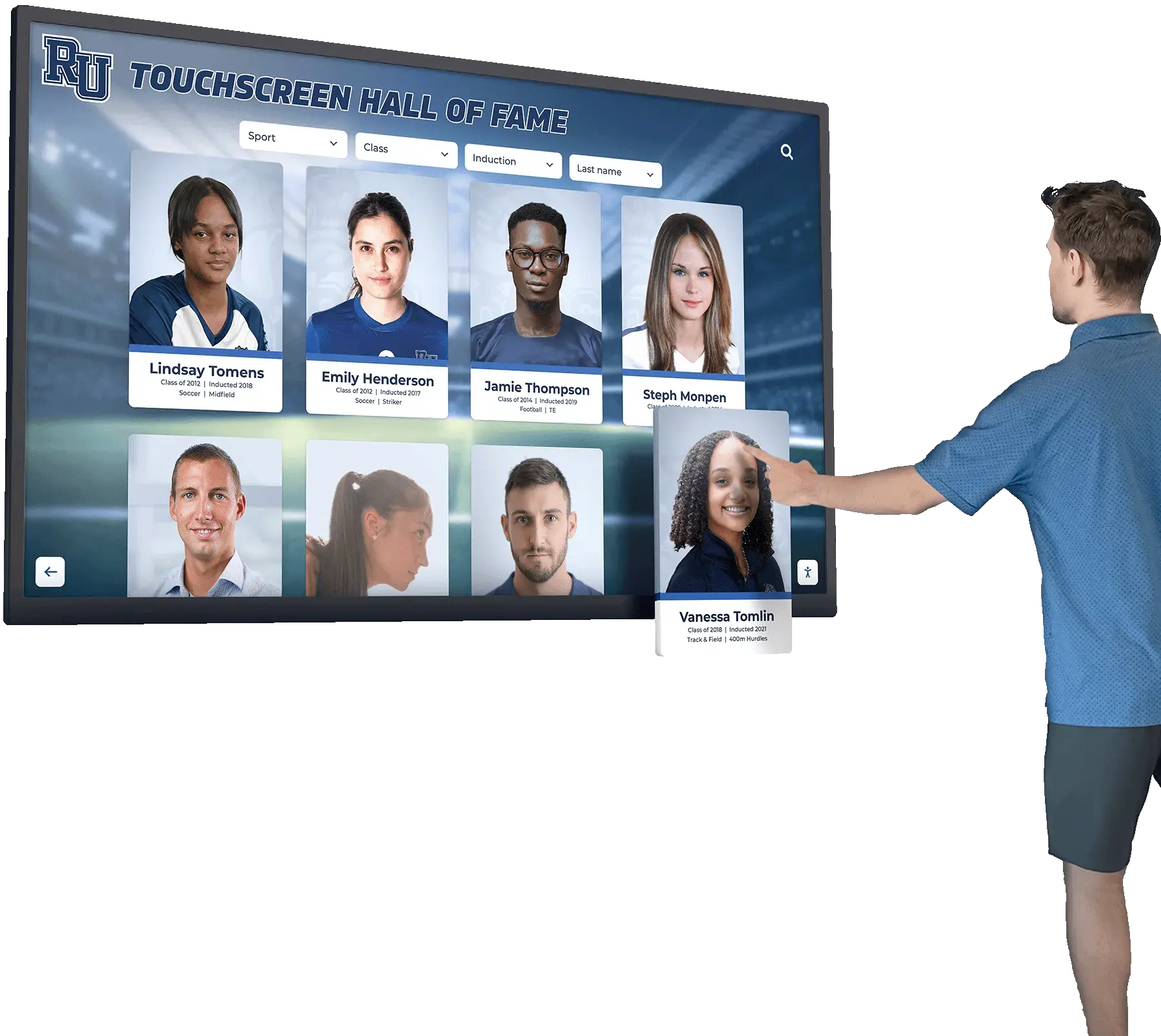
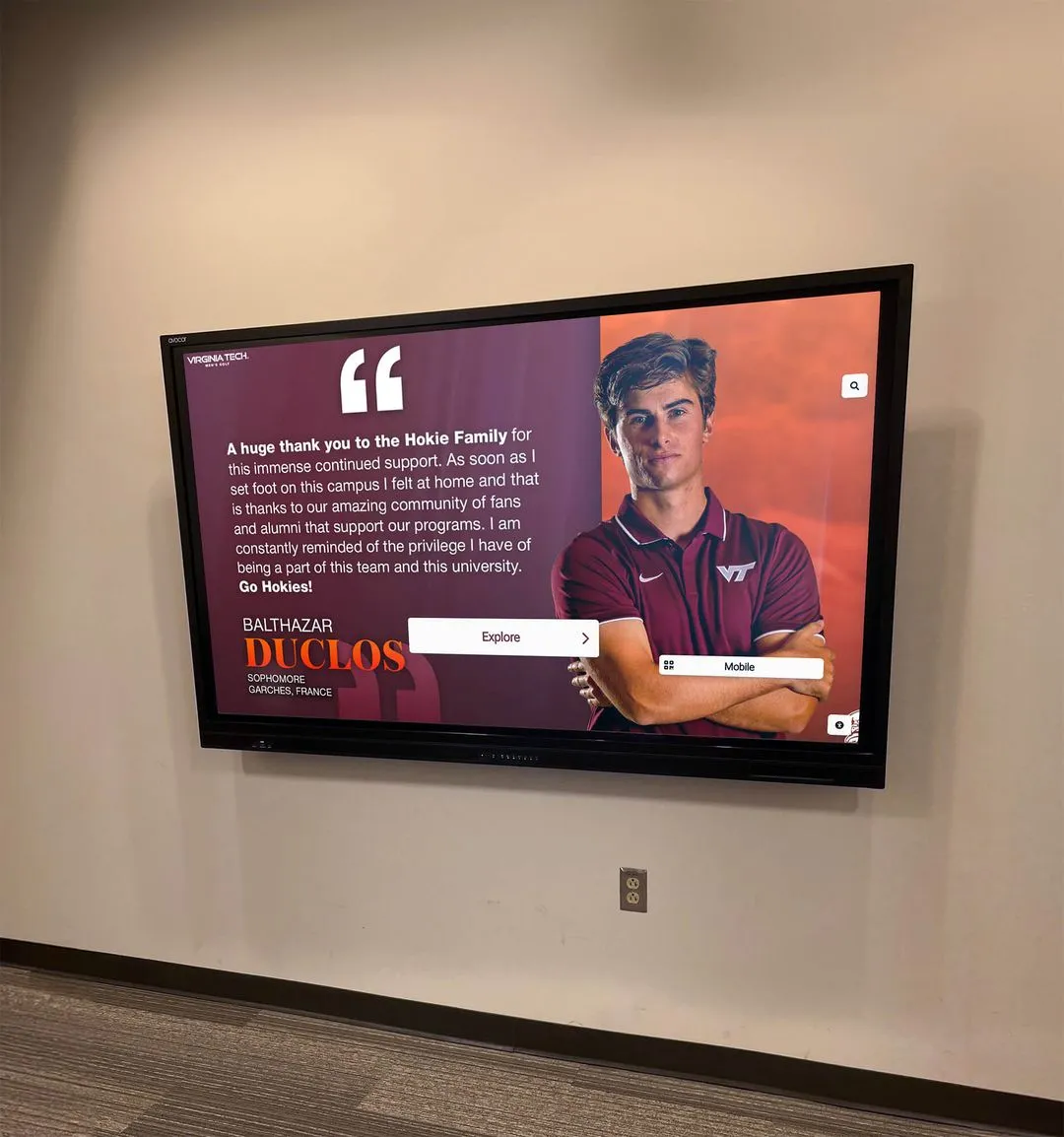

Solutions like Rocket Alumni Solutions were originally developed for institutional recognition displays in schools and organizations. While such platforms are typically scaled for larger implementations, the underlying principles—intuitive touchscreen interfaces, easy content management, reliable operation, and meaningful visual engagement—translate effectively to home memory care applications when implemented thoughtfully with appropriate hardware.
Learning from Senior Living Implementations
Dementia-Specific Design Practices: Professional senior living communities have developed best practices for memory care displays including high-contrast visuals reducing visual processing demands, simple navigation with large touch targets, generous timing allowing slow processing without rushing, minimal text reliance since reading may be challenging, and familiar visual metaphors matching real-world objects.
Content Strategies from Professional Settings: Care facilities have learned what content provides most benefit including life story timelines organizing photos chronologically, family tree displays showing relationship connections, themed collections grouping related memories, seasonal and holiday content maintaining temporal orientation, and activity documentation showing daily life and maintaining identity.
Therapeutic Considerations: Professional dementia care emphasizes displays that support reminiscence therapy recognized as beneficial for dementia care, reality orientation providing gentle current information, emotional wellbeing through positive, comforting visual content, and family connection strengthening relationships despite cognitive changes.
Cost Comparison and Decision Framework
Understanding the complete cost picture helps family caregivers make informed decisions about memory display investments.
Initial Investment Comparison
Basic Tablet Solution: Hardware costs include two tablets at $150-$300 each totaling $300-$600, two mounting stands or wall mounts at $25-$50 each totaling $50-$100. Software costs include free photo apps and built-in features. Total initial investment: approximately $350-$700 for two-location setup.
Digital Photo Frame Solution: Hardware costs include two WiFi photo frames at $100-$250 each totaling $200-$500. Software includes cloud photo service subscriptions at $0-$10 monthly (if needed beyond free tiers). Total initial investment: approximately $200-$500 for two-location setup.
Smart Display Solution: Hardware costs include two smart displays or monitors at $200-$400 each totaling $400-$800, plus media players if needed at $50-$100 each totaling $0-$200. Software includes built-in photo frame modes or basic apps. Total initial investment: approximately $400-$1,000 for two-location setup.
Budget Commercial Solution: Hardware costs include two refurbished touchscreen displays at $400-$700 each totaling $800-$1,400. Installation materials costs at $100-$300 total. Software costs include basic gallery software at $0-$200. Total initial investment: approximately $900-$1,900 for two-location setup.
Ongoing Operational Costs
Monthly Operational Expenses: Electricity costs for continuous operation approximate $3-$8 monthly per display depending on size and efficiency. Cloud storage subscriptions if needed beyond free tiers cost $0-$10 monthly. Internet connectivity supports content updates but represents existing household expense. Total ongoing monthly costs: approximately $6-$36 for two displays.
Annual Maintenance: Software updates are typically free for consumer devices. Hardware replacement or repair budget should account for potential failures, particularly for lower-cost consumer devices—budget approximately $50-$200 annually as contingency. Total annual maintenance budget: approximately $100-$500.
Content Management Time: Solo caregiver time investment averages 1-2 hours monthly for ongoing content updates and maintenance. At 15-20 hours annually, this represents the most significant ongoing investment, though many caregivers find this time meaningful rather than burdensome when selecting and organizing family photos.
Return on Investment Considerations
Therapeutic Value: The primary return on investment is therapeutic benefit for your family members with dementia including reduced anxiety through familiar visual content, improved orientation from date and information displays, decreased repetitive questioning when visual answers are available, meaningful engagement through photo browsing activities, and maintained family connection despite cognitive decline.
Caregiver Benefits: Memory displays provide value to family caregivers including reduced stress from fewer repetitive questions, conversation support during visits through photo talking points, meaningful activity during care hours, peace of mind from providing cognitive support, and shared family engagement when others visit.
Cost Comparison to Alternatives: Compare display costs to other dementia care expenses including adult day programs typically costing $1,500-$3,000 monthly, respite care services at $25-$50 hourly, professional memory care consultations at $150-$300 per session, and specialized dementia care materials and activities. Memory displays represent one-time or modest ongoing investments providing continuous benefit.
Practical Implementation Roadmap
This step-by-step approach helps family caregivers move from considering memory displays to actually implementing working systems in their homes.
Phase 1: Assessment and Planning (Week 1)
Evaluate Your Specific Needs: Consider which rooms your family members spend most time in, what viewing distances require for appropriate screen sizing, whether both family members can share content or need individualized displays, what your realistic budget is for initial investment and ongoing costs, and what your comfort level is with technology setup and management.
Identify Available Resources: Inventory existing devices you might repurpose including unused tablets that could be dedicated to display use, assess your home WiFi coverage in intended display locations, identify existing photo libraries you can draw from, and consider which other family members might help with photo contributions or technical setup.
Define Success Criteria: Clarify what you hope to achieve including specific behaviors or symptoms you want to address, engagement goals for your family members’ interaction with displays, realistic expectations for setup time and ongoing maintenance, and measures you’ll use to evaluate whether displays are providing benefit.
Phase 2: Hardware Acquisition and Setup (Weeks 2-3)
Purchase Selected Hardware: Order chosen devices and mounting hardware, select appropriate screen sizes based on viewing distances and room applications, ensure necessary accessories like power adapters and cables are included, and verify return policies if devices don’t meet expectations during testing.
Physical Installation: Mount displays at appropriate heights and locations considering visibility from common sitting or standing positions, power access without unsightly cord runs, distance from windows to prevent glare, and secure mounting that won’t be accidentally disturbed. Proper installation mirrors the attention to placement seen in museum interactive displays where viewing angles and lighting significantly affect user experience.
Network Configuration: Connect displays to reliable WiFi networks, verify strong signal strength at display locations (consider WiFi extenders if needed), set up remote access capabilities for content management, and document connection settings and credentials.
Phase 3: Content Development and Configuration (Weeks 3-4)
Photo Collection and Organization: Gather photos from various sources including digital photo libraries, scanned printed photos, and contributions from family members. Organize photos into logical collections such as family members, time periods, events, or themes. Edit photos as needed for optimal display including cropping for better faces, adjusting brightness and contrast, and removing distracting backgrounds.
Software Setup: Install and configure slideshow or gallery applications, connect to cloud photo storage, set up photo rotation schedules and timing, configure kiosk modes preventing accidental disruption, and test all functionality thoroughly before introducing to your family members.
Initial Content Deployment: Upload first photo collections to displays, verify images display correctly with good quality, test touch interaction if applicable, adjust timing and rotation settings based on observed behavior, and document the configuration for future reference.
Phase 4: Introduction and Adjustment (Weeks 4-6)
Gentle Introduction: Introduce displays gradually rather than all at once, explain simply what the displays show without overwhelming with details, sit with your family members during initial viewing periods, observe their reactions and engagement levels, and be prepared to adjust based on their responses.
Observation and Refinement: Note which photos generate most positive engagement, identify any images that cause confusion or distress, adjust slideshow timing based on actual viewing behavior, refine touch sensitivity or interaction models if applicable, and document what works well and what needs adjustment.
Establishing Routines: Incorporate displays into daily routines such as morning viewing during breakfast, using displays as conversation starters during visits, encouraging independent browsing during awake periods, and integrating displays into structured daily activities.
Addressing Common Challenges and Concerns
Family caregivers implementing memory displays often encounter predictable challenges. Understanding these in advance helps prepare effective solutions.
Technical Challenges
Device Freezing or Crashing: Consumer devices occasionally freeze or crash. Configure automatic restart schedules overnight, enable remote restart capabilities through smart plugs or remote management apps, document simple power cycle procedures, and consider more reliable hardware if problems persist frequently.
WiFi Connectivity Issues: Weak WiFi signals cause content update problems. Test signal strength at display locations before installation, use WiFi extenders if needed to improve coverage, consider wired Ethernet connections for large displays if possible, and maintain offline content caches so displays function even during connectivity issues.
Content Upload Difficulties: Cloud photo services sometimes prove confusing for non-technical users. Choose user-friendly platforms with simple interfaces, create step-by-step documentation with screenshots for common tasks, consider whether other family members with stronger technical skills can handle uploads, and simplify by using email-to-frame features where available.
Content and Engagement Challenges
Limited Photo Engagement: If your family members don’t engage with displays as hoped, adjust photo selection to earlier time periods with stronger memories, increase photo size for better visibility, slow down slideshow speed allowing longer viewing time, add audio components like music from relevant eras, and position displays in locations where your family members naturally spend time.
Confusion from Certain Photos: Some images may cause confusion or distress. Remove problematic photos immediately, prefer photos with clear contexts and familiar settings, include name labels or captions when helpful, avoid photos from unfamiliar locations or unclear time periods, and carefully observe reactions to identify patterns in what works and what doesn’t.
Repetitive Questions About Photos: Displays may prompt questions about the same photos repeatedly. View this as positive engagement rather than problem, use consistent simple explanations when questions recur, consider adding text captions addressing common questions, and recognize that the engagement itself has value even if memory of previous answers doesn’t persist.
Caregiver Management Challenges
Time Constraints: Ongoing content management competes with numerous caregiving responsibilities. Establish realistic update schedules you can maintain (weekly or bi-weekly rather than daily), batch photo selection and organization tasks, involve other family members in contributing content, consider largely static core collections requiring only occasional updates, and remember that simpler consistently maintained displays provide more value than elaborate neglected ones.
Technical Overwhelm: Technology setup may feel overwhelming without technical background. Start with the simplest solution rather than most feature-rich, use single device initially before expanding to multiple locations, rely on built-in features rather than complex third-party software, access online tutorials for specific devices you choose, and don’t hesitate to ask tech-savvy family or friends for setup help.
Uncertain Benefit: You may wonder whether displays truly help. Track specific behaviors like frequency of particular repetitive questions, observe engagement time spent viewing displays, note whether displays facilitate positive conversations during visits, assess your own stress reduction from decreased repetitive questioning, and give implementations adequate time (6-8 weeks) before evaluating effectiveness.
Enhancing Memory Displays with Additional Features
Once basic photo displays are functioning, several enhancements can increase therapeutic value without substantial additional cost or complexity.
Temporal Orientation Features
Current Information Display: Many slideshow apps allow adding text overlays showing current date and day of week, weather information and temperature, time display in large, clear format, and season-appropriate imagery providing contextual cues. These temporal orientation features help individuals with dementia maintain awareness of current reality alongside memory photos.
Calendar and Schedule Integration: Consider displaying simple daily schedules showing meal times, activities, or expected visitors. Use large, clear typography and simple language. Include photos of regular visitors or caregivers alongside schedule entries. Update schedules as part of your regular content management routine.
Audio Components
Music Integration: Many display devices support audio output. Consider adding music elements including songs from eras with strongest memory retention, familiar music that held personal meaning, gentle background music during photo displays, or nature sounds creating calming environment. Like successful senior living touchscreen systems, multisensory approaches often increase engagement and therapeutic benefit.
Voice Narration: Some platforms allow adding voice narration to photo slideshows. Family members might record brief audio clips describing photos, identifying people, or sharing related memories. Hearing familiar voices adds emotional connection and provides context when visual memory alone isn’t sufficient.
Interactive Enhancements
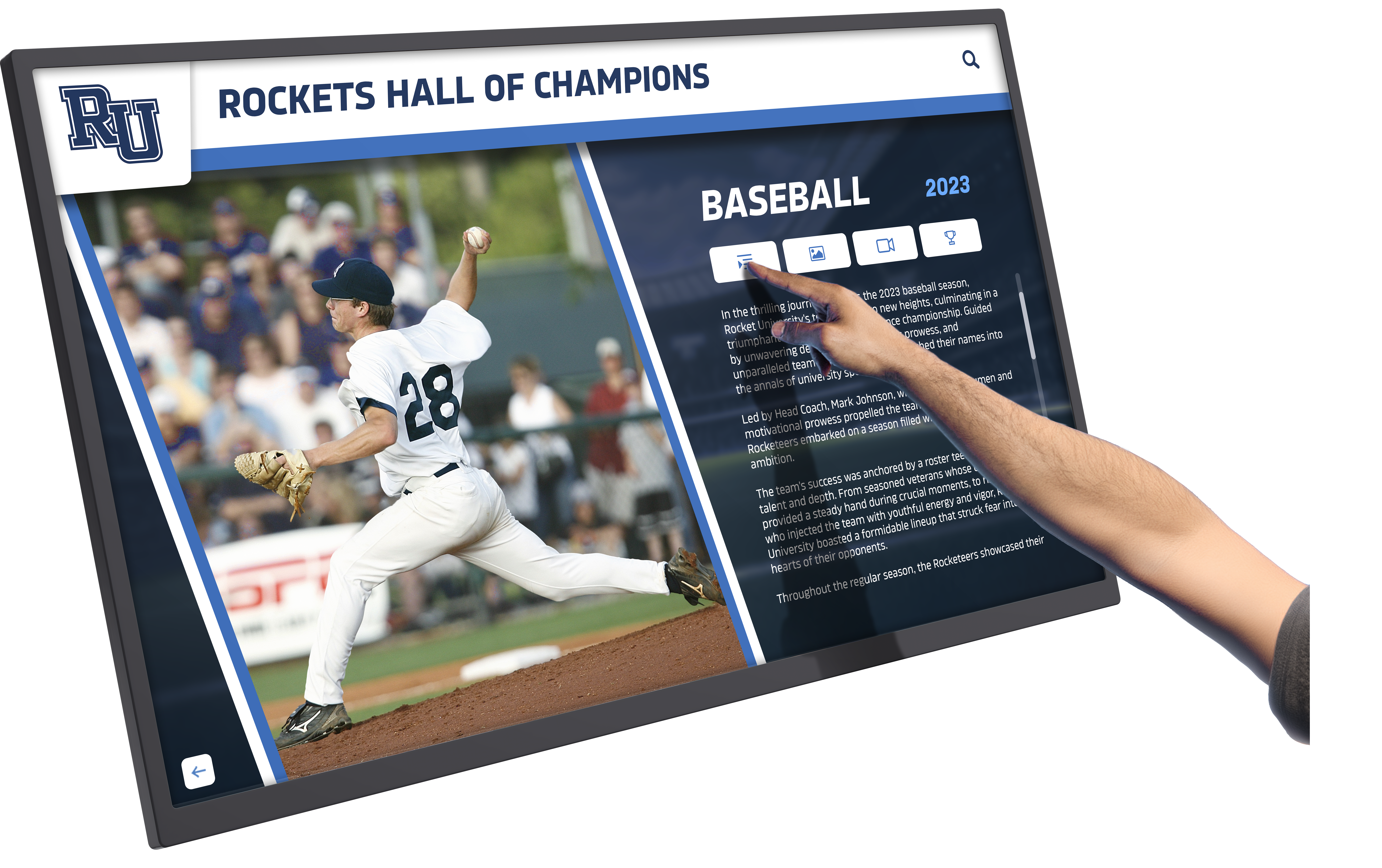
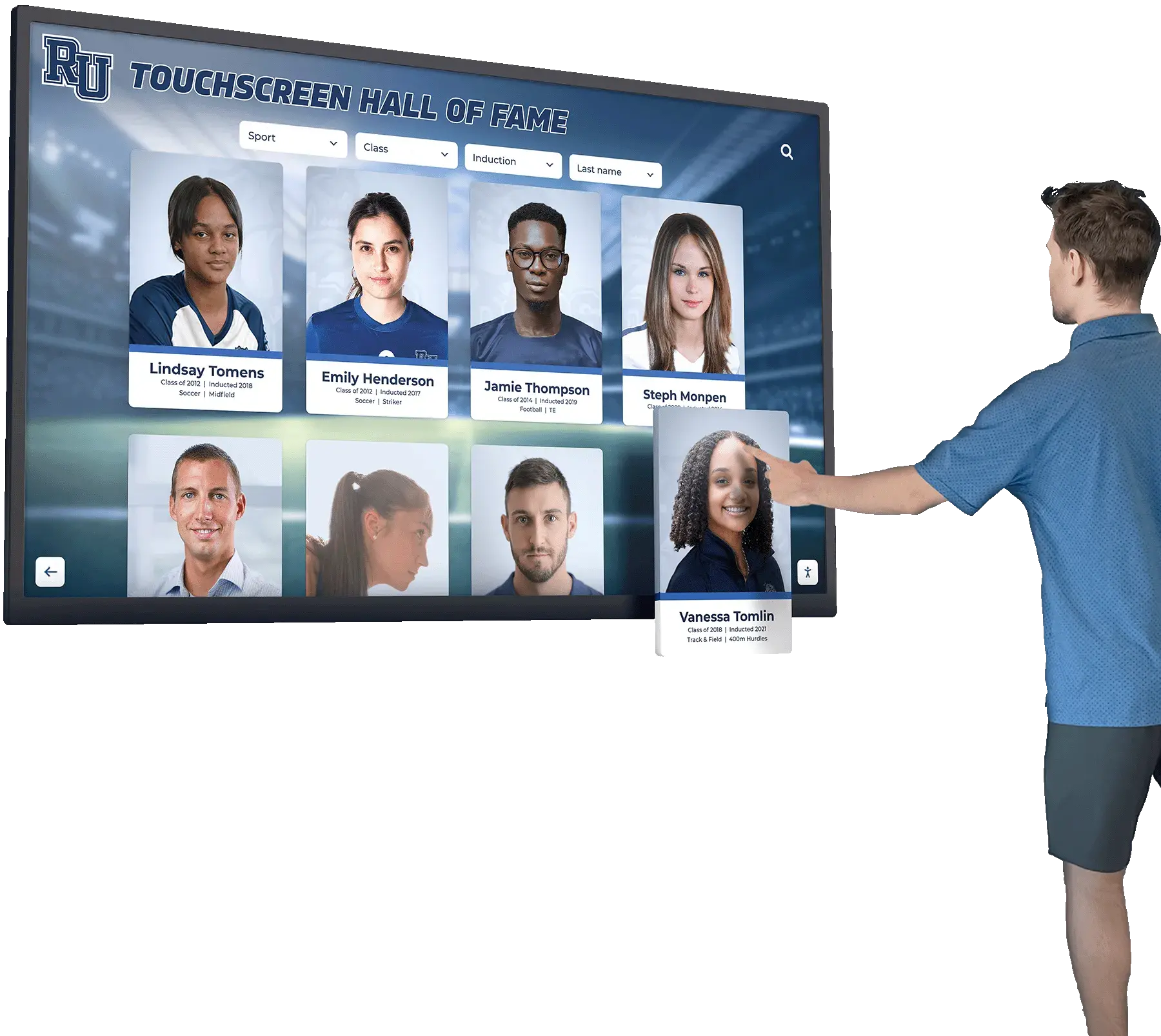
Touch-Activated Details: On true touchscreen systems, configure displays so touching photos shows enlarged views, reveals names or captions, displays related photos from the same event or time period, or triggers audio descriptions or stories. Interactive elements increase engagement beyond passive viewing.
Photo Categorization: Organize photos into categories accessible through simple touch navigation including family member galleries showing specific people, time period collections (decades, eras, life stages), event categories (holidays, celebrations, travel), or thematic collections (pets, homes, hobbies). Simple navigation enables self-directed exploration appropriate to current capabilities.
Family Collaboration Features
Remote Photo Sharing: Enable family members to contribute photos remotely through shared cloud albums, email addresses that add photos automatically, or mobile apps with simple upload functions. This distributes content creation work while helping extended family maintain connection even when they cannot visit regularly.
Video Messages: Consider occasionally including short video clips from family members unable to visit frequently. Brief messages (30-60 seconds) showing faces, using names, and sharing simple updates help maintain family connection across distances.
Planning for Changing Needs
Dementia is progressive, and display systems should adapt as needs evolve over time.
Adjusting to Cognitive Changes
Simplification Over Time: As cognitive abilities decline, simplify display content progressively by reducing number of photos in rotation focusing on most familiar core images, enlarging photo sizes improving visibility, slowing slideshow speeds allowing longer processing time, eliminating complex navigation focusing on passive viewing, and emphasizing photos from time periods with strongest remaining memory.
Maintaining Meaning at All Stages: Even in late dementia stages, visual engagement often persists. Continue displays focusing on immediate family with clear, close-up faces, removing photos of people or places no longer recognized, using high contrast and very simple visual compositions, and maintaining comforting, familiar presence even if active engagement diminishes.
Technology Lifecycle Planning
Hardware Refresh Cycles: Consumer electronics have limited lifespans. Plan for device replacement every 3-5 years for tablets and consumer devices, 5-7 years for quality digital frames, and 7-10 years for commercial-grade displays. Factor replacement costs into long-term budget planning. Save configuration documentation and photo libraries to simplify migration to replacement devices.
Platform Changes: Software platforms and cloud services evolve. Choose platforms from stable, established companies likely to maintain long-term service. Export and backup photo libraries regularly rather than depending solely on cloud services. Document configurations enabling recreation on different platforms if necessary.
Cost-Benefit Analysis for Family Caregivers
Considering the complete picture helps determine whether memory display investments make sense for your specific situation.
Quantifiable Costs Over Three Years
Low-Cost Tablet Approach: Initial investment of $400-$700 for hardware and mounts. Annual operational costs of $75-$100 for power and cloud storage totaling $225-$300 over three years. Potential tablet replacement at year 2-3 costing $300-$600. Three-year total: approximately $925-$1,600 for two-location system.
Mid-Range Smart Display Approach: Initial investment of $600-$1,000 for displays and setup. Annual operational costs of $100-$150 totaling $300-$450 over three years. Minimal replacement likelihood within three years. Three-year total: approximately $900-$1,450 for two-location system.
Quality Digital Frame Approach: Initial investment of $300-$600 for two frames. Annual operational costs of $50-$100 totaling $150-$300 over three years. Minimal replacement likelihood within three years. Three-year total: approximately $450-$900 for two-location system.
Therapeutic and Caregiver Value
Therapeutic Benefits for Individuals with Dementia: Memory displays provide continuous cognitive support and engagement worth considering against costs of alternative interventions. Professional cognitive therapy sessions typically cost $100-$200 hourly and occur weekly or less. Memory display benefits occur continuously throughout each day. While not substitutes for professional care, displays complement therapeutic approaches at fraction of ongoing service costs.
Caregiver Stress Reduction: Solo family caregivers face substantial stress. Tools that reduce repetitive questioning, provide meaningful engagement activities, and support positive interactions during visits contribute meaningfully to caregiver wellbeing. Respite care services addressing caregiver stress typically cost $25-$50 hourly. If memory displays provide even modest stress reduction equivalent to 2-3 hours of respite monthly, value over three years substantially exceeds costs.
Family Connection Support: Memory displays facilitate meaningful visits and engagement with extended family even when conversation becomes difficult. This preservation of family relationships and quality of life has value difficult to quantify but important to consider alongside financial costs.
Conclusion: Practical Memory Support for Family Caregivers
Creating economical touchscreen memory displays for family members with dementia is achievable even when you’re a solo caregiver managing multiple responsibilities on a household budget. The specific answer to “can I create memory displays for my mother and wife economically?” is yes—practical solutions exist at various price points from $450 to $2,000 for complete two-location implementations.
Key Principles for Successful Home Memory Displays:
- Start simple with basic but reliable technology you can confidently manage
- Focus on curated, meaningful photo content rather than overwhelming quantity
- Establish maintainable routines for updates and management
- Involve extended family in content contribution when possible
- Adjust approaches as cognitive needs change over time
- Prioritize therapeutic benefit and quality of life over technology sophistication
- Remember that consistent simple displays provide more value than elaborate abandoned ones
While the technology behind memory displays can be as simple as consumer tablets or as sophisticated as professional touchscreen systems, the true value comes from the human elements: your care in selecting meaningful photos, your commitment to maintaining current content, and your intention to support your family members’ dignity, identity, and connection to their personal history and family relationships.
For solo family caregivers, the most economical approach often combines basic consumer technology with thoughtful implementation of professional display principles, establishing simple but consistent maintenance routines, focusing on high-value core features rather than complexity, and adjusting systems over time as you learn what works best for your specific family situation.
The display systems themselves are tools. The meaningful support comes from your dedication as a family caregiver using available technology to create environments that honor your loved ones’ lives, maintain their connection to family and identity, and provide comfort during a challenging journey. Whether you invest $500 or $2,000, the goal remains the same: creating consistent, accessible, meaningful visual memory support that enhances daily life for your family members with dementia.
Ready to implement memory displays in your home? Begin by selecting hardware within your budget from options outlined above, gathering 50-100 meaningful family photos as starting content, setting up chosen devices in locations where your family members spend time, configuring simple slideshow or gallery displays, and observing engagement to refine what works best. The journey of implementation teaches what your family specifically needs, and adjustments over time create increasingly effective support systems.
If you’re interested in exploring how professional display technology might adapt to home memory care needs, solutions like Rocket Alumni Solutions offer touchscreen platforms designed for intuitive use and straightforward content management—principles that translate from institutional recognition to personal memory care when implemented appropriately.