Setting up a reliable, secure touchscreen kiosk on Mac has long been a challenge for organizations. While Windows dominates the kiosk market, many institutions prefer Mac hardware for its reliability, design, and integration with existing Apple ecosystems. However, macOS lacks native kiosk functionality, forcing administrators to cobble together complex workarounds or settle for compromised solutions.
This comprehensive guide explores the best touchscreen software options for Mac in 2026, with special attention to how modern solutions address longstanding Mac kiosk challenges. Whether you’re deploying interactive displays in educational institutions, museums, corporate offices, retail spaces, or public venues, understanding your options ensures you select software that meets your specific requirements while maximizing your Mac hardware investment.
Understanding Mac Kiosk Mode Challenges
Before examining solutions, it’s essential to understand why running touchscreen kiosks on Mac has historically been difficult—and why specialized software matters.
Why Mac Kiosks Are Different
Operating System Limitations macOS was designed for personal computing rather than public access kiosks. Unlike Windows, which includes built-in kiosk mode features, Mac requires workarounds to prevent users from accessing system functions, applications, and settings. Standard Mac keyboard shortcuts can exit full-screen modes, access Spotlight search, open Finder, or trigger system preferences—all unacceptable behaviors for public kiosks.
Browser Kiosk Mode Gaps
While Chrome supports kiosk mode on Windows and Linux via the --kiosk flag, this functionality is limited or absent in macOS versions. Safari offers full-screen mode but lacks true kiosk lockdown preventing users from exiting. Firefox similarly provides full-screen display without comprehensive public access security. These gaps mean organizations cannot simply launch browsers in kiosk mode as they would on other platforms.
Touch Input Considerations macOS touchscreen support exists primarily for iPad apps running on Apple Silicon Macs through Mac Catalyst. External touchscreen monitors connected to Mac computers receive touch inputs as standard mouse clicks, but multi-touch gestures—pinch-to-zoom, two-finger scrolling, swipe navigation—may not work as expected without proper software support. For organizations deploying multi-touch interactive displays, this limitation creates significant user experience challenges.
Security and Session Management Public access touchscreens require automatic session resets preventing subsequent users from accessing previous visitors’ data or actions. Mac’s standard user account systems aren’t designed for this use case. Without specialized software, implementing automatic session clearing, preventing unauthorized system access, and ensuring displays return to home screens after inactivity becomes technically complex.

Common Mac Kiosk Use Cases
Organizations choose Mac for kiosk deployments across numerous applications:
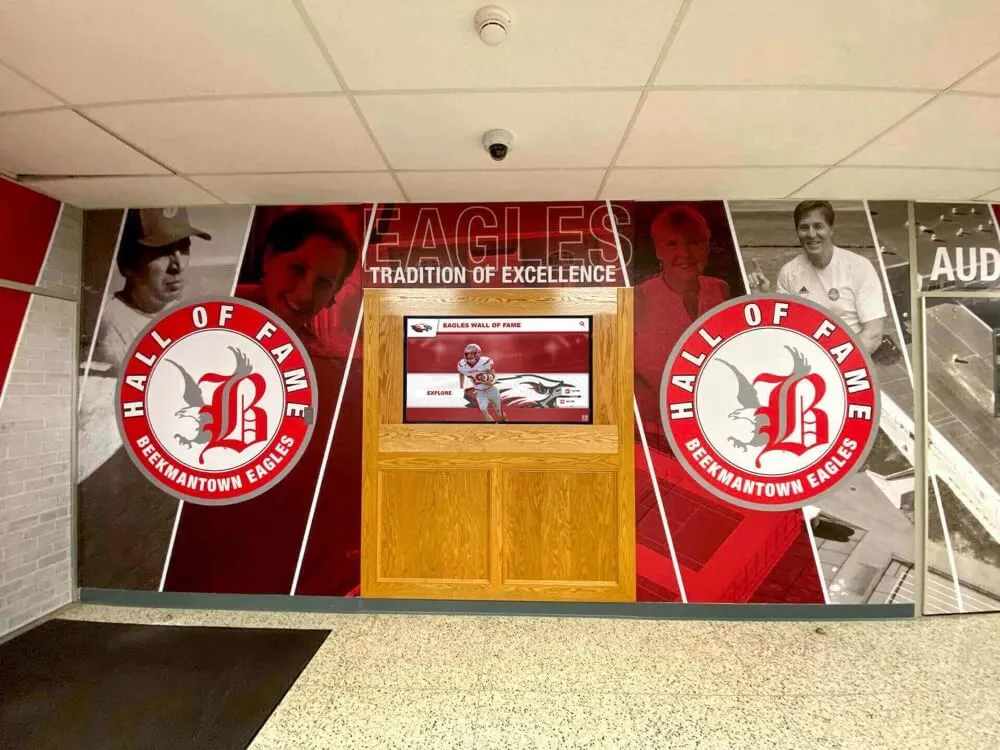
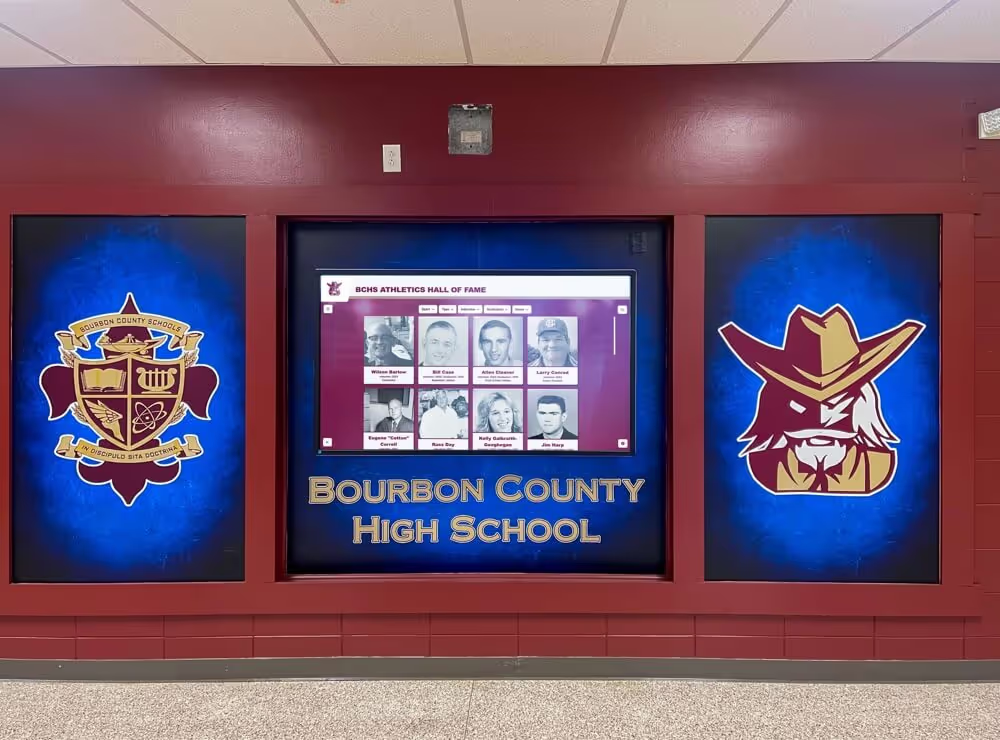
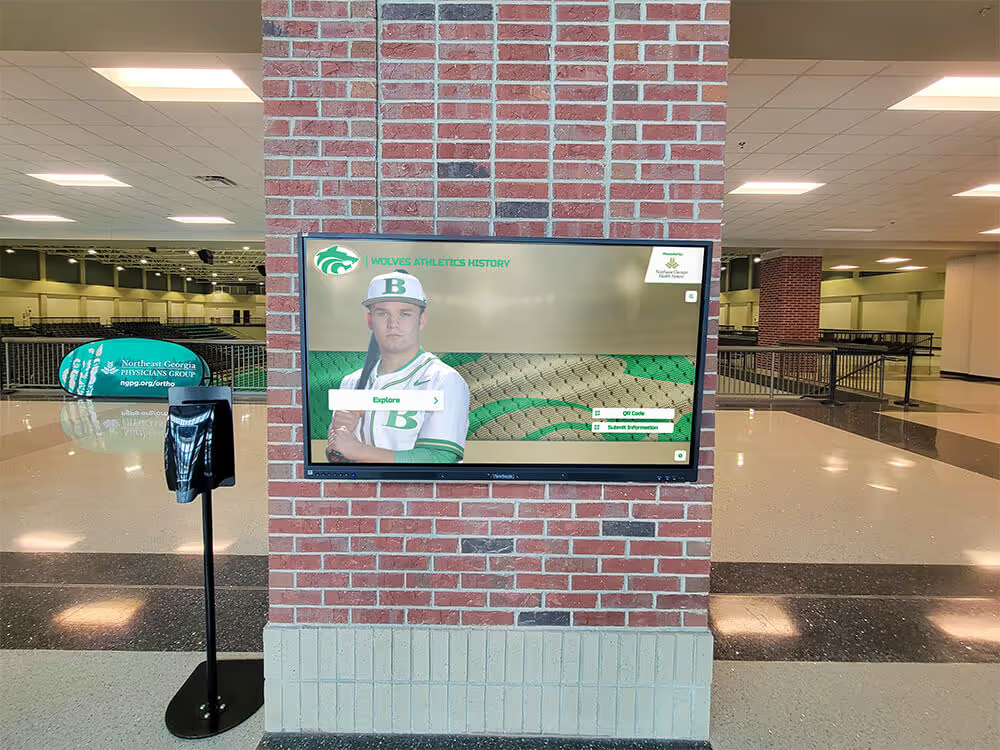
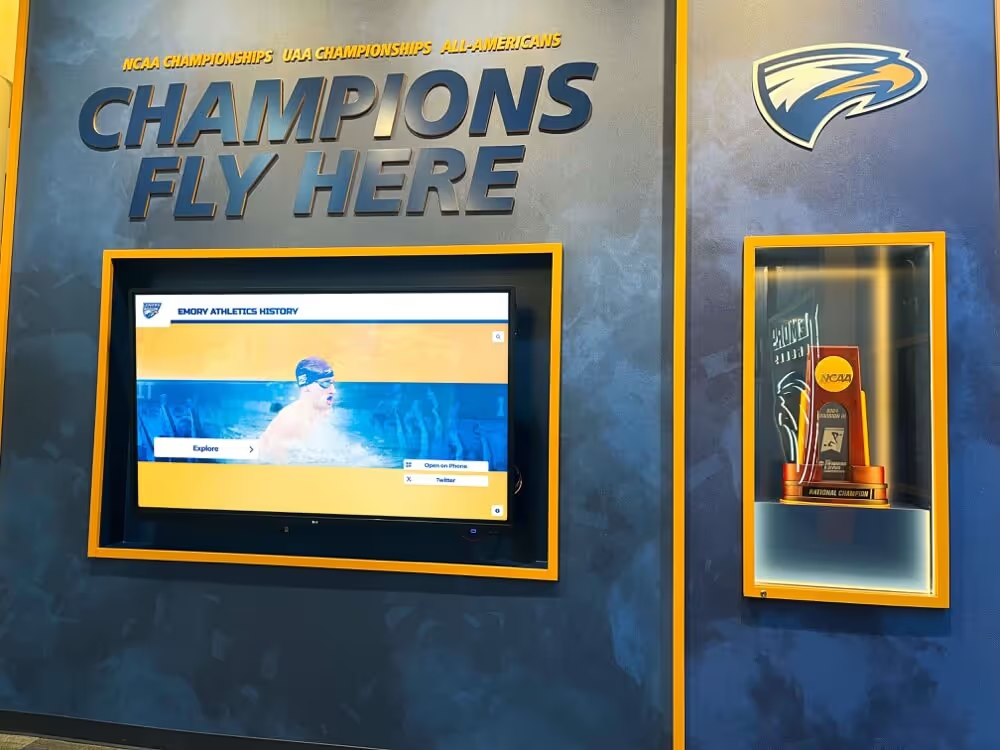
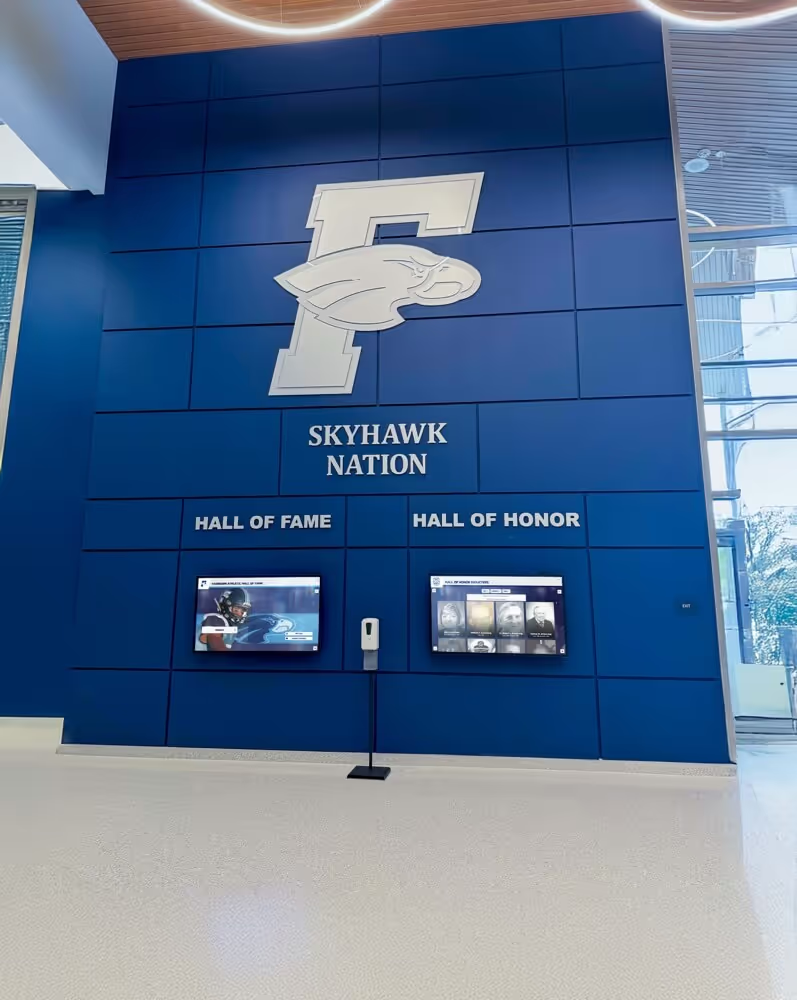
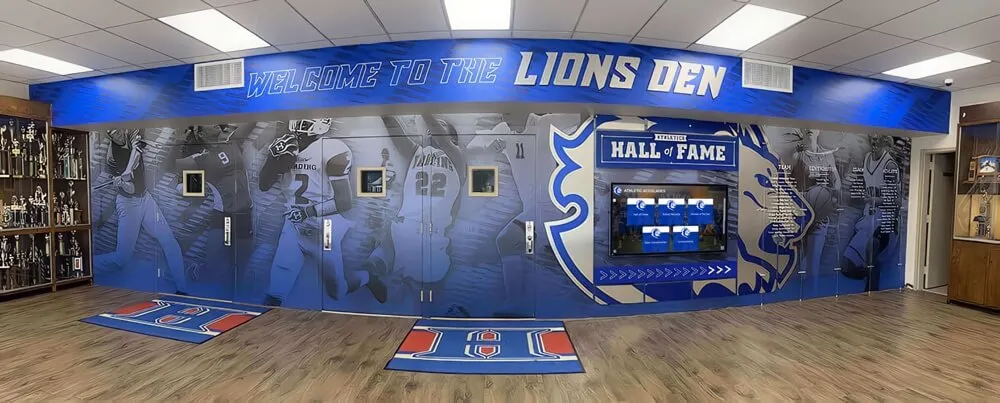
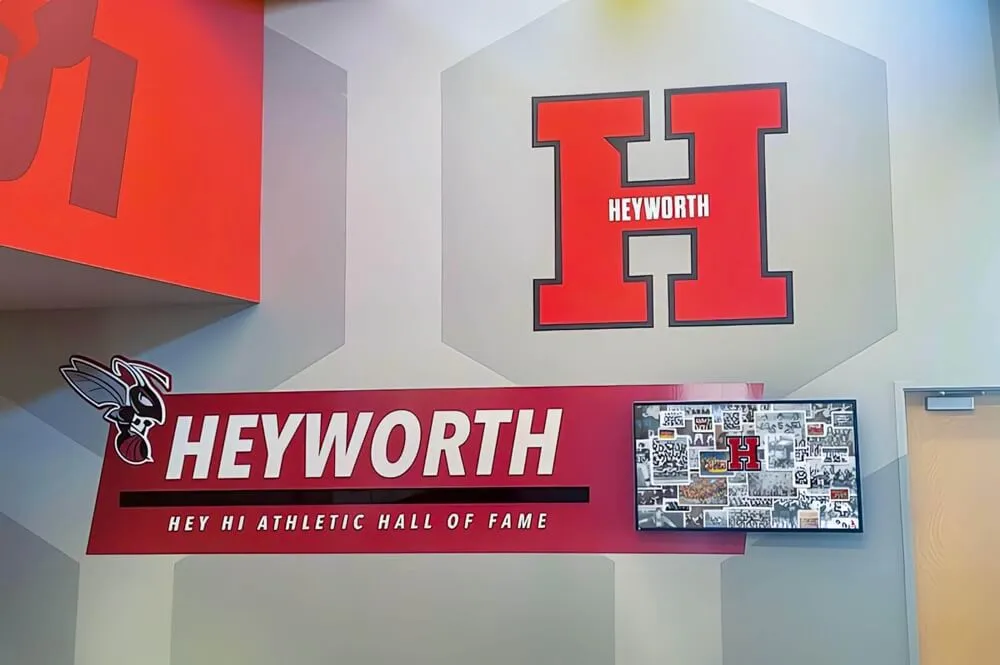
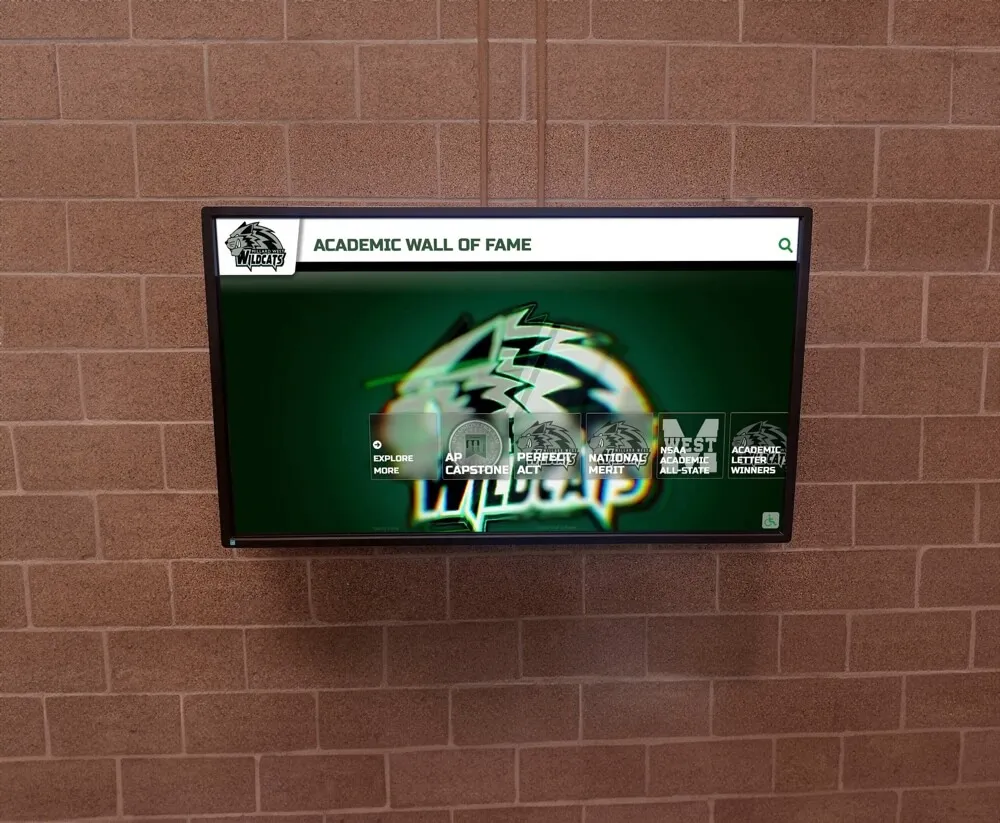
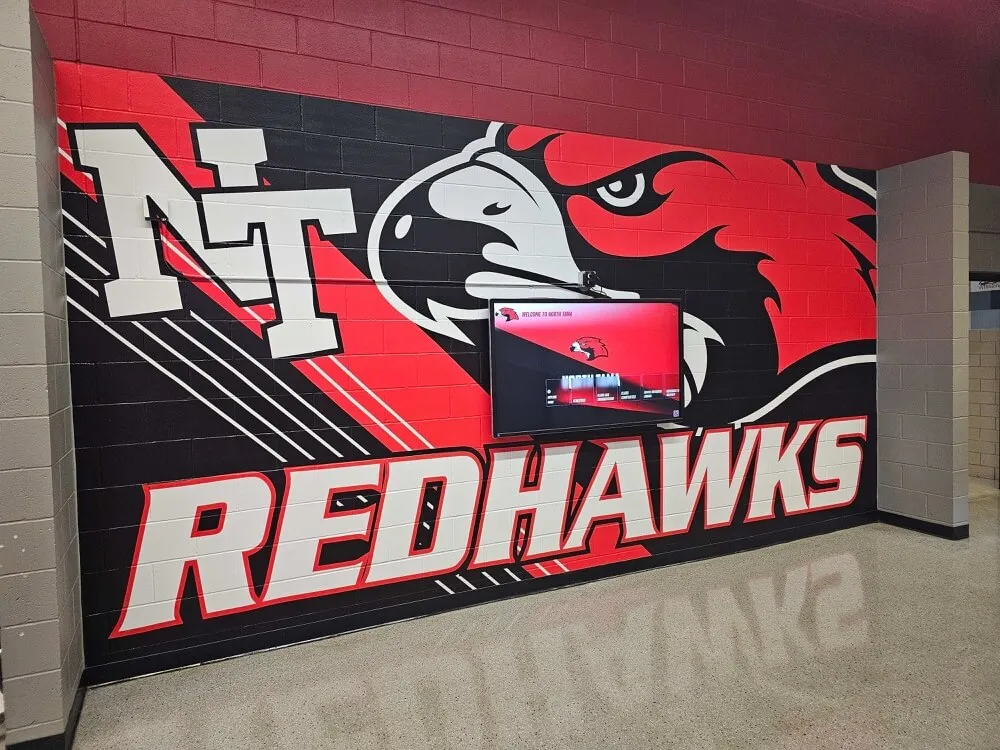
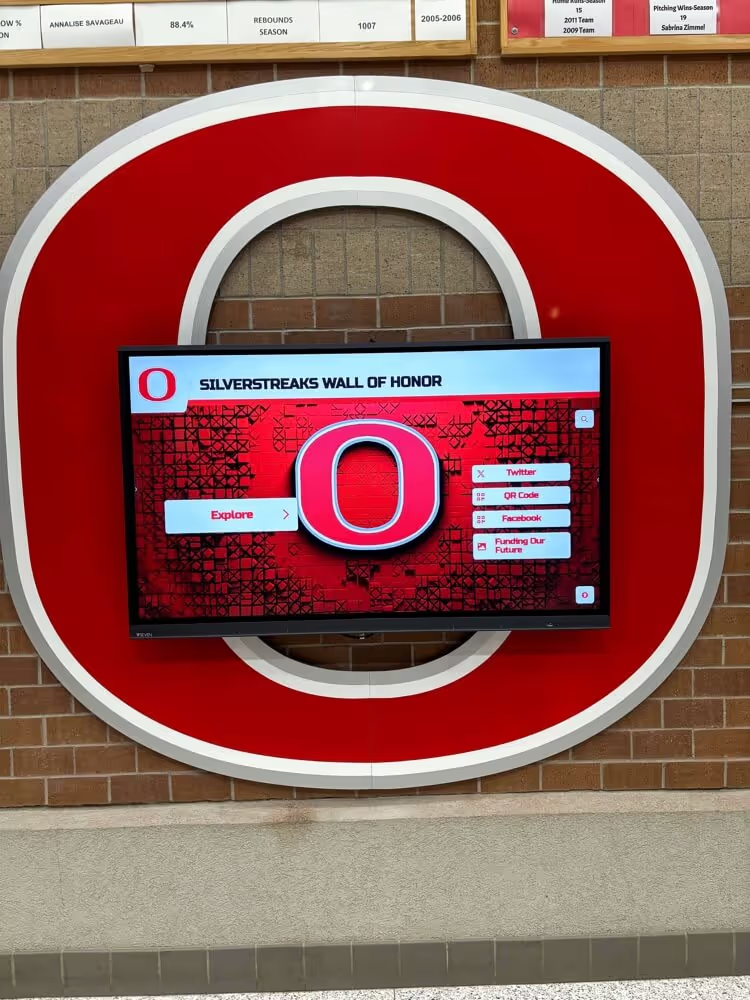
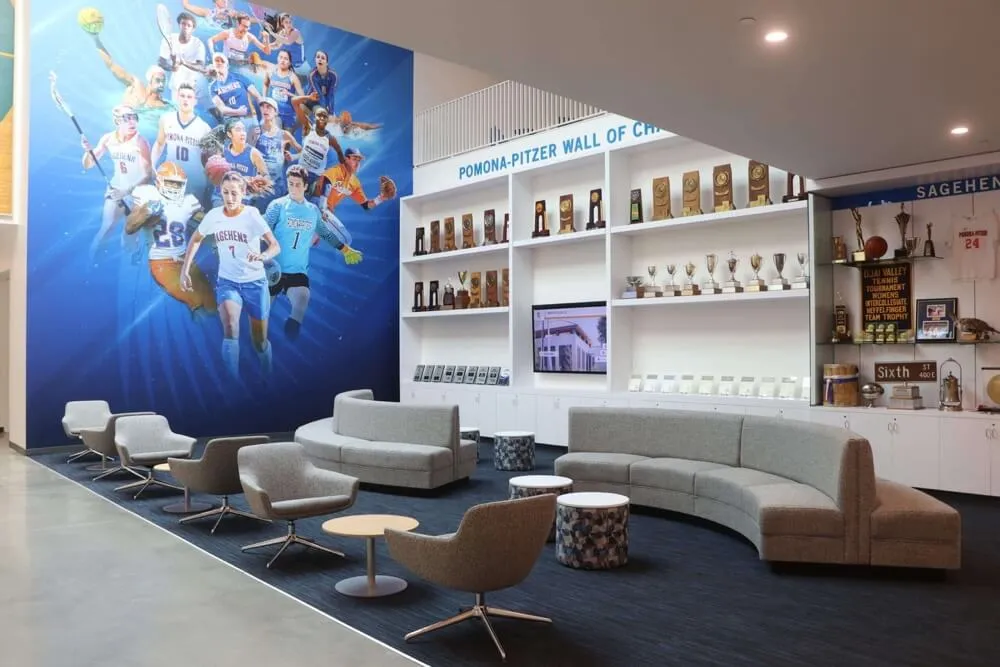
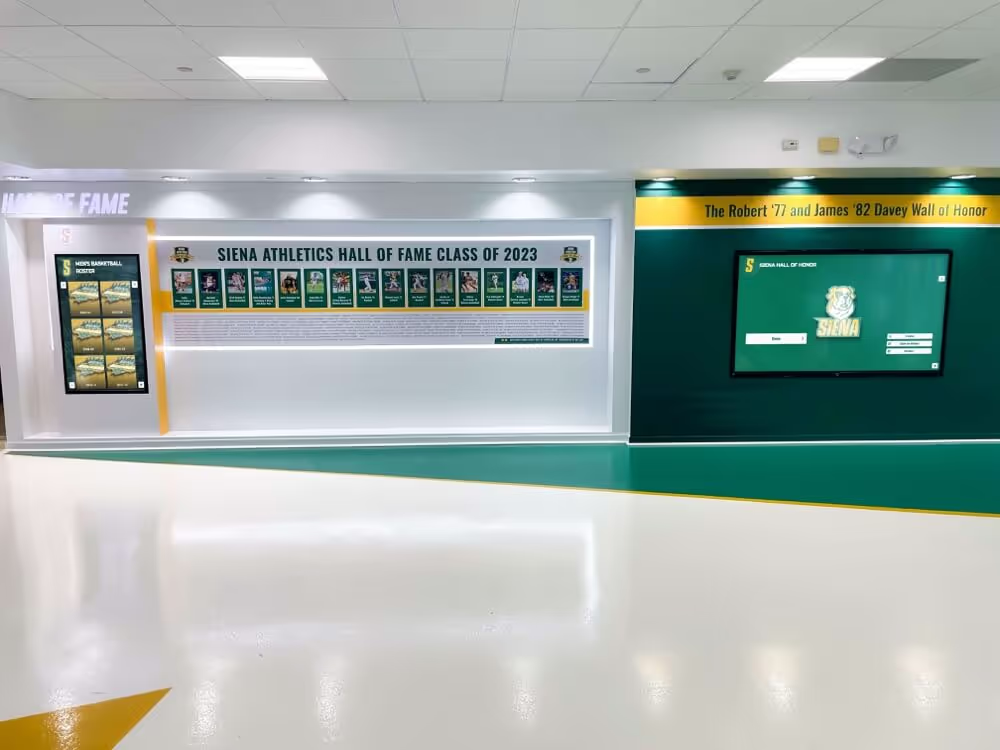
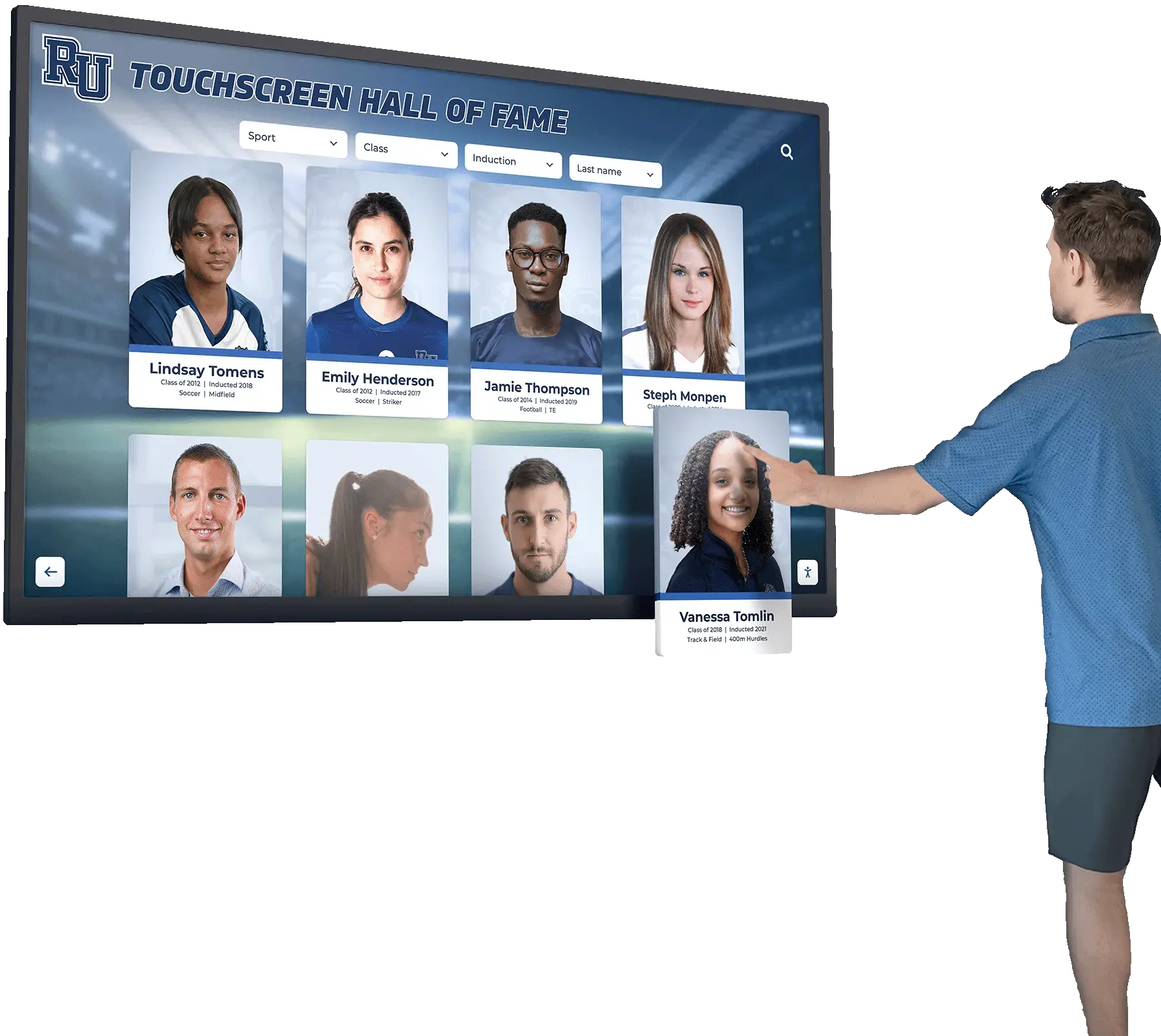
Educational Institutions Schools and universities use Mac-based touchscreens for interactive displays showcasing student achievements, digital directories helping visitors navigate campuses, alumni recognition systems celebrating graduate accomplishments, and self-service information kiosks providing campus resources. Educational environments often standardize on Mac hardware, making Mac-compatible kiosk software essential for technology consistency.
Museums and Exhibits Cultural institutions deploy Mac touchscreens for interactive exhibits engaging visitors with multimedia content, digital archives providing searchable historical collections, wayfinding systems guiding visitors through facilities, and donor recognition displays acknowledging supporter contributions. The premium aesthetic of Mac hardware aligns well with museum design standards.
Corporate Environments Businesses implement Mac kiosks for employee recognition displays in lobbies and common areas, visitor check-in systems managing guest access, corporate directory touchscreens helping people find colleagues and departments, and presentation displays showcasing company achievements and culture. Many corporations standardize on Mac devices, extending this preference to public-facing displays.
Retail and Hospitality Commercial spaces use Mac touchscreens for product information kiosks helping customers explore offerings, self-service ordering systems streamlining transactions, digital catalogs showcasing entire product lines without physical inventory, and wayfinding displays assisting customers in large venues. The reliability of Mac hardware reduces maintenance requirements in high-traffic retail environments.
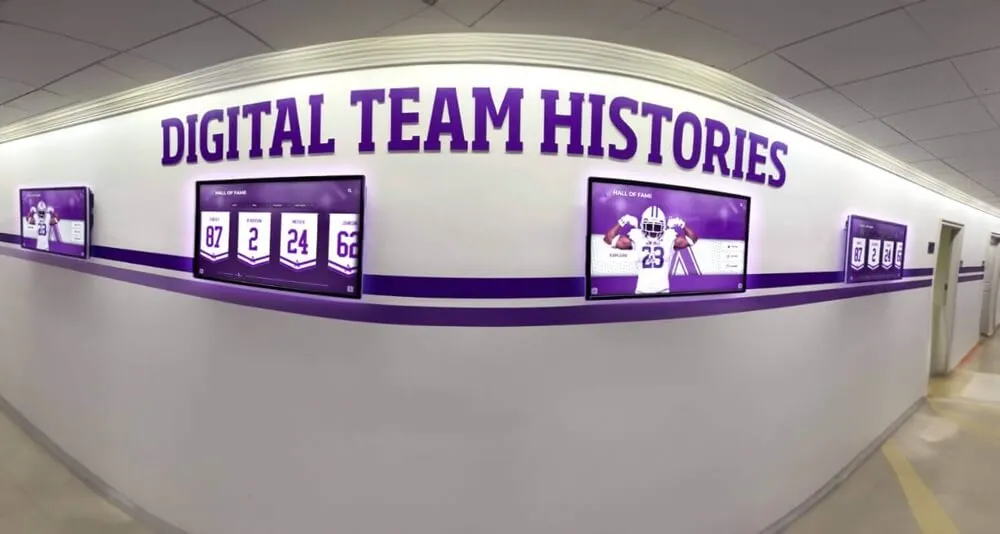
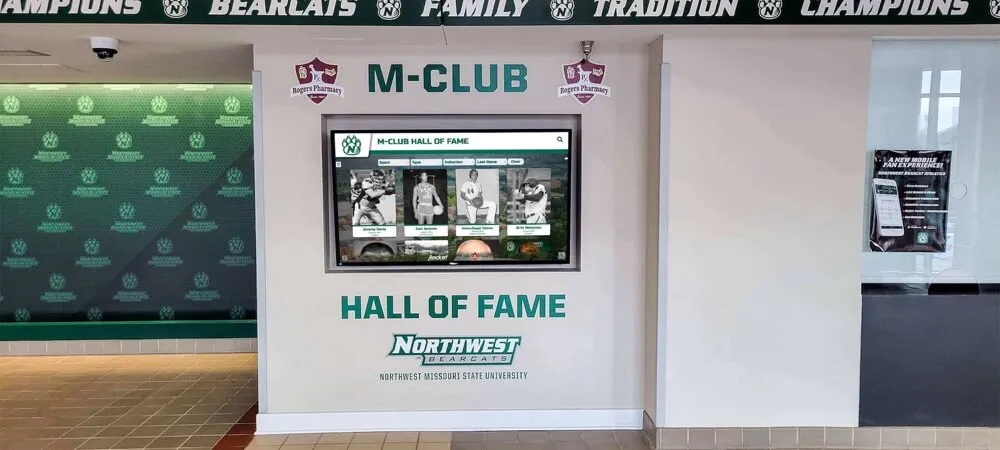
Public Venues Sports arenas, convention centers, and entertainment venues deploy Mac kiosks for interactive recognition displays celebrating team histories and achievements, event information systems providing schedules and details, wayfinding touchscreens helping visitors navigate complex facilities, and sponsorship displays acknowledging supporter contributions.
Best Touchscreen Software for Mac in 2026
Let’s examine the leading software solutions enabling effective Mac-based touchscreen kiosks, evaluating features, strengths, limitations, and ideal use cases.
1. Rocket Touchscreen - The Modern Mac Kiosk Solution
What Makes It Special Rocket Touchscreen, available in the Mac App Store, represents a breakthrough for organizations needing reliable Mac kiosk functionality. Unlike generic solutions requiring technical expertise to configure, Rocket Touchscreen automatically launches into kiosk mode, making Mac-based interactive displays genuinely accessible to non-technical administrators.
Key Features:
Automatic Kiosk Mode Launch Rocket Touchscreen launches directly into secure kiosk mode without requiring complex configuration or terminal commands. This automatic behavior eliminates the technical barriers that traditionally made Mac kiosks challenging to deploy, allowing schools, museums, and other organizations to set up interactive displays without dedicated IT expertise.
Chromium-Based Browser The application runs on Chromium, providing modern web standards support, excellent performance, and broad compatibility with web-based content. Organizations can display any website—custom-built applications, content management systems, or cloud-based platforms—knowing Chromium’s robust rendering engine will handle the content effectively.
Single-Touch Optimized While many touchscreens support multi-touch gestures, Rocket Touchscreen focuses on single-touch interactions. This design decision actually benefits many kiosk applications by simplifying user interfaces and ensuring reliable interaction. For organizations concerned about gesture support, Rocket Alumni Solutions offers complementary “single touch mode” configurations ensuring all functionality remains accessible through simple tap interactions without requiring pinch, zoom, or swipe gestures.
Secure Public Access The software prevents users from exiting kiosk mode through keyboard shortcuts, accessing underlying macOS functions, opening unauthorized applications, or performing system-level actions. This security lockdown ensures displays remain dedicated to their intended purpose even in unsupervised public environments.
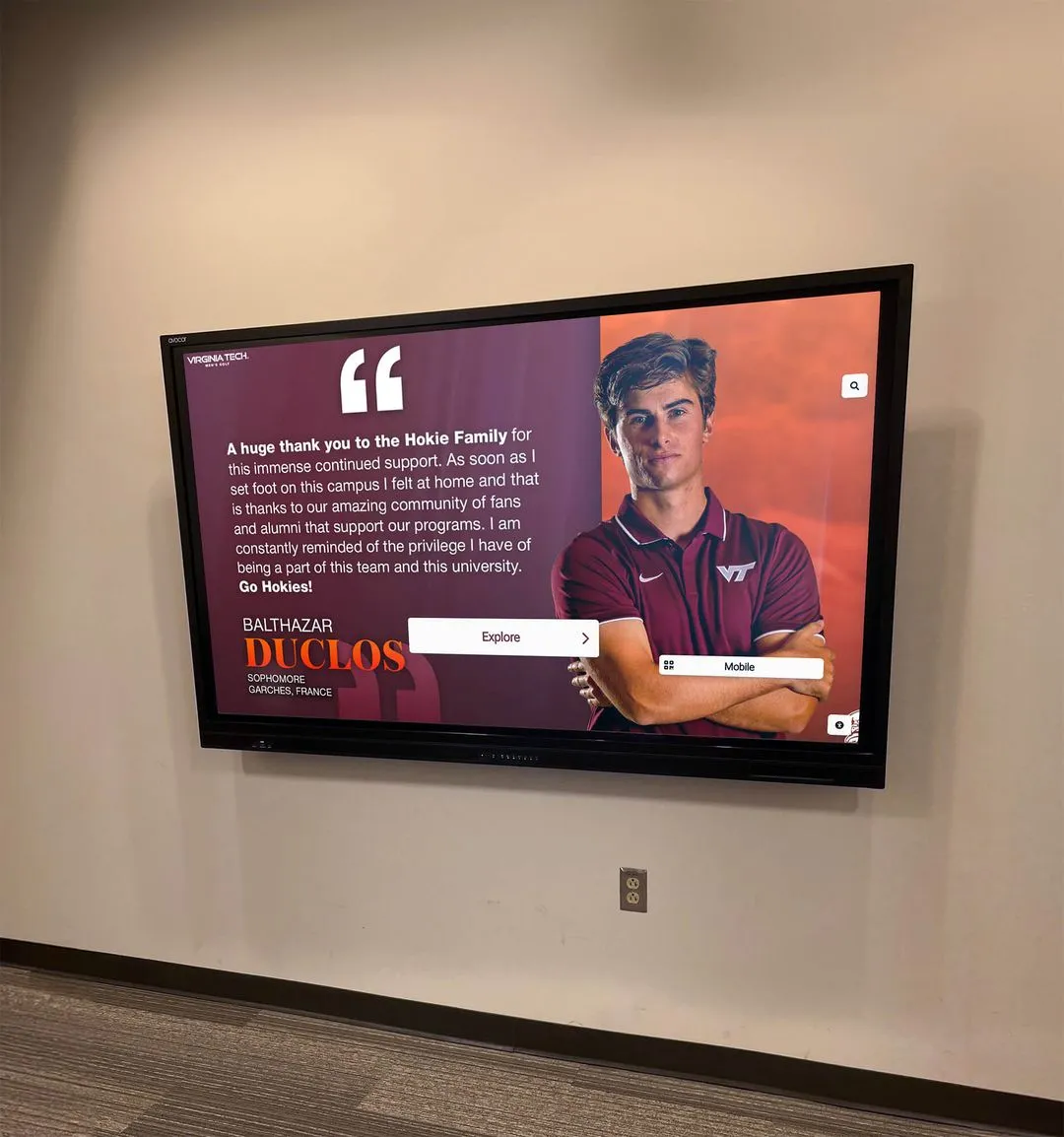
Simple Website Configuration Point Rocket Touchscreen at any URL and it displays that content in full-screen kiosk mode. Whether you’re showcasing a custom-built interactive application, displaying content from a web-based CMS, or presenting an interactive hall of fame, the setup process requires simply entering a web address.
Ideal For:
- Schools implementing digital recognition displays
- Museums creating interactive exhibits
- Corporate offices deploying lobby information kiosks
- Any organization needing reliable Mac kiosk functionality without technical complexity
- Environments where single-touch interaction provides adequate user experience
Pricing: Available through the Mac App Store with straightforward pricing—no complex enterprise licensing or hidden costs.
Why Organizations Choose Rocket Touchscreen: The combination of automatic kiosk mode, modern browser capabilities, and simple configuration addresses the core challenges that have made Mac kiosks difficult. Organizations appreciate being able to leverage their existing Mac hardware investments without sacrificing functionality or security. For schools already using Rocket Alumni Solutions for their digital recognition content, Rocket Touchscreen provides seamless Mac compatibility.
2. Kiosk Pro - Comprehensive iOS and Mac Solution
While primarily known for iPad kiosks, Kiosk Pro offers Mac compatibility through Mac Catalyst, bringing its mature iOS kiosk platform to macOS on Apple Silicon Macs.
Features:
- Proven kiosk lockdown preventing unauthorized access
- Website and local HTML content display
- Remote management capabilities for multi-device deployments
- Extensive configuration options for customization
- Screen idle timeout and automatic content refresh
- Password-protected settings ensuring configuration security
Limitations:
- Requires Apple Silicon Macs (M1, M2, M3, or newer)
- Complex configuration with dozens of settings requiring technical knowledge
- iOS-centric design may not fully leverage Mac capabilities
- Premium pricing structure with multiple tiers
Best For: Organizations already invested in iPad kiosk deployments using Kiosk Pro who want to extend the same platform to Mac hardware. The learning curve and configuration complexity make this less ideal for organizations seeking simple Mac kiosk solutions.
Pricing: Multiple tiers ranging from basic (free with limitations) to Plus ($179) and Enterprise ($349+) with additional per-device costs for remote management.
3. eCrisper - Web Browser Kiosk for Mac
eCrisper provides a dedicated Mac kiosk browser built specifically for public access scenarios using native macOS technologies.
Features:
- Native Mac application optimized for macOS performance
- Customizable start page and navigation controls
- Automatic session clearing protecting user privacy
- Optional on-screen keyboard for text input
- Configurable idle timeout returning display to home screen
- Print functionality for specific use cases
Limitations:
- Limited to web browsing—cannot display native applications
- Basic interface lacking advanced interactivity features
- No built-in multi-touch gesture support
- Limited remote management capabilities
- Dated interface design
Best For: Organizations needing straightforward web browsing kiosks without advanced interactive features. The basic approach works for simple information display but falls short for sophisticated interactive touchscreen experiences.
Pricing: One-time purchase pricing available through eCrisper’s website.

4. DIY Solutions - Chrome/Safari in Kiosk Mode
Technically inclined organizations can configure standard browsers for kiosk use through command-line flags, AppleScript automation, and system preference modifications.
Approach:
- Launch Chrome or Safari with full-screen parameters
- Use keyboard mapping software to disable system shortcuts
- Configure automatic login and application launch
- Implement session clearing through scripts
Advantages:
- No software cost beyond browser licenses
- Maximum flexibility for custom configurations
- Full control over every aspect of behavior
Significant Limitations:
- Requires substantial technical expertise for implementation and maintenance
- Fragile configurations that break with OS updates
- No centralized management for multiple displays
- Time-intensive setup for each device
- Difficult troubleshooting when issues occur
- No reliable prevention of users exiting kiosk mode
- Limited or no touchscreen gesture support
Best For: Organizations with dedicated IT staff who want complete control and customization. The technical complexity and ongoing maintenance requirements make DIY approaches impractical for most schools, museums, and businesses. Modern dedicated solutions like Rocket Touchscreen eliminate these challenges while costing less than the staff time required for DIY implementation.
5. Hexnode UEM - Enterprise Device Management
Hexnode provides comprehensive unified endpoint management including Mac kiosk capabilities as part of broader mobile device management (MDM) features.
Features:
- Centralized management for large deployments
- Kiosk mode locking devices to specific applications or websites
- Remote configuration and monitoring
- Security policies and compliance enforcement
- Multi-platform support across iOS, Android, macOS, and Windows
Limitations:
- Designed for enterprise IT departments, not individual kiosk deployments
- Complex setup requiring MDM infrastructure
- Ongoing subscription costs per device
- Overkill for organizations needing only kiosk functionality
- Requires technical expertise to configure properly
Best For: Large organizations already using enterprise MDM platforms who want to incorporate Mac kiosks into existing device management infrastructure. For schools, museums, and smaller businesses needing Mac kiosk solutions without full MDM platforms, this represents excessive complexity and cost.
Pricing: Subscription-based per-device pricing starting around $1.50-2.00 per device monthly, with annual commitments typically required.
Touchscreen Hardware Considerations for Mac Kiosks
Software selection represents only part of successful Mac touchscreen deployments. Hardware choices significantly impact user experience, reliability, and overall satisfaction.
Mac Models for Kiosk Deployments
Mac Mini - The Kiosk Workhorse Mac mini represents the most popular choice for kiosk deployments due to compact size fitting behind displays or in enclosures, affordable pricing compared to other Mac models, adequate performance for kiosk applications, and passive cooling eliminating fan noise in quiet environments. The latest Apple Silicon Mac mini models (M2 and M4) provide excellent performance and energy efficiency for kiosk applications.
iMac - All-in-One Simplicity iMac combines computer and display, simplifying deployment when purchasing both components. However, the built-in display is not touchscreen-capable, requiring external touchscreen monitors—which negates the all-in-one advantage. Additionally, iMac costs significantly more than Mac mini plus separate display combinations, making it less economical for most kiosk scenarios.
Mac Studio - Overkill for Most Kiosks While Mac Studio provides exceptional performance, kiosk applications rarely demand such capabilities. The premium pricing makes Mac Studio impractical for most touchscreen kiosk deployments. Organizations needing only standard interactive display functionality should opt for Mac mini instead.
MacBook and MacBook Pro - Mobile Options MacBook models work for portable or temporary kiosk deployments but present challenges for permanent installations. The closed laptop creates awkward visitor interaction, built-in batteries deteriorate when constantly plugged in, and costs exceed Mac mini solutions. For permanent installations, Mac mini with separate touchscreen displays provides better value and user experience.
Touchscreen Display Options
USB-Powered Portable Displays Portable USB-powered touchscreens (typically 13-17 inches) work for small-scale or temporary deployments. These displays connect via USB, drawing power and transmitting touch data through the same cable. While convenient for portability, the small screens limit visibility and multi-person use. Portable displays work well for temporary exhibit spaces, travel demonstrations, or personal kiosks but lack the presence needed for permanent lobby or hallway installations.
Commercial-Grade Touchscreen Monitors Professional touchscreen displays (24-32 inches) provide ideal solutions for most permanent kiosk applications. These displays feature commercial durability ratings for extended operation, capacitive or infrared touch technologies providing reliable interaction, HDMI/DisplayPort video with USB for touch data, VESA mounting compatibility for flexible installation, and anti-glare glass surfaces improving visibility in various lighting. Brands like ELO, Planar, and ViewSonic produce reliable commercial touchscreen monitors compatible with Mac systems.
Large Format Interactive Displays For lobby installations, museums, or shared spaces where multiple people view simultaneously, large format interactive displays (43-86 inches) create impressive experiences. These commercial displays include multi-touch capabilities supporting collaborative interaction, 4K resolution maintaining clarity at larger sizes, built-in computers (Android) with option to use external Macs, and commercial reliability ratings for continuous operation. While the Rocket Touchscreen optimizes for single-touch, the large format still benefits from impressive visual impact and multiple viewers gathering around displays.
Touch Foil and Film Solutions Specialized touch-sensitive films can convert existing non-touch displays into interactive screens. While theoretically compatible with Mac, these solutions introduce additional complexity, potential reliability issues, and often require Windows-based control software. For most Mac kiosk deployments, purpose-built touchscreen displays provide more reliable, streamlined solutions.
Connection and Compatibility
Video Connection Modern Macs use Thunderbolt/USB-C ports requiring adapters for standard display connections. Most touchscreen monitors use HDMI or DisplayPort, necessitating appropriate USB-C to HDMI/DisplayPort adapters or cables. Ensure adapters support the display’s maximum resolution (typically 4K for modern monitors).
Touch Data Connection Touchscreen displays send touch input data via USB. Mac mini and Mac Studio include standard USB-A ports accepting touch monitor USB cables directly. MacBook and MacBook Pro models with only USB-C ports require USB-A to USB-C adapters for connecting touchscreen USB cables. Importantly, macOS recognizes touchscreen inputs as standard mouse clicks without requiring special drivers for most displays.
Testing Compatibility Before committing to specific touchscreen hardware, verify Mac compatibility. Most commercial touchscreen monitors work with Mac as generic input devices, but confirming compatibility with your specific Mac model and macOS version prevents deployment issues. Manufacturers like ELO and Planar typically document Mac compatibility for their commercial touchscreen products.
Implementing Successful Mac Touchscreen Kiosks
Technical specifications matter, but successful deployments require thoughtful implementation addressing user experience, content design, and ongoing management.
Content Design for Touchscreen Interaction
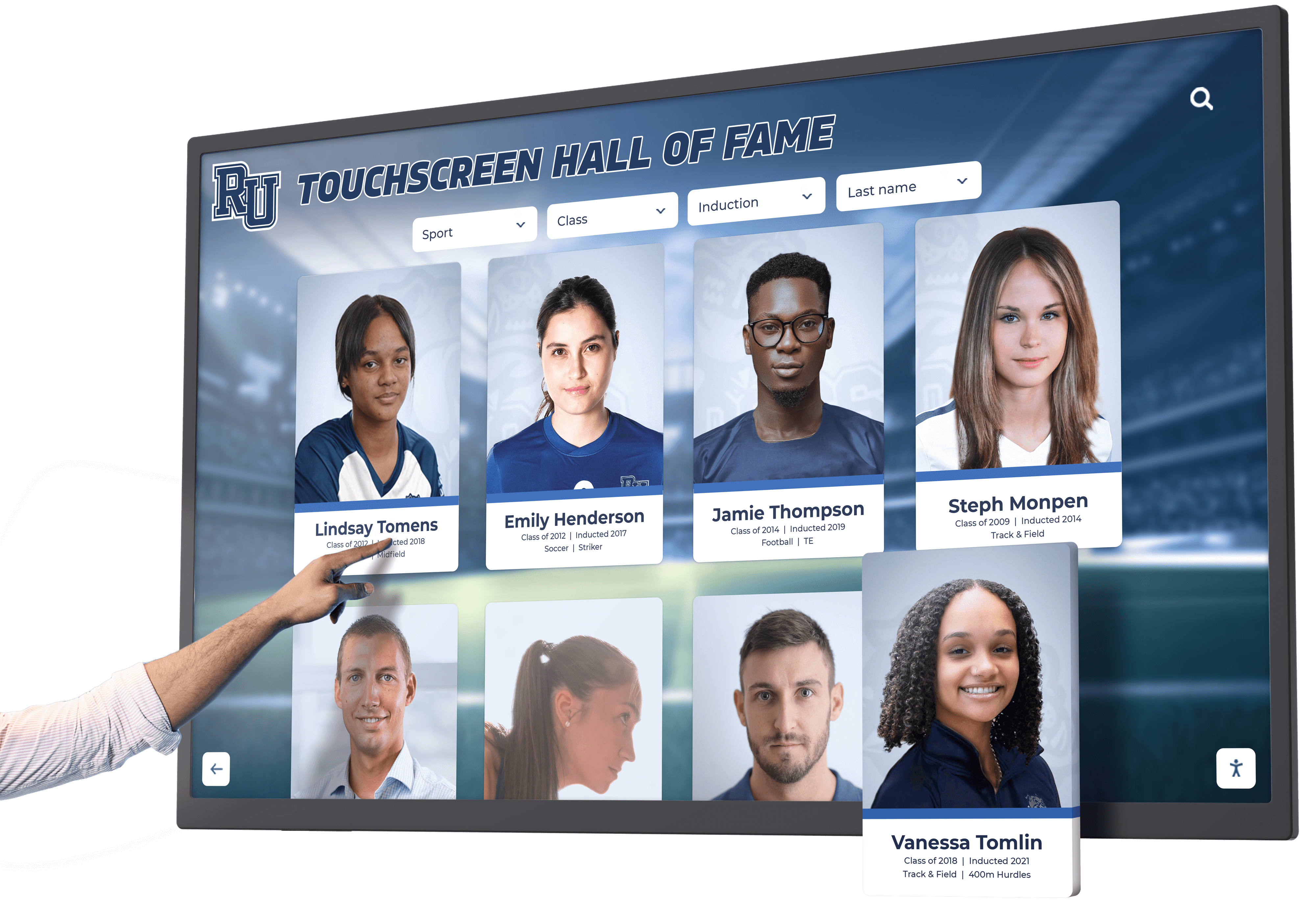
Single-Touch Interface Principles When using software like Rocket Touchscreen optimized for single-touch interaction, design content accordingly. Use clearly defined tap targets (buttons, links) rather than requiring multi-touch gestures, avoid interfaces depending on pinch-to-zoom functionality, and implement tap-based navigation instead of swipe gestures. Solutions like Rocket Alumni Solutions offer “single touch mode” ensuring all interactive elements work through simple tapping, eliminating dependence on multi-touch gestures.
Touch Target Sizing Unlike mouse-driven interfaces where precise cursors enable small click targets, touchscreen interfaces need larger interactive elements. Follow these guidelines for effective touch interaction:
- Minimum 44x44 pixel tap targets (Apple’s recommended guideline)
- 60-80 pixel targets provide more comfortable interaction
- Adequate spacing between interactive elements preventing accidental taps
- Visual feedback confirming when elements are touched
Visual Hierarchy and Clarity Public touchscreen kiosks serve visitors with varying technical comfort levels. Clear visual design ensures accessibility:
- Strong contrast between text and backgrounds for readability
- Large, legible fonts (minimum 16-18 point for body text)
- Obvious interactive elements that look tappable
- Consistent navigation patterns reducing cognitive load
- Minimal text with emphasis on visual communication
Security and Session Management
Automatic Session Reset Public kiosks must clear data and return to home screens after users finish. Implement automatic session resets through:
- Idle timeout detection (typically 30-90 seconds)
- Automatic navigation back to home/start screen
- Browser cache and cookie clearing
- Reset of any user preferences or state
Software like Rocket Touchscreen handles these requirements automatically. For DIY approaches, implement these features through custom scripting—adding significant complexity.
Physical Security Software security matters, but physical security ensures displays remain available and undamaged:
- Secure Mac computers behind displays or in locked enclosures
- Cable management preventing disconnection or theft
- Disabled ports and physical access to Mac systems
- Mounting solutions preventing display theft or vandalism
- Consider kiosk enclosures for high-risk public environments
Network Security Kiosk devices require network connectivity but should be isolated from sensitive organizational networks:
- Separate VLANs or network segments for kiosk devices
- Firewall rules limiting kiosk network access
- Regular security updates for macOS and kiosk software
- Monitoring for unusual network activity
Content Management and Updates
Web-Based Content Benefits Using kiosk software that displays web-based content (like Rocket Touchscreen pointing to URLs) provides significant management advantages:
- Update content centrally without touching kiosk hardware
- Multiple displays automatically show updated content
- No need to physically access kiosks for content changes
- Version control and rollback capabilities
- A/B testing different content approaches
This model particularly benefits organizations using platforms like Rocket Alumni Solutions, where administrators manage content through web-based dashboards, and all connected displays—whether in schools, museums, or corporate offices—automatically reflect updates.
Scheduling and Automation Advanced kiosk deployments benefit from automated content scheduling:
- Different content during different times or seasons
- Scheduled display sleep/wake for energy savings
- Automated software updates during off-hours
- Content rotation maintaining visitor interest
Analytics and Engagement Tracking Understanding how visitors interact with touchscreen displays informs content optimization. Web-based content platforms can track metrics including session duration, most-viewed content, search terms and navigation patterns, and peak usage times. These insights help organizations refine content, understand visitor interests, and demonstrate return on investment for kiosk deployments.
Real-World Mac Kiosk Applications
Examining specific use cases demonstrates how organizations successfully deploy Mac touchscreen kiosks solving real challenges.
Educational Institutions
Challenge: Schools and universities wanted to celebrate student achievements beyond limited trophy case space while maintaining their Mac-standardized technology environments. Traditional recognition methods couldn’t scale to honor all deserving students, and updating physical displays required significant time and effort.
Solution: Institutions deployed Mac mini computers connected to commercial touchscreens, running Rocket Touchscreen to display web-based interactive recognition content. The automatic kiosk mode eliminated technical complexity, while web-based content management enabled staff to update recognition displays remotely without IT involvement.
Results: Students regularly interact with displays during passing periods, searching for their own achievements and exploring classmates’ accomplishments. School culture strengthened through visible celebration of academic, athletic, and arts achievements. Alumni visiting campus can find their historical recognition, strengthening connections to their schools. Content updates that previously required weeks of fabrication now occur within minutes through web-based dashboards.
Museums and Cultural Institutions
Challenge: Museums needed interactive exhibits engaging visitors with historical content, but Windows-based kiosks didn’t align with their Mac-standardized technology infrastructure. Previous attempts using DIY Mac browser configurations proved fragile and unreliable, frequently requiring IT intervention to restore kiosk functionality after OS updates.
Solution: Institutions implemented Rocket Touchscreen on Mac mini computers, displaying custom-developed web-based exhibits. The Chromium-based browser ensured broad compatibility with interactive web content, while automatic kiosk mode prevented visitors from exiting exhibits or accessing system functions.
Results: Visitors engage with interactive historical content, exploring museum collections through intuitive touch interfaces. Museum IT staff appreciate the reliability and simplified management compared to previous DIY configurations. The web-based content model allows exhibit designers to update and refine interactive experiences remotely without physical access to kiosk hardware.
Corporate Environments
Challenge: Companies with Mac-standardized offices wanted to implement digital employee recognition displays in lobbies and common areas but found most kiosk software required Windows. IT departments didn’t want to introduce Windows infrastructure solely for recognition displays, but couldn’t find reliable Mac kiosk solutions.
Solution: Organizations deployed Mac-based touchscreen kiosks running Rocket Touchscreen, displaying web-based recognition content from platforms like Rocket Alumni Solutions. The Mac consistency maintained IT standardization, while automatic kiosk functionality eliminated administrative burden.
Results: Employees regularly explore recognition displays during breaks and transitions, building awareness of colleague accomplishments. Visitors and clients viewing displays in lobbies gain positive impressions of company culture. IT departments appreciate not managing separate Windows infrastructure, and HR teams value easy content updates celebrating employees without technical barriers.
Cost Considerations for Mac Touchscreen Kiosks
Understanding total cost of ownership helps organizations budget appropriately and justify investments.
Hardware Costs
Mac Computer:
- Mac mini (M2): $599 (base) to $1,299 (upgraded storage/memory)
- Mac mini (M4): $599 (base) to $1,499 (upgraded)
- Used/refurbished Mac mini: $300-500 (adequate for many kiosk applications)
Touchscreen Display:
- Portable USB touchscreen (15"): $200-400
- Commercial touchscreen monitor (24"): $600-1,200
- Commercial touchscreen monitor (32"): $1,200-2,000
- Large format interactive display (55"): $2,500-4,000
- Large format interactive display (75"): $4,500-7,000
Mounting and Installation:
- VESA wall mount: $50-150
- Professional installation: $200-500
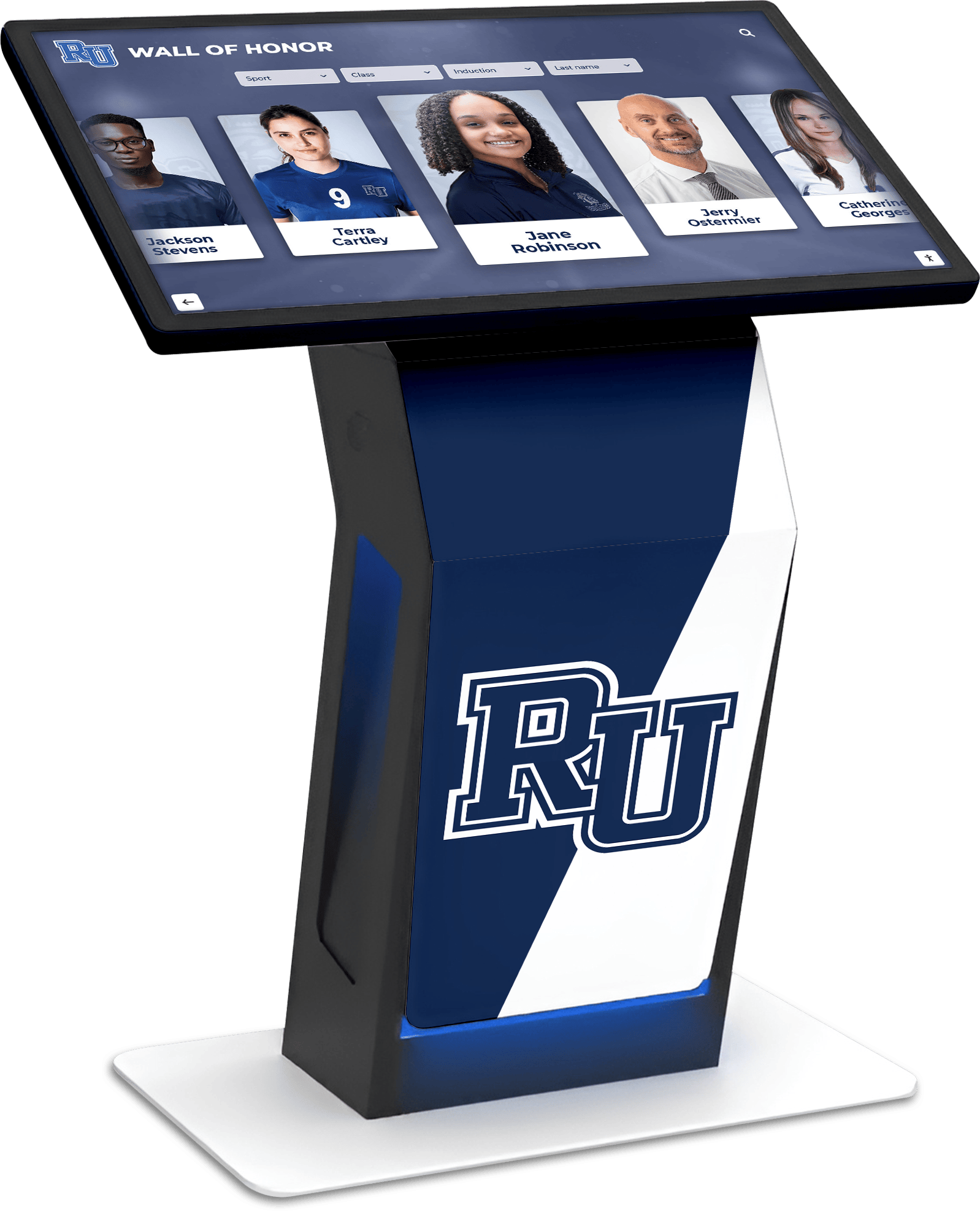
- Kiosk enclosure (freestanding): $1,000-3,000
Typical Single-Display Investment: $1,500-3,500 for standard hallway/lobby installation (Mac mini + 24" touchscreen + mounting)
Software and Content Costs
Kiosk Software:
- Rocket Touchscreen: Mac App Store pricing
- eCrisper: One-time purchase (approximately $99-199)
- Kiosk Pro: $179-349 one-time + optional remote management subscriptions
- DIY browser-based: $0 (but significant staff time investment)
Content Platform: Organizations using web-based content typically subscribe to platforms providing the interactive experiences displayed on kiosks. For recognition applications, solutions like Rocket Alumni Solutions provide comprehensive platforms including content management, interactive displays, and ongoing support.
Total First-Year Cost Estimate:
- Hardware: $1,500-3,500
- Kiosk software: $0-349
- Content platform: Varies by provider and features
- Installation and setup: $200-500
- Typical Total: $2,000-5,000 per display location
Return on Investment
Tangible Benefits:
- Eliminated printing and fabrication costs for physical recognition displays
- Reduced staff time updating physical exhibits and displays
- Decreased signage costs with digital information displays
- Extended life compared to physical displays requiring replacement
Intangible Benefits:
- Enhanced organizational culture through visible recognition
- Improved visitor experience with engaging interactive content
- Modernized image demonstrating technological innovation
- Increased capacity to recognize achievements without space limitations
Many organizations find that digital touchscreen displays using solutions like Rocket Touchscreen pay for themselves within 1-2 years through eliminated physical display costs and staff time savings, while providing far superior user experiences and unlimited recognition capacity.
Comparing Mac vs. Windows for Touchscreen Kiosks
Organizations sometimes wonder whether they should adapt Mac infrastructure to kiosks or introduce Windows devices. Understanding the comparison helps make informed decisions.
Advantages of Mac for Kiosks
Existing Infrastructure Alignment Organizations already standardized on Mac benefit from maintaining consistency—unified IT support and expertise, compatible with existing management tools, familiar troubleshooting and maintenance, and consistent user account and security policies. Introducing Windows solely for kiosks creates parallel infrastructure increasing complexity.
Hardware Reliability and Design Mac hardware often provides advantages for public-facing kiosks including premium aesthetic matching professional environments, solid-state storage reducing mechanical failure risks, and efficient cooling enabling quiet operation or passive cooling. The physical appearance of Mac-based kiosks can matter significantly in museums, corporate lobbies, and educational institutions where design standards are high.
Lower Maintenance Requirements Many organizations report Mac systems requiring less frequent maintenance and troubleshooting compared to Windows counterparts. For kiosk deployments where devices should operate reliably with minimal attention, Mac reliability becomes valuable.
Security Profile While both Mac and Windows can be secured appropriately, organizations sometimes prefer Mac’s security profile for public-facing devices, particularly when those devices connect to organizational networks.
Advantages of Windows for Kiosks
Native Kiosk Features Windows includes built-in kiosk mode functionality (Assigned Access, Shell Launcher) eliminating need for third-party software. Organizations comfortable with Windows administration can implement kiosk lockdown using native tools.
Broader Software Compatibility The Windows-dominant kiosk market means more specialized kiosk software targets Windows platforms. Organizations with highly specific or unusual requirements may find Windows offers more software choices.
Hardware Variety and Cost Windows PC hardware spans enormous price and form factor ranges, potentially offering lower-cost options than Mac. For large multi-display deployments where hardware costs dominate budgets, Windows solutions might provide cost advantages.
The Verdict
Neither platform universally excels for all kiosk scenarios. Organizations should choose based on:
Choose Mac When:
- Already standardized on Mac infrastructure
- IT expertise centers on Mac administration
- Premium hardware aesthetic matters
- Reliability and reduced maintenance are priorities
- Modern software like Rocket Touchscreen addresses previous Mac kiosk limitations
Choose Windows When:
- Already standardized on Windows infrastructure
- IT expertise centers on Windows administration
- Budget constraints are primary concern
- Specific Windows-only kiosk software is required
- Native OS kiosk features are preferred over third-party solutions
For Mac-standardized organizations, modern solutions like Rocket Touchscreen eliminate previous reasons to introduce Windows infrastructure solely for kiosk deployments. The ability to leverage existing Mac expertise and infrastructure while achieving reliable kiosk functionality represents the best of both worlds.
Future of Mac Touchscreen Kiosks
The Mac kiosk landscape continues evolving with several trends shaping future deployments.
Apple Silicon Impact
Apple’s transition to custom Silicon processors (M-series chips) transforms Mac kiosk capabilities:
Performance and Efficiency M-series Macs provide exceptional performance while using minimal power and generating little heat. This efficiency enables fanless Mac mini models operating silently—ideal for quiet museums, libraries, and office environments. The performance headroom ensures kiosks remain responsive even with complex web-based interactive content.
iOS App Compatibility Apple Silicon Macs run iOS and iPadOS apps through Mac Catalyst, potentially expanding software options. Mature iPad kiosk applications like Kiosk Pro now work on Mac, giving organizations access to iOS-focused kiosk tools without separate iPad hardware.
Unified Platform As Apple’s ecosystem converges across iPhone, iPad, and Mac through shared architecture, software development becomes more efficient. Organizations might see improved Mac kiosk software as developers target the unified Apple platform rather than maintaining Mac-specific versions.
Web Technology Evolution
Progressive advancement of web technologies benefits Mac kiosk deployments relying on browser-based content display:
Progressive Web Applications PWAs enable sophisticated interactive experiences delivered through web browsers, working across platforms without native application development. Organizations can deploy identical interactive content to Mac kiosks, Windows displays, mobile devices, and tablets through responsive web design—maximizing development efficiency while ensuring consistent experiences.
WebAssembly Performance WebAssembly brings near-native performance to web applications, enabling more sophisticated interactive experiences delivered through browsers like Chromium (used by Rocket Touchscreen). Complex data visualization, 3D graphics, and processor-intensive interactivity become viable through web-based kiosk content.
Enhanced Touch APIs Continued evolution of web touch APIs improves browser-based touchscreen support. While Rocket Touchscreen optimizes for single-touch interaction today, advancing web standards may bring enhanced gesture support to browser-based kiosk applications.
Artificial Intelligence Integration
AI capabilities increasingly appear in kiosk applications:
Natural Language Interfaces Future Mac kiosks might incorporate voice interaction enabling visitors to ask questions and receive spoken responses. Combined with touchscreen interaction, voice creates more accessible experiences for visitors with diverse needs.
Personalized Content AI-driven personalization could adapt kiosk content based on interaction patterns, showing relevant information to different visitors. Educational institution kiosks might highlight content related to visitors’ interests, while museum displays could adjust based on viewer engagement patterns.
Automated Content Generation AI tools may assist content creators in generating kiosk materials—writing descriptions, creating summaries, suggesting navigation structures, and optimizing layouts for touchscreen interaction. This automation could reduce content development time and costs.
Accessibility Advances
Continued focus on accessibility benefits Mac kiosk deployments:
Universal Design Future kiosk solutions will likely incorporate improved accessibility features as standard rather than add-ons—better screen reader support, enhanced keyboard navigation alternatives, adjustable text sizes and contrast, and multiple input method support. Organizations deploying inclusive interactive displays benefit from platforms prioritizing accessibility.
Alternative Interaction Methods Beyond touch, kiosks may support additional interaction modes including voice commands for hands-free operation, gesture recognition through cameras, and adaptive interfaces accommodating varying abilities. Mac’s accessibility foundation positions it well for these enhancements.
Conclusion: Selecting the Right Mac Touchscreen Software
Deploying reliable, secure touchscreen kiosks on Mac has evolved from technically challenging to straightforward thanks to modern solutions addressing longstanding limitations. Organizations once forced to choose between complex DIY configurations, introducing Windows infrastructure, or settling for unreliable results now have viable Mac-native options.
Rocket Touchscreen stands out as the most accessible solution for organizations needing Mac kiosk functionality without technical complexity. The automatic kiosk mode launch, Chromium-based browser compatibility, and straightforward configuration make Mac touchscreen deployments achievable for schools, museums, businesses, and institutions without dedicated IT departments. The focus on single-touch interaction, complemented by “single touch mode” configurations from content providers like Rocket Alumni Solutions, ensures excellent user experiences without requiring complex multi-touch gesture support.
For organizations with specific requirements, alternatives like Kiosk Pro provide additional capabilities at the cost of increased complexity and configuration effort. Enterprise-focused solutions like Hexnode UEM serve large deployments needing comprehensive device management but represent overkill for straightforward kiosk applications.
The key to successful Mac touchscreen deployments lies in matching solutions to specific needs—understanding whether automatic simplicity or extensive customization matters most, evaluating whether single-touch or multi-touch interaction serves your use case, and deciding between dedicated kiosk software or DIY browser-based approaches.
Key Takeaways for Organizations Evaluating Mac Touchscreen Kiosks
Mac Kiosks Are Now Viable: Modern software like Rocket Touchscreen eliminates previous technical barriers that made Mac kiosks difficult to deploy reliably.
Choose Solutions Matching Expertise: Organizations without dedicated IT staff benefit from automatic, simplified solutions. Those with technical expertise may prefer configurable platforms offering extensive customization.
Consider Total Cost: Evaluate not just software licensing but also implementation time, ongoing management effort, and content development. Simple solutions that “just work” often cost less overall than complex platforms requiring significant configuration.
Web-Based Content Advantages: Kiosk software displaying web-based content (rather than running local applications) simplifies management, enables remote updates, and often works across multiple platforms maintaining flexibility.
Touchscreen Hardware Matters: Invest in commercial-grade touchscreen displays designed for continuous operation rather than consumer products that fail prematurely in public access scenarios.
Accessibility and Inclusion: Ensure selected solutions support visitors with diverse abilities. Single-touch interfaces with clear visual design serve broader audiences than complex gesture-dependent interactions.
Ready to deploy reliable Mac touchscreen kiosks in your organization? Whether you’re implementing digital recognition displays in schools, creating interactive museum exhibits, or developing corporate recognition systems, solutions like Rocket Touchscreen combined with content platforms from Rocket Alumni Solutions provide comprehensive, reliable approaches that leverage your Mac infrastructure while delivering exceptional visitor experiences.
Disclosure: This content was produced by Rocket Alumni Solutions to provide educational information about Mac touchscreen kiosk software options.
Trademark Notice: All product names, software names, and trademarks mentioned in this article are the property of their respective owners. Rocket Alumni Solutions is not affiliated with or endorsed by Apple, Kiosk Pro, eCrisper, Hexnode, or other third-party vendors mentioned in this comparison. Product names are used for informational and comparative purposes only.
Comparison Disclaimer: This comparison is based on publicly available information as of January 2026. Software features, pricing, and capabilities may change over time. All comparative statements reflect Rocket Alumni Solutions’ interpretation of available data and general industry observations. Readers should verify current product specifications directly with vendors before making purchasing decisions. Product names and trademarks belong to their respective owners.